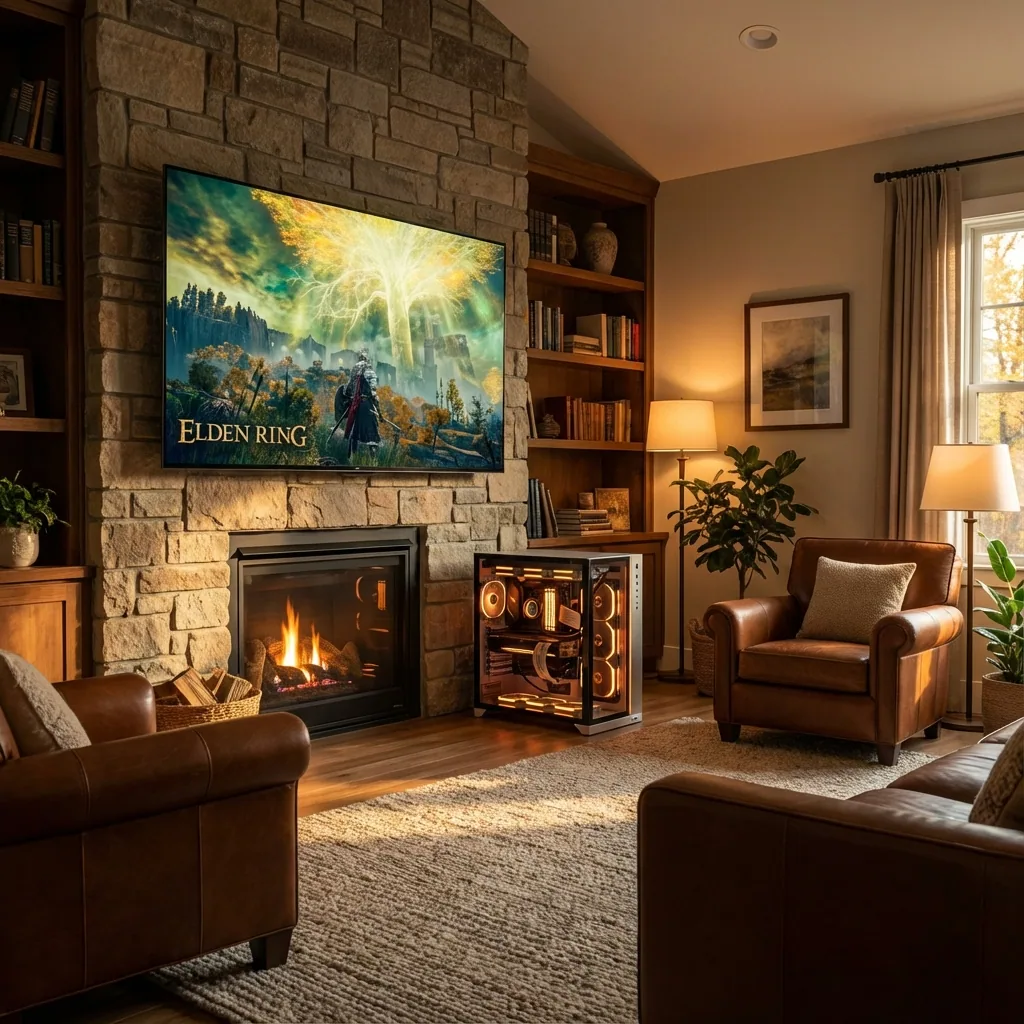
There's something undeniably amazing about gaming on a massive screen. After spending years on traditional 27" monitors, I made the jump to a 48" LG C1 OLED for my primary gaming display, and honestly, there's no going back. The immersion is unreal, the colors are stunning, and HDR gaming finally makes sense.
But big screen PC gaming isn't just about buying the biggest TV you can afford and plugging it in. There are real challenges to overcome, from managing screen real estate to finding the sweet spot between visual fidelity and performance. This guide covers everything I've learned from my journey into big screen gaming PC setups.
The Rise of Big Screen PC Gaming in 2025
Big screen gaming used to mean compromise. TVs had terrible input lag, poor refresh rates, and couldn't compete with gaming monitors for competitive play. That's completely changed.
Modern OLEDs like the LG C3/C4 series, Samsung S90C, and Sony A95L deliver 120Hz refresh rates, sub-1ms response times, and input lag that rivals dedicated gaming monitors. We're talking 5-10ms input lag at 4K 120Hz - imperceptible even for competitive gaming.
The gaming community has noticed. Browse r/OLED_Gaming and you'll see thousands of PC gamers who've made the switch. The appeal is clear: cinema-level picture quality for single-player epics, plus the performance metrics needed for competitive shooters.
What's driving this shift? A few things:
- HDMI 2.1 adoption - Both GPUs and TVs now support 4K 120Hz over a single cable
- OLED prices dropping - 48" OLEDs that cost $1,500 in 2020 now go for $600-800 on sale
- Console convergence - Xbox and PlayStation targeting 120fps has pushed TV manufacturers to prioritize gaming
- GPU horsepower - RTX 4080/4090 and RX 7900 XTX can actually drive 4K at high framerates
- Desk-mounted displays - VESA mounts and monitor arms making desk placement viable
I'm not saying traditional monitors are dead. But for immersive gaming, content creation, and that "wow" factor when you boot up Cyberpunk 2077 or Starfield? Big screens deliver something special.
TV vs Monitor in 2025: What Actually Matters
Let's cut through the marketing BS and talk real specs that matter for PC gaming on big screens.
Response Time & Input Lag
Response time is how fast pixels change color (gray-to-gray). Input lag is the delay between your input and the display updating. Both matter, but input lag matters more.
Premium OLEDs deliver 0.1-0.2ms GtG response times - faster than any LCD monitor. Input lag on modern OLEDs in Game Mode sits around 5-10ms at 4K 120Hz. For reference, competitive gaming monitors are around 1-3ms. The difference is imperceptible to most players.
What you need: Look for TVs with dedicated Game Mode, ALLM (Auto Low Latency Mode), and check RTings.com for measured input lag numbers. Don't trust manufacturer specs.
Refresh Rate Reality
120Hz is the sweet spot for big screen gaming PCs. Some displays claim 144Hz, but check the fine print - many require resolution compromises or only hit 144Hz over DisplayPort (which limits you to PC-only use).
Native 120Hz at full 4K resolution over HDMI 2.1 is what you want. It's perfect for modern GPUs and gives you flexibility for console gaming too.
Panel Technology Breakdown
OLED - Perfect blacks, infinite contrast, near-instant response. Risk of burn-in if you're careless. Best for varied content and immersive gaming.
QD-OLED - Samsung's tech with even brighter colors and better viewing angles. Slightly more burn-in resistant than W-OLED. More expensive.
Mini-LED - Bright, no burn-in risk, good HDR. But slower response times and blooming around bright objects. Better for mixed desktop/gaming use.
For pure gaming? OLED wins on motion clarity and contrast. For 12-hour-a-day desktop work with gaming on the side? Mini-LED is safer.
Size & Viewing Distance
Here's where big screen gaming PC setups get tricky. The standard viewing distance formula is 1.5x the screen height for optimal immersion without eye strain.
For a 48" display (42" height): optimal viewing distance is about 5 feet.
For a 55" display (48" height): you want 6 feet back.
Most desk setups put you 2-3 feet from the screen. This is too close for a 55"+ display unless you enjoy turning your head constantly. I run my 48" at about 3.5-4 feet and it works beautifully. Any bigger would be overwhelming.
The 42" OLED options (LG C3/C4 42") are specifically designed for desk use. They're the sweet spot if you're arms-length from your display.
The Screen Real Estate Challenge
Here's the dirty secret about big screen gaming: all that space becomes a problem.
When you're playing a game in fullscreen, UI elements get pushed to the screen edges. In competitive games, this means your minimap is 4 feet to the right, your health bar is 3 feet to the left, and you're constantly whipping your head around like you're watching tennis.
Even single-player games suffer. The immersion is incredible, but menu text is tiny, dialog subtitles require leaning forward, and your neck gets sore from scanning the massive display.
Then there's the desktop experience. Windows on a 48" 4K display means you have 8.3 million pixels to organize. Opening a single window fills a fraction of the screen. You end up either running windows full-screen (wasting space) or manually resizing everything (tedious).
The Traditional Solutions (And Why They Suck)
Borderless windowed mode - Runs the game in a window that looks fullscreen. You lose performance, sometimes significant performance. Frame pacing can get wonky. Not ideal.
PBP (Picture-by-Picture) - Some TVs have this built-in to split the screen. But it's for multiple INPUTS, not organizing your PC desktop. Useless here.
Windows Snap - Dragging windows to edges to tile them. Works for desktop apps, completely useless for games which demand exclusive fullscreen.
Third-party tools - DisplayFusion, PowerToys FancyZones, etc. Great for window management, but they don't solve the game fullscreen problem.
The Zone-Based Solution
This is literally why I built Staged. The concept is simple but powerful: create a Game Stage in the center of your display where games run with native fullscreen performance, then define zones around it where other apps stay visible.
Think of it like this: your game gets a 2560x1440 or 3840x2160 dedicated zone in the center. Discord gets a 400px zone on the left. YouTube or OBS preview gets a zone on the right. Your game thinks it owns the whole display (full performance), but you can see everything at once.
The result? You get the immersion of big screen gaming without the neck strain, UI elements stay in your field of view, and you can monitor Discord/stream chat/guides without Alt-Tabbing.
I cover this in-depth in my 4K OLED gaming setup guide and ultrawide gaming guide, but the zone-based approach solves the fundamental problem of organizing massive displays.
Controller vs Keyboard & Mouse on Big Screens
This is personal preference territory, but here's what I've found:
Controller gaming on a big screen is perfect. You're sitting back, relaxed, and the screen size enhances immersion. Single-player games like Elden Ring, Cyberpunk, or racing sims are incredible experiences.
Keyboard & mouse works great for competitive gaming where you're leaned in anyway. The big screen gives you better visual clarity, and if you're using a zone-based layout, important UI stays in your peripheral vision.
Where it gets weird is desktop work on a huge display. Moving your mouse across 48" of screen space is a workout. You'll want to increase pointer speed or use mouse acceleration (controversial, I know).
My setup: controller for single-player, K&M for competitive shooters and strategy games, and a trackball for desktop productivity. Sounds excessive, but each input method shines in different contexts on a big display.
Brightness, Dimming, and Eye Comfort
Here's something nobody talks about: a 48" OLED cranked to peak brightness in a dark room will literally hurt your eyes.
OLEDs can hit 700-1000 nits in HDR highlights. That's searchlight territory. For comfortable extended gaming, you want 100-200 nits for SDR content, 300-400 nits for HDR in a dim room.
ABL (Auto Brightness Limiter)
OLEDs have built-in protection to prevent burn-in and extend panel life. When large portions of the screen are bright white, the TV automatically dims. This is ABL, and it's most noticeable on desktop use.
Gaming content is varied enough that ABL rarely triggers. But if you run Windows with a white taskbar and bright wallpaper, you'll see dimming. Solution: use dark mode everything, hide the taskbar, or accept that desktop use will dim occasionally.
Bias Lighting
Mount an LED strip behind your display tuned to 6500K. This reduces eye strain by minimizing the brightness contrast between your screen and the wall behind it. Cheap, effective, and recommended by basically everyone in the OLED community.
I use a MediaLight bias light (6500K calibrated) and it makes hours-long gaming sessions way more comfortable.
Performance Considerations
Driving a 48" 4K display at high framerates requires serious GPU horsepower.
For 4K 60fps - RTX 4070, RX 7800 XT minimum. You'll need to use DLSS/FSR in demanding titles.
For 4K 120fps - RTX 4080 or better. Even then, you're using frame gen and upscaling in new AAA games.
For 4K competitive gaming - You probably want to run at 1440p or use aggressive DLSS Performance mode. Native 4K in fast-paced shooters is brutal on framerates.
The good news: big screens make upscaling artifacts less visible. DLSS Quality at 4K on a 48" display from 4 feet away looks essentially native. You're not pixel-peeping like you would on a 27" monitor 2 feet from your face.
HDR Gaming
This is where big screen OLEDs absolutely shine. HDR on a proper OLED with per-pixel lighting and infinite contrast is transformative.
Enable Auto HDR in Windows 11 for older games. Use the Windows HDR Calibration app to set peak brightness correctly. In-game, enable HDR and set the paper white slider to match your preference (I like 200 nits for comfortable viewing).
Games that do HDR right (Cyberpunk 2077, Forza Horizon 5, Doom Eternal) look absolutely stunning on a big OLED. It's genuinely a generation leap in visual quality.
Recommended Big Screen Gaming PC Displays
Based on extensive research and community feedback from r/OLED_Gaming and RTings:
Best Overall: LG C3 or C4 OLED (42" or 48")
- 120Hz native, ~5ms input lag
- Excellent color accuracy
- Four HDMI 2.1 ports
- Mature platform with great Game Optimizer features
- 42" model designed for desk use
- $800-1,200 depending on sales
Best Picture Quality: Samsung S90C QD-OLED (48")
- Brighter than W-OLED in HDR
- More vibrant colors
- Same gaming performance as LG
- Slightly more burn-in resistant
- $1,000-1,400
Best for Mixed Use: Samsung QN90C Mini-LED (50")
- No burn-in risk
- Extremely bright (great for daytime gaming)
- 120Hz with low input lag
- Some blooming in dark scenes
- $900-1,200
Budget Option: TCL QM8 Mini-LED (55")
- Excellent value proposition
- 120Hz, decent input lag (~15ms)
- Very bright
- Gaming features improving with updates
- $600-800
Avoid: cheap 4K TVs without Game Mode, anything with less than 120Hz, and displays without measured reviews on RTings.com.
Setting Up Your Big Screen Gaming PC
Quick setup guide for optimal experience:
1. Physical Setup
- Mount at eye level when seated (or slightly below)
- Maintain 3.5-4 feet for 48", 2.5-3 feet for 42"
- Add bias lighting behind the display
- Consider a monitor arm for ergonomic adjustment
2. Display Settings
- Enable Game Mode (drastically reduces input lag)
- Turn OFF motion smoothing, soap opera effect, all post-processing
- Enable ALLM and VRR/G-Sync compatibility
- Calibrate HDR using Windows 11 HDR Calibration tool
- Set OLED Pixel Shift and Screen Saver to reduce burn-in risk
3. Windows Configuration
- Set scaling to 125% or 150% (100% makes text tiny)
- Enable dark mode
- Auto-hide taskbar to prevent burn-in
- Use dynamic wallpapers (not static bright images)
4. Zone Management
- Set up a zone layout with a centered Game Stage
- Create zones for Discord, browser, OBS, etc.
- Save different profiles for competitive vs casual gaming
- Use per-game profiles for games with different aspect ratios
Check out my zone editor mastery guide for detailed zone configuration.
Common Big Screen Gaming Issues (And Fixes)
"Text is blurry or looks weird"
You're probably running at non-native resolution or have bad scaling settings. Set Windows scaling to 125-150% and run games at native 4K.
"Input lag feels off"
Make sure Game Mode is enabled on the TV. Turn off ALL post-processing features. Check you're using HDMI 2.1 cable and port.
"I'm getting 60fps locked"
Windows might be limiting refresh rate. Right-click desktop > Display Settings > Advanced Display > choose 120Hz. Also check in-game settings.
"Colors look washed out"
Your TV is probably in Vivid mode or has weird color settings. Switch to Game Mode, set Color Space to Auto or Native, and disable dynamic contrast.
"Neck hurts after gaming sessions"
You're sitting too close or the display is too big for your viewing distance. Move back or consider a smaller size.
"Desktop use dims the screen constantly (ABL)"
This is normal OLED behavior with bright static content. Use dark mode, hide taskbar, and accept some dimming for desktop work. Gaming won't trigger ABL nearly as much.
Frequently Asked Questions
Is OLED burn-in really a concern for PC gaming?
It's a real risk but manageable. Use dark mode, enable pixel shift, run screen savers, hide taskbars, and vary your content. Gamers who follow basic precautions rarely see burn-in issues even after years of use. Avoid leaving static HUDs visible 24/7 and you'll be fine.
Can I use a 48" TV as my only monitor for work and gaming?
Yes, but with caveats. OLED burn-in risk increases with static desktop content. Many people use a 48" OLED for gaming and a separate monitor for productivity. If going single-display, consider Mini-LED instead of OLED.
What GPU do I need for 4K 120Hz gaming?
For competitive 120fps: RTX 4080 or RX 7900 XTX minimum. For 60fps in AAA games: RTX 4070 or RX 7800 XT. DLSS/FSR help tremendously, so Nvidia's upscaling advantage makes RTX 40-series appealing.
Is 42" or 48" better for desk gaming?
42" for desks where you sit 2-3 feet away. 48" if you can position yourself 3.5-4 feet back or mount the display higher/farther. The 42" models are specifically designed for PC gaming use.
Do I need HDMI 2.1 for big screen gaming?
For 4K 120Hz, absolutely yes. HDMI 2.0 maxes out at 4K 60Hz. Make sure both your GPU and display support HDMI 2.1, and use a certified Ultra High Speed HDMI cable.
Big screen gaming on PC is no longer a compromise. With the right display, proper setup, and smart screen management, you get the best of both worlds: immersive cinematic experiences and high-performance competitive gaming.
The zone-based approach solves the fundamental challenge of organizing massive displays without sacrificing game performance. Combined with modern OLED technology, it's genuinely the best gaming experience I've ever had.
If you're considering the jump to big screen PC gaming, 2025 is the perfect time. The tech is mature, prices are reasonable, and the community knowledge is extensive. Do your research, check RTings reviews, and prepare for an upgrade you'll wonder how you ever lived without.
Want to optimize your big screen setup? Check out Staged's zone-based display management built specifically for gaming on ultrawide and large format displays.
