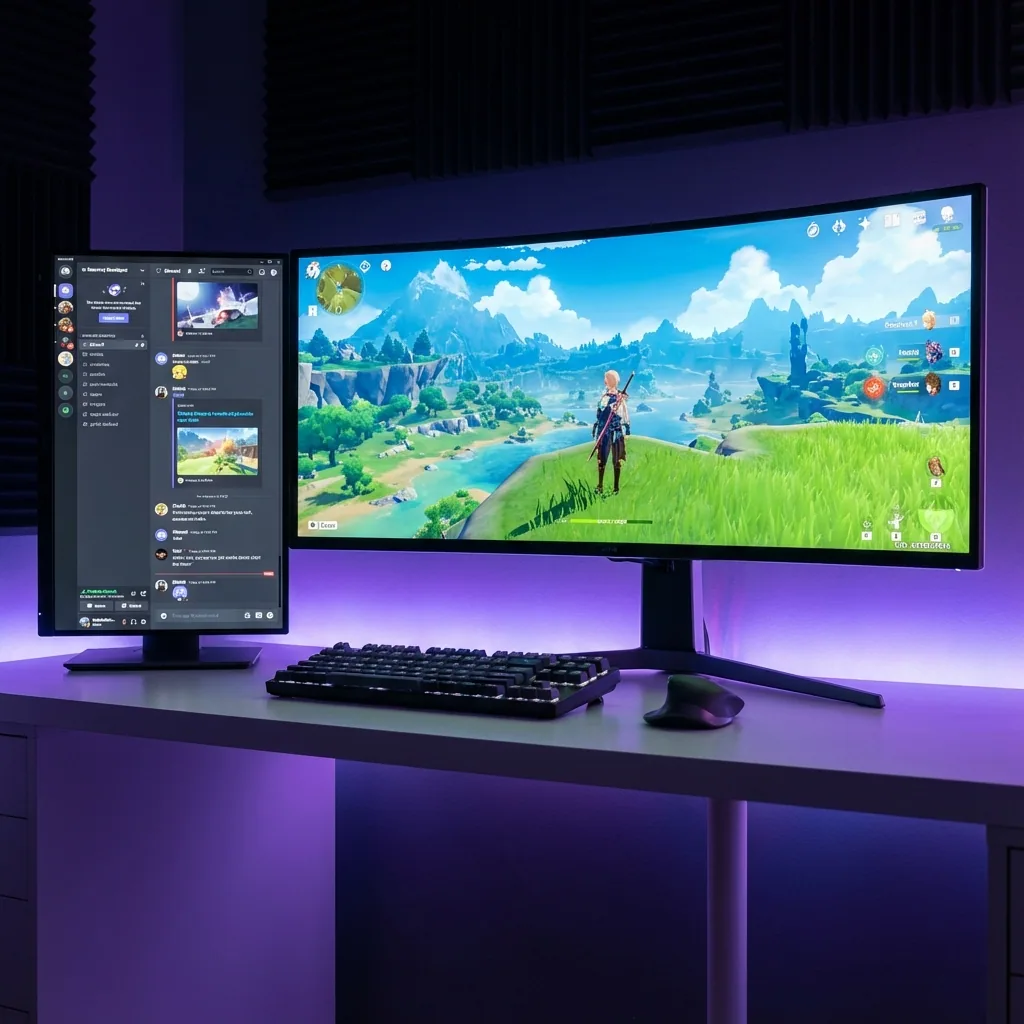
Respuesta rápida: para ver un video mientras juegas en pantalla completa en un solo monitor, ancla el video en una zona justo al lado del juego —no literalmente encima. Pon ahí cualquier fuente de video —un clip de YouTube, un episodio de Netflix, una transmisión de Twitch o una guía en el navegador— y queda junto al juego más grande que una cajita de picture-in-picture, en vivo y clickeable, sin hacer alt-tab y sin pérdida de FPS. En lugar de una ventanita flotando encima, tienes un panel de verdad del tamaño que quieras; y en lugar de que el juego se minimice cuando le das clic al video, el juego conserva su propia pantalla y nunca pierde el foco.
Si alguna vez intentaste mantener un video reproduciéndose mientras un juego corre en pantalla completa, ya conoces los dos callejones sin salida: la cajita de picture-in-picture del navegador desaparece en cuanto el juego se adueña de la pantalla, y las herramientas de "siempre encima" quedan tapadas por la pantalla completa exclusiva. Lo que de verdad quieres es un panel de video en condiciones, del tamaño que a ti te guste, al lado del juego —no una caja del tamaño de una estampilla que tienes que entrecerrar los ojos para ver. Esta guía explica por qué el PiP se queda corto en juegos en pantalla completa, por qué cada apaño de siempre rompe algo, y el enfoque que mantiene tu juego y tu video a la vista en una sola pantalla.
Por qué el PiP se queda corto en juegos en pantalla completa
El picture-in-picture del navegador y las utilidades de "siempre encima" funcionan bien en el escritorio —hacen flotar una ventanita de video sobre lo que haya detrás. El problema es en qué se convierte ese "detrás" cuando un juego pasa a pantalla completa exclusiva.
En pantalla completa exclusiva, el juego toma el control directo de la pantalla y habla directo con la GPU, saltándose el Desktop Window Manager de Windows. Eso es lo que le da a la pantalla completa su mejor rendimiento y su menor latencia de entrada —y también es la razón por la que nada más puede compartir esa pantalla. El juego lo pinta todo por encima, así que tu cajita de PiP y cualquier ventana de "siempre encima" quedan escondidas debajo. Te quedan dos malas opciones: bajar el juego a modo ventana sin bordes (lo que reintroduce el costo del compositor) solo para que se vea la caja, o hacer alt-tab del todo y perder de vista el juego.
E incluso cuando una cajita de PiP sí se mantiene visible, sigue siendo una cajita diminuta. El picture-in-picture está pensado para ser chico y quitarse de en medio —una miniatura, no una experiencia de visionado. No puedes redimensionarlo hasta un panel de verdad, no puedes anclar en él una pestaña completa del navegador ni una wiki, y flota sobre tu partida en vez de sentarse limpiamente a su lado.
Por qué los apaños de siempre se quedan cortos
| Enfoque | ¿Funciona en pantalla completa real? | ¿Zona completa redimensionable (no una cajita)? | ¿Cualquier app? | ¿FPS nativos? |
|---|---|---|---|---|
| Picture-in-picture del navegador | No —tapado por la pantalla completa exclusiva | No —una miniatura chica y fija | No —solo el video de ese navegador | Sí |
| Ventana de "siempre encima" | No —escondida bajo el juego | Sí, pero flota sobre la partida | Sí | Sí |
| Segundo monitor | Sí | Sí | Sí | Sí —pero necesita hardware y apartas la mirada |
| Staged (pantalla virtual + zonas) | Sí —el juego conserva su propia pantalla | Sí —una zona del tamaño que quieras al lado del juego | Sí —cualquier app en vivo y clickeable | Nativo —sin la penalización del modo sin bordes |
- El picture-in-picture del navegador es lo primero que se prueba, pero la pantalla completa exclusiva lo tapa, así que desaparece en cuanto el juego se adueña de la pantalla —y aun cuando se ve, no es más que una cajita que muestra el video de ese único navegador.
- Los ancladores de "siempre encima" te dejan fijar cualquier app, pero la pantalla completa exclusiva los sigue cubriendo, así que el anclaje se vuelve invisible bajo el juego; y cuando sí aparecen, flotan sobre tu partida en vez de a su lado.
- Un segundo monitor funciona de verdad, pero la gran mayoría de los jugadores de PC tiene una sola pantalla, cuesta dinero y espacio en el escritorio, y te obliga a apartar los ojos de la acción —justo lo que intentabas evitar.
Ninguno te da lo que de verdad quieres: el juego a tamaño completo y nativo, y un panel de video de verdad —tan grande como quieras— en vivo y visible en una sola pantalla, sin pelea por el foco.
Cómo configurarlo
- Instala Staged y crea una zona Game Stage donde correrá tu juego.
- Agrega una segunda zona a su lado para el video —del tamaño que quieras, no una miniatura fija.
- Asigna tu fuente de video a esa zona: una pestaña del navegador en YouTube, una transmisión de Netflix o Twitch, o una página de guía/wiki.
- Lanza el juego en su Game Stage. Corre en pantalla completa nativa dentro de su zona; el video se reproduce en vivo en la zona de al lado.
- Guárdalo como perfil para que el acomodo vuelva con un atajo —un acomodo de "ver mientras juegas" que puedas activar cuando quieras.
Como el juego vive en su propia pantalla virtual (mediante el framework de driver de pantalla indirecta de Windows), Windows lo trata como un monitor real, así que corre en pantalla completa nativa de verdad —y darle clic a la zona del video de al lado no le roba la pantalla al juego ni lo minimiza.
Preguntas frecuentes
¿Puedo ver un video mientras juego en pantalla completa?
Sí —aunque la versión honesta es al lado del juego, no flotando encima. Corre el juego en su propia pantalla virtual y ancla el video en una zona a su lado. El video se reproduce en vivo y clickeable, el juego conserva la pantalla completa nativa, y darle clic al video no minimiza el juego —todo en un solo monitor.
¿Es más grande que una cajita de picture-in-picture?
Sí. Una cajita de PiP del navegador es una miniatura chica y fija. Una zona de Staged es un panel de verdad, redimensionable —hazlo tan grande como quieras al lado del juego. Estás viendo un panel de video en condiciones, no entrecerrando los ojos ante una estampilla en la esquina.
¿Funciona con un solo monitor?
Sí —esa es la gracia. Staged crea una segunda pantalla virtual sobre la única pantalla que ya tienes, así que consigues el video-junto-al-juego sin comprar un segundo monitor, y funciona en una laptop.
¿Me va a bajar los FPS?
No. El juego corre en pantalla completa nativa de verdad en su propia pantalla virtual, así que evita la sobrecarga del compositor de escritorio que agrega el modo ventana sin bordes. Tú eliges la resolución de renderizado, que incluso puede subir la tasa de frames.
¿Puedo poner una guía o una wiki al lado del juego en vez de un video?
Sí. La zona muestra cualquier app, así que en lugar de un video puedes anclar una guía en el navegador, una página de wiki, una calculadora de builds o una ventana de asistente de IA —un panel de ayuda en vivo junto al juego.
¿Funciona el picture-in-picture del navegador en un juego en pantalla completa?
Normalmente no. La pantalla completa exclusiva lo pinta todo por encima, así que la cajita de PiP queda escondida debajo del juego. Correr el juego en su propia pantalla virtual esquiva eso: el video se sienta en su propia zona que el juego ya no puede tapar.
¿Listo para ver mientras juegas?
Staged llega pronto a Steam. Si estás harto de tener que hacer alt-tab fuera del juego para ver un video —agrégalo a tu lista de deseos y sé de los primeros en jugar.
Lecturas relacionadas: