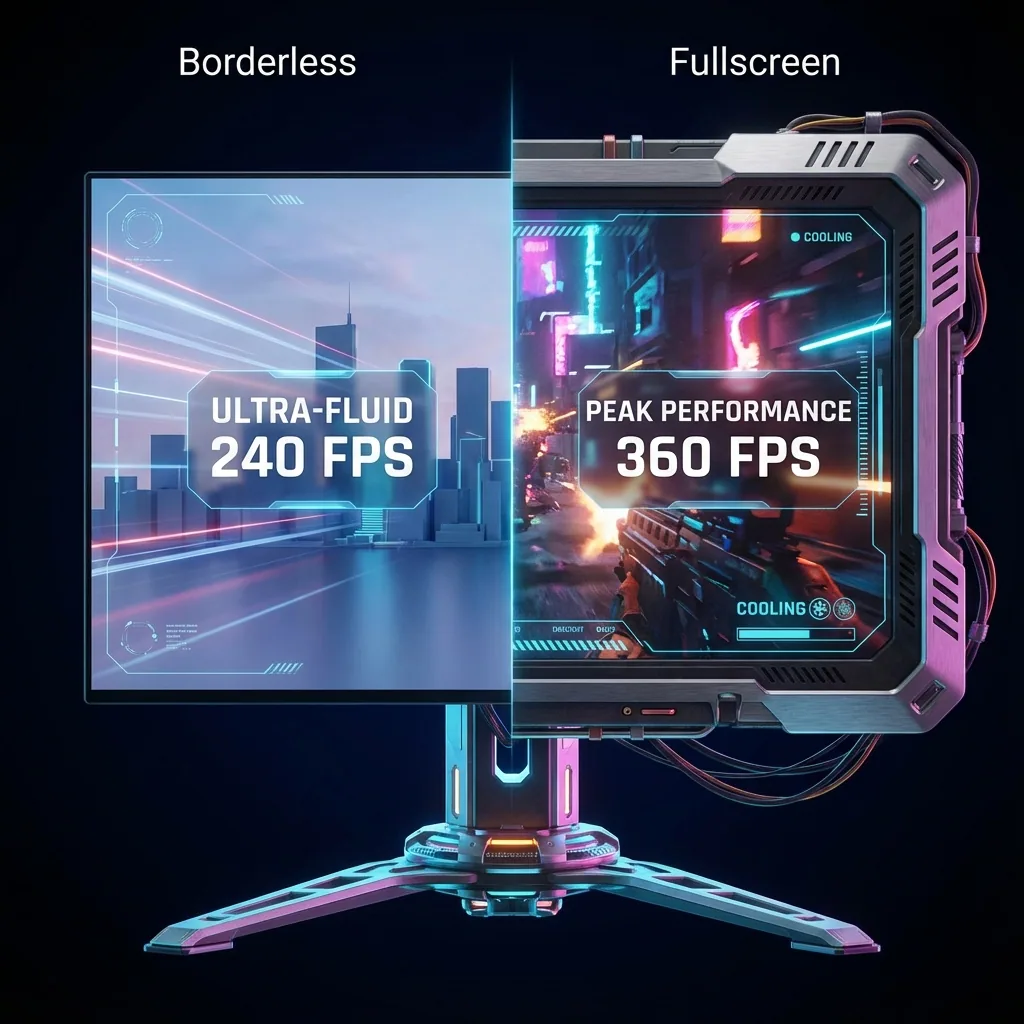
Réponse rapide : les jeux en plein écran se minimisent quand vous cliquez sur un second écran parce que Windows ne donne le focus qu'à une seule fenêtre à la fois, et les jeux en plein écran exclusif se minimisent dès qu'ils le perdent. Les correctifs fiables sont : (1) lancer le jeu en fenêtré sans bordure pour que cliquer ailleurs ne le minimise plus (au prix d'une petite perte de performance), ou (2) donner au jeu son propre écran virtuel pour qu'il garde son écran où que vous cliquiez — ce qui offre aussi aux joueurs sur un seul moniteur un « second écran » sans matériel supplémentaire.
C'est l'une des questions PC les plus posées et les moins bien répondues : « je joue en plein écran sur mon écran principal et je veux utiliser mon second écran sans que le jeu se minimise. » Vous cliquez sur votre navigateur, Discord ou un graphique sur l'autre écran — et votre jeu retombe dans la barre des tâches. Voici exactement pourquoi, et comment y mettre fin.
Pourquoi votre jeu se minimise quand vous cliquez sur l'autre écran
Un jeu en plein écran exclusif prend le contrôle direct de votre affichage et retient le focus clavier/souris. Windows n'autorise qu'une seule fenêtre à avoir le focus à la fois. Donc quand vous cliquez sur quelque chose sur votre second écran :
- Le focus quitte le jeu.
- Le jeu, en plein écran exclusif, voit qu'il a perdu le focus et se minimise (beaucoup de jeux le font par conception, pour libérer l'affichage).
- Vous vous retrouvez face au bureau, plus face à votre jeu.
Parfois, il ne se minimise pas mais saccade, perd des images ou se met en pause — même cause profonde : le jeu a été conçu en supposant qu'il possède le premier plan.
Les correctifs, classés
1. Passer le jeu en fenêtré sans bordure (rapide, mais imparfait)
Dans les réglages vidéo du jeu, choisissez Fenêtré sans bordure (parfois « Plein écran fenêtré »). Le jeu se comporte alors comme une fenêtre maximisée classique, donc cliquer sur votre second écran ne le minimise plus.
- Avantages : instantané, fonctionne dans la plupart des jeux modernes.
- Inconvénients : le mode fenêtré sans bordure abandonne le plein écran exclusif au profit du compositeur de bureau, ce qui ajoute un petit coût en FPS et en latence d'entrée (input lag) ; certains jeux ne le proposent pas ; et quelques-uns saccadent encore entre deux écrans. Les joueurs compétitifs détestent souvent cette taxe de latence.
2. Donner au jeu son propre écran virtuel (garde le plein écran natif, ajoute un « second écran »)
Au lieu de mettre le jeu en fenêtre, lancez-le sur un écran virtuel séparé. Windows le traite comme un vrai moniteur, donc le jeu conserve son vrai plein écran natif, et comme il a son propre écran, cliquer ailleurs ne lui prend jamais son affichage. C'est ce que fait Staged : il lance le jeu sur un écran virtuel et l'affiche dans une zone de votre écran physique, avec vos autres applis dans des zones tout autour.
- Avantages : performances plein écran natif (aucune pénalité du sans bordure) ; le jeu ne se minimise jamais quand vous cliquez ailleurs ; et sur un seul moniteur, ça vous offre concrètement un second écran — les applis vivent dans des zones à côté du jeu — sans aucun matériel supplémentaire.
- Inconvénients : c'est un outil dédié plutôt qu'un simple réglage intégré à Windows.
3. Les utilitaires tiers « anti-minimisation » (résultat aléatoire)
Les outils qui tentent d'empêcher une fenêtre de se désactiver (par exemple les gestionnaires de fenêtres avec une option « empêcher la désactivation ») peuvent aider pour certains titres, mais leurs propres développeurs précisent qu'il s'agit d'une limitation de Windows qui « ne fonctionne pas avec tous les jeux », et les titres en plein écran exclusif l'ignorent fréquemment.
L'angle mono-écran : un second écran sans second moniteur
La plupart des joueurs PC n'ont pas de second écran. Le conseil habituel — « achètes-en un » — passe à côté du vrai besoin, qui est souvent voir une autre appli à côté du jeu, pas de posséder plus de verre. Lancer le jeu sur un écran virtuel et ancrer les applis dans des zones tout autour offre le workflow « second écran » sur le seul écran que vous avez déjà — et ça fonctionne sur un portable, où un second écran n'est de toute façon pas une option.
Foire aux questions
Pourquoi mon jeu se minimise-t-il quand je clique sur le 2e écran ?
Parce que Windows donne le focus à une fenêtre à la fois et que les jeux en plein écran exclusif se minimisent quand ils perdent le focus. Cliquer sur le second écran déplace le focus, donc le jeu perd le focus et se minimise. Le mode fenêtré sans bordure, ou lancer le jeu sur son propre écran virtuel, évite ce problème.
Comment l'empêcher ?
Réglez le jeu en Fenêtré sans bordure pour que cliquer ailleurs ne le minimise pas, ou lancez le jeu sur un écran virtuel dédié pour qu'il garde son propre écran où que vous cliquiez. La voie de l'écran virtuel préserve en plus les performances plein écran natif, pour que le jeu reste en full screen quoi que vous fassiez à côté.
Est-ce que je perds des FPS en mode fenêtré sans bordure ?
Un peu, dans la plupart des cas — il fait passer le jeu par le compositeur de bureau au lieu du plein écran exclusif, ce qui ajoute un petit coût en performance et en latence d'entrée. Lancer le jeu sur son propre écran virtuel évite ce chemin par le compositeur et offre du plein écran natif sans perte de FPS.
Ça marche avec un seul moniteur ?
Oui. Un écran virtuel crée un écran supplémentaire de façon logicielle sur votre moniteur existant, donc vous pouvez garder vos applis visibles dans des zones à côté du jeu — sans matériel, et ça fonctionne sur un portable. C'est ce qui permet un dual screen pour jouer sans retour bureau.
Le jeu continue-t-il de tourner ?
Sur son propre écran virtuel, le jeu ne se minimise pas quand vous cliquez ailleurs, donc il continue de tourner — vous jouez sans alt-tab hors du jeu. L'exception : un jeu spécifiquement codé pour se mettre en pause à la perte du focus — ceux-là proposent en général une option « tourner en arrière-plan » que vous pouvez activer.
Obtenez un second écran sans le second moniteur
Staged lance votre jeu sur un écran virtuel pour qu'il ne se minimise jamais quand vous cliquez ailleurs — et offre aux joueurs sur un seul écran un vrai workflow de second écran. Il arrive sur Steam ; ajoutez-le à votre liste de souhaits pour être parmi les premiers à jouer.
À lire aussi :