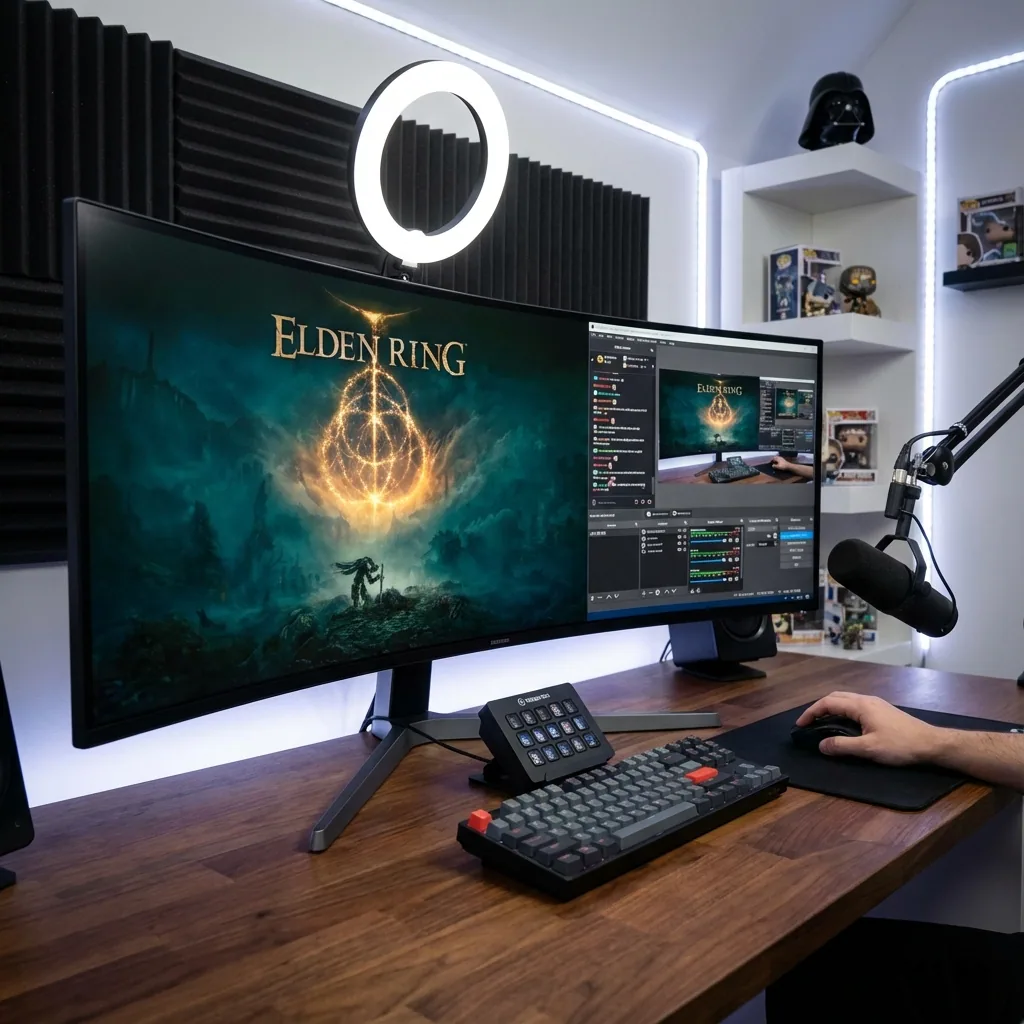
Quick answer: To watch Twitch chat while gaming on one monitor, run the game on a separate virtual display and dock your Twitch chat into a zone beside it. The chat stays live and fully clickable, the game keeps true native fullscreen, and clicking chat to moderate or reply never minimizes the game. Unlike borderless-windowed alt-tabbing, there is no compositor FPS penalty; unlike a second monitor, it needs no extra hardware and never makes you look away from the action.
If you stream on a single monitor, this is the daily friction: your Twitch chat is the whole point of going live, yet the moment your game runs fullscreen the chat vanishes behind it. You alt-tab to read a question, the game minimizes, you tab back and miss three more messages. The stock advice — "just run borderless" or "buy a second monitor" — trades away either your frame rate or your desk. This guide explains why chat disappears, why every common fix falls short, and the setup that keeps your game and your live chat in view on one screen.
Why chat disappears in fullscreen
When a game runs in exclusive fullscreen, it takes direct control of your display and talks straight to the GPU, bypassing the Windows Desktop Window Manager. That is what gives fullscreen its best-case frame rate and lowest input latency. The trade-off: nothing else can share that screen, so your Twitch chat window is painted behind the game where you cannot see it.
On top of that, Windows only gives keyboard and mouse focus to one window at a time. So the instant you click the chat to reply, ban a spammer or read a link, the game loses the foreground — and most fullscreen games minimize, stutter or pause when that happens. You end up choosing between seeing your game and seeing your chat, which is exactly the choice a single-monitor streamer cannot afford to make.
Why the usual fixes fall short
| Approach | Works in true fullscreen? | Shows live clickable chat? | One screen? | Native FPS? |
|---|---|---|---|---|
| Second monitor for chat | Yes | Yes | No — needs hardware, and you look away | Yes |
| Borderless windowed + alt-tab | No (drops exclusive fullscreen) | Yes, but serially — you toggle, you don't watch | Yes | Reduced (compositor overhead) |
| Transparent chat overlay tools | Often fails or flickers in exclusive fullscreen | Read-only-ish; clicking to reply steals focus | Yes | Yes |
| Read chat on your phone | Yes | Yes, but you cannot moderate or click links easily | Yes (for the game) | Yes |
| Staged (virtual display + zone) | Yes — game keeps its own display | Yes — live, clickable Twitch chat | Yes | Native — no borderless penalty |
- A second monitor genuinely works, but plenty of streamers start on a single screen or a laptop, it costs money and desk space, and it forces your eyes off the game — the moments your viewers most want to see.
- Borderless windowed lets you place chat beside the game without it crashing, but it re-introduces the desktop compositor (a small FPS and input-latency tax) and it is still serial: you flip to chat and lose sight of the game. You cannot truly watch both at once.
- Transparent chat overlay tools paint chat on top of the desktop, but exclusive fullscreen paints over everything, so they frequently vanish or flicker — and the second you click to reply or moderate, focus leaves the game.
- Reading chat on your phone keeps the game untouched, but you cannot easily click links, run mod commands, or paste a response, and your neck pays for it over a long stream.
None of them give you the thing you actually want: the game full-size and native, and your live Twitch chat clickable and always in view, on one screen, without a focus fight.
How to set it up
- Install Staged and create a Game Stage zone where your game will run.
- Add a chat zone beside it and open your Twitch chat there — the pop-out chat window, a browser tab on your channel, or your Chatterino/dashboard client.
- Launch the game onto its Game Stage. It runs true native-fullscreen inside the zone; your chat stays live in the neighbouring zone.
- Click chat any time to read, reply, moderate or open a link — the game does not minimize, because it lives on its own display.
- Save it as a profile and add more zones if you want (alerts, OBS, a browser), then switch layouts with a hotkey.
Frequently asked questions
Can I see Twitch chat while playing a fullscreen game?
Yes. Run the game on a virtual display and dock your Twitch chat into a zone beside it. The chat stays live and clickable while the game runs true native fullscreen, and clicking chat to reply or moderate does not minimize the game — all on one monitor.
Do I need a second monitor to see chat while streaming?
No. Staged creates a virtual second display on the single screen you already have, so you get the two-screen streaming workflow — game on one side, chat on the other — without buying a second monitor, and it works on a laptop.
Will it lower my FPS?
No. The game runs in true native fullscreen on its own virtual display, so it avoids the desktop-compositor overhead that borderless windowed mode adds to keep chat visible. That means native fullscreen, no FPS penalty and zero frame lag from the layout itself; you also choose the render resolution.
Can I also see StreamLabs/OBS/alerts beside the game?
Yes. Any Windows app can go in a zone — dock OBS, Streamlabs, an alerts window or a browser dashboard next to the game alongside your chat. It is not limited to chat the way a single-purpose overlay is.
Does it work on a single monitor?
Yes — that is the point. Staged docks your live chat beside a native-fullscreen game on one physical screen, so a single-monitor streamer gets a proper chat-plus-game layout without extra hardware.
Is this only for streamers?
No. The same virtual-display-plus-zones setup keeps any live app — Discord, a browser guide, a video, a work chat — visible beside a fullscreen game. Streamers get chat beside the game; everyone else gets whatever they want to keep in view on one screen.
Ready to keep chat in view?
Staged is coming to Steam. If you are tired of alt-tabbing out of your game to read chat — or squinting at your phone — wishlist it and be first to play.
Related reading: