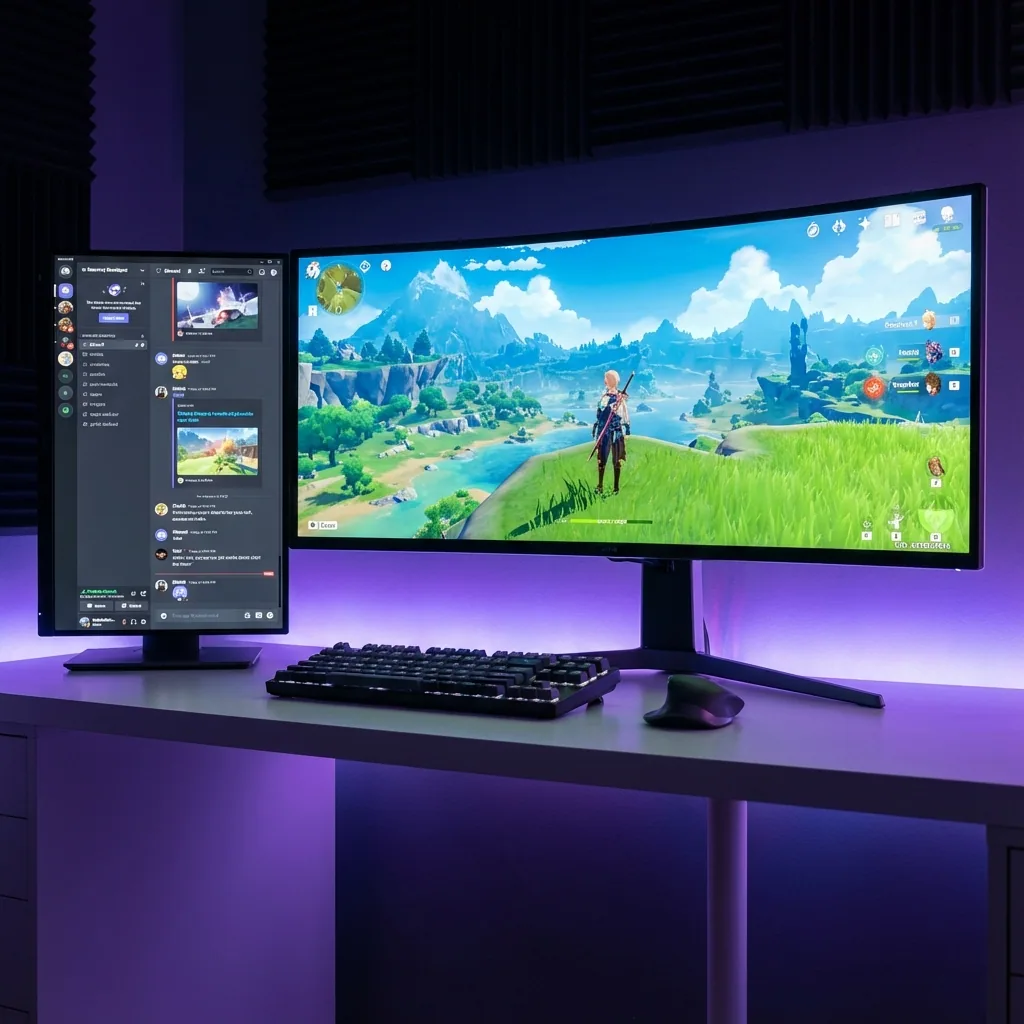
Quick answer: To keep other apps visible while gaming on one monitor, run the game on a separate virtual display and dock your apps into fixed zones around it. The game keeps true native-fullscreen performance, your apps stay live and clickable beside it, and clicking an app never minimizes the game. Unlike a Discord overlay this works in real fullscreen and shows any app — not just chat — and unlike a second monitor it needs no extra hardware and never makes you look away.
If you have ever tried to watch Teams, a Twitch chat, a YouTube video, a sim dashboard or a browser guide while a game runs fullscreen, you already know the wall you hit: the game owns the whole screen, and the moment you click anything else, it minimizes. The internet's stock answers are "switch to borderless windowed and alt-tab" or "buy a second monitor." Both are compromises. This guide explains the real problem, why every common fix falls short, and the approach that actually keeps your game and your apps in view on a single screen.
Why your game hides everything (and minimizes when you click away)
When a game runs in exclusive fullscreen, it takes direct control of your display and talks straight to the GPU, bypassing the Windows Desktop Window Manager. That is what gives fullscreen its best-case performance and lowest latency. The trade-off: nothing else can share that screen, and Windows only gives keyboard/mouse focus to one window at a time — so the instant you click your browser or second monitor, the game loses the foreground and minimizes.
This is not a bug you can fully fix with settings. It is how the Windows focus and display model works, which is exactly why the forums are full of the same unanswered question: "I want my game fullscreen on one screen and my other apps visible without the game minimizing." The tools people reach for each solve a piece of it and break another.
Why the usual fixes fall short
| Approach | Works in real fullscreen? | Shows any app (not just chat)? | One screen? | Native FPS? |
|---|---|---|---|---|
| Second monitor | Yes | Yes | No — needs hardware, and you look away | Yes |
| Borderless windowed + alt-tab | No (drops exclusive fullscreen) | Yes, but serially — you toggle, you don't watch | Yes | Reduced (compositor overhead) |
| Discord / Steam / GPU overlay | Often fails in exclusive fullscreen | No — only that overlay's own content | Yes | Yes |
| Always-on-top / window-pin tools | No (hidden under exclusive fullscreen) | Pins your app, but it vanishes behind the game | Yes | Yes |
| Staged (virtual display + zones) | Yes — game keeps its own display | Yes — any live, clickable app | Yes | Native — no borderless penalty |
- A second monitor genuinely works, but the large majority of PC gamers have a single screen, it costs money and desk space, and it forces your eyes off the action — the exact thing you were trying to avoid.
- Borderless windowed lets you alt-tab without the game crashing, but it re-introduces the compositor (a small performance and input-latency cost), and it is still serial: you flip to the app and lose sight of the game. You cannot watch both at once.
- Overlays (Discord, Steam, GPU) only draw their own sandboxed content, frequently misbehave in true exclusive fullscreen, and can never show an arbitrary third-party app like Outlook, a spreadsheet, a trading chart or a browser tab.
- Always-on-top / pin utilities pin your window over the desktop — but exclusive fullscreen paints over everything, so the pin is invisible under the game.
None of them give you the thing you actually want: the game full-size and native, and your other apps live and visible, on one screen, without a focus fight.
The approach that actually works: give the game its own display
Staged takes a different route. Instead of forcing your game into a window or pinning apps on top of it, it hands the game its own virtual display (via Windows' indirect-display driver framework). Windows treats that virtual display like a real monitor, so the game runs in true native fullscreen — same frames, no borderless penalty. Staged then shows that display inside a resizable zone on your physical screen, with your other apps docked in zones around it.
The result:
- Your game runs at native fullscreen performance in a zone as large as you like.
- Teams, Discord, a browser, a stream, a chart or a guide sit beside it — live, interactive, always in view.
- Because the game lives on its own display, clicking an app next to it does not minimize it or steal its screen.
- Everything is on one monitor — no second screen, no head-turn, works on a laptop.
That last point is the wedge: Windows gives focus to one window at a time, which is why your game normally minimizes the second you click away. Give the game its own display, and clicking elsewhere no longer takes its screen. (One honest caveat: a handful of games are coded to pause on focus loss regardless of display — those offer a "run in background" setting; enable it and they keep playing.)
Who this is for — the apps people keep beside the game
The same setup serves very different players — this page is the hub of a whole coexistence guide. Pick your zone contents:
- Work coexistence: keep Teams, Slack or Outlook docked beside the game so you can glance at work without alt-tabbing out.
- Chat & comms: Discord, a raid/party window, or Twitch chat in view during a match.
- Media: a Netflix, YouTube or Twitch stream running beside the game — the most common "second thing" gamers do while playing.
- Sim & strategy: a live dashboard, map or telemetry panel next to a racing/flight/truck sim, or a trading chart beside the game.
- A coach in the corner: a browser guide, wiki, or an AI-assistant window as a live helper zone.
- Timers & tools on top: keep a window always on top — or a speedrun split timer — visible over the game.
- No more minimizing: use a second monitor without the game minimizing, or alt-tab without minimizing or pausing.
- A game in the corner: flip it around — shrink an idle/cozy/farming game into a corner while your real work fills the screen.
How to set it up (the short version)
- Install Staged and create a Game Stage zone where your game will run.
- Add zones around it for the apps you want visible (Discord, browser, a stream, a chart — whatever your setup needs).
- Assign your apps to those zones; Staged remembers the layout per game.
- Launch the game onto its Game Stage. It runs native-fullscreen inside the zone; your apps stay live around it.
- Save it as a profile and switch layouts with a hotkey — a Work layout, a Play layout, a Stream layout.
A note on privacy (honest version)
Staged is designed to let you clear your screen quickly when you need to — for a screen-share, a walk-up, or a context switch. Here is the honest boundary, published up front: a quick-hide clears the game from your screen and standard screen-sharing/recording (Teams, Zoom, Meet, Discord, OBS window/display capture). It does not hide processes from IT monitoring or Task Manager, it is not a way to deceive an employer, and no software can stop someone photographing your screen with a phone. We would rather tell you exactly what it does than oversell it.
Frequently asked questions
Can I keep Teams, Slack or Discord visible while playing a fullscreen game?
Yes. Run the game on a virtual display and dock Teams, Slack or Discord into a zone beside it. They stay live and clickable, the game keeps native fullscreen, and clicking the app does not minimize the game — all on one monitor.
Does this work on a single monitor?
Yes — that is the point. Staged creates a virtual second display on the one screen you already have, so you get the "two screens" benefit without buying a second monitor, and it works on a laptop.
Will it lower my FPS like borderless windowed does?
No. The game runs in true native fullscreen on its own virtual display, so it avoids the desktop-compositor overhead that borderless windowed mode adds. You choose the render resolution, which can even raise frame rates.
Why does my game minimize when I click my second monitor or browser?
Because Windows gives focus to one window at a time and most fullscreen games minimize when they lose focus. Running the game on its own virtual display means clicking elsewhere no longer takes the game's screen, so it stays put.
Can I watch Netflix or a stream while gaming on one screen?
Yes — dock the video in a zone beside the game. It plays live next to your game instead of forcing you to alt-tab away, and the game keeps running at full size.
Is this a cheat or a way to hide from anti-cheat?
No. Staged runs your game on a normal virtual display — it does not hook, inject into, or modify the game. It is a display and window-layout tool, not a cheat.
Ready to keep everything in view?
Staged is coming to Steam. If you are tired of alt-tabbing out of your game to check a message, watch a video, or glance at your work — wishlist it and be first to play.
Related reading: