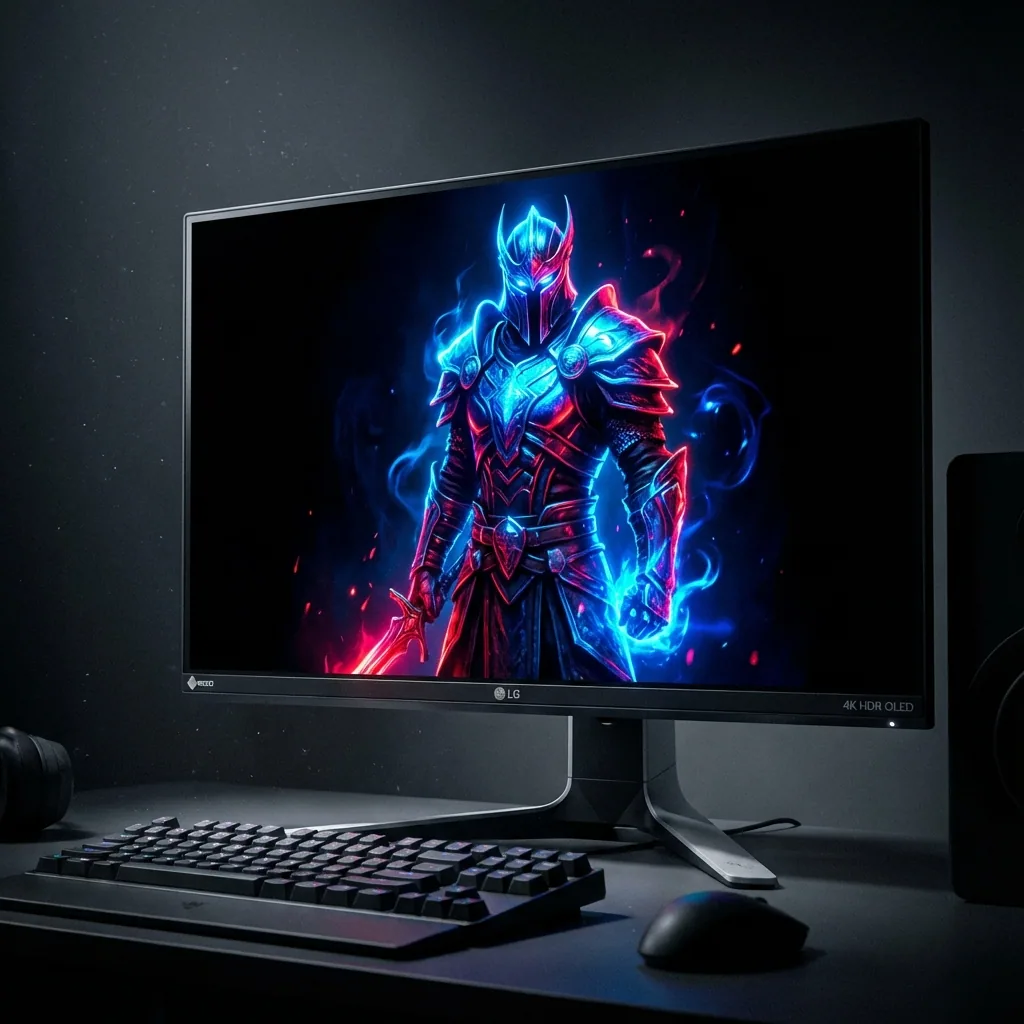
Du hast dir endlich einen 4K-OLED-Gaming-Monitor oder -Fernseher geholt. Vielleicht ist es der LG C3 OLED, der Samsung S90C oder der ASUS ROG Swift OLED. Was auch immer es ist, du hast richtig viel Geld ausgegeben, weil du das absolut Beste wolltest: perfektes Schwarz, unendlichen Kontrast, sofortige Reaktionszeiten und diese lebendigen Farben, die nur OLED liefern kann.
Aber jetzt, wo es auf deinem Schreibtisch steht, merkst du, dass das Maximum aus einem 4K-OLED-Gaming-Setup herauszuholen nicht so einfach ist, wie es einzustöpseln und die Grafikeinstellungen aufzudrehen.
Ich zocke seit drei Jahren auf OLED-Displays – zuerst mit dem LG CX 48" als Monitor (was verrückt war) und jetzt mit einem 27" 4K OLED. Ich habe auf die harte Tour gelernt, was es mit Burn-in-Schutz, optimalen Einstellungen, Performance-Kompromissen und der Frage auf sich hat, wie man die ganze Bildschirmfläche tatsächlich nutzt, ohne die Framerate in den Keller zu jagen.
Dieser Guide zeigt dir, wie du dein 4K OLED richtig fürs Gaming einrichtest, deine Investition vor Burn-in schützt und das bestmögliche Erlebnis herausholst.
Warum 4K OLED beim Gaming besonders ist
Bevor wir ins Setup einsteigen, lass uns darüber reden, warum OLED beim Gaming so ein Game-Changer ist – und warum es eine besondere Behandlung braucht.
Perfektes Schwarz verändert alles
OLED-Pixel emittieren ihr eigenes Licht. Wenn ein Pixel schwarz sein soll, ist es komplett aus. Das bedeutet echtes Schwarz, nicht das "Dunkelgrau, das so tut, als wäre es Schwarz", das du bei LCD-Panels bekommst.
In Games mit dunklen Szenen – Resident Evil 4 Remake, Alan Wake 2, Horror-Games allgemein – ist OLED transformativ. Du kannst tatsächlich in schattige Bereiche hineinsehen, ohne das aufgehellte Schwarz, das LCD-Bildschirme verwaschen lässt.
Reaktionszeit, die wirklich zählt
Die OLED-Reaktionszeit wird in Mikrosekunden gemessen, nicht in Millisekunden. Es gibt null Bewegungsunschärfe, null Ghosting. Schnelle Games wie Doom Eternal oder kompetitive Shooter fühlen sich unglaublich knackig und reaktionsschnell an. Wenn du einmal auf OLED gezockt hast, fühlt sich die Rückkehr zu LCD an, als würdest du durch Schlamm spielen.
Der HDR-Vorteil
OLEDs unendliches Kontrastverhältnis bedeutet, dass HDR tatsächlich richtig funktioniert. Wenn ein Game eine helle Explosion vor einem dunklen Hintergrund zeigt, ist die Explosion wirklich hell, während die Dunkelheit dunkel bleibt. Bei LCD-Monitoren hellt sich der ganze Bildschirm auf, wegen der Backlight-Beschränkungen.
Das Problem, das niemand erwähnt
Hier ist, was sie dir nicht sagen: 4K-OLED-Gaming ist ein Balanceakt zwischen Bildqualität, Performance und dem Schutz deines Displays.
Natives 4K bei hohen Einstellungen laufen zu lassen erfordert eine Monster-GPU. Selbst eine RTX 4080 oder RX 7900 XTX wird Mühe haben, in anspruchsvollen Titeln bei 4K-Max-Einstellungen 120+ FPS zu erreichen. Und dann ist da noch der Elefant im Raum: Burn-in.
Die Burn-in-Realität (und wie du sie verhinderst)
Lass uns das gleich vorweg klären, denn es ist wahrscheinlich deine größte Sorge.
Was ist Burn-in?
Burn-in (technisch gesehen Image Retention bei OLED) passiert, wenn statische Elemente über längere Zeiträume angezeigt werden. Denk an Game-UI-Elemente, die Windows-Taskleiste oder Anwendungssymbole. Über Tausende von Stunden können diese permanente Geisterbilder auf deinem OLED-Panel erzeugen.
Ist es wirklich ein Problem?
Hier ist meine ehrliche Einschätzung nach drei Jahren: Ja, aber es ist mit klugen Gewohnheiten beherrschbar.
Moderne OLEDs (ab 2022) haben eine viel bessere Burn-in-Resistenz als frühe Modelle. LGs neuere Panels haben Helligkeitsbegrenzer, Pixel-Shift-Funktionen und automatische Kompensationszyklen. Aber du musst trotzdem mit statischen Inhalten vorsichtig sein.
Strategien zur Burn-in-Vorbeugung
Verstecke deine Taskleiste: Stelle die Windows-Taskleiste auf automatisches Ausblenden. Das ist für OLED nicht verhandelbar.
Nutze den Dark Mode: Systemweiter Dark Mode reduziert den allgemeinen OLED-Verschleiß. Helle weiße Hintergründe bei hoher Helligkeit nutzen das Panel schneller ab.
Aktiviere einen Bildschirmschoner: Stelle einen Bildschirmschoner so ein, dass er nach 10-15 Minuten Inaktivität aktiviert wird. Wenn du von deinem PC weggehst, lass den Bildschirm ausgehen.
Senke die Desktop-Helligkeit: Ich betreibe meinen Desktop bei 40-60% Helligkeit für den allgemeinen Gebrauch und lasse Games dann bei voller Helligkeit auf HDR umschalten. OLED-Verschleiß ist exponentiell – 24/7 bei 80% Helligkeit zu laufen wird dein Panel in 2 Jahren killen.
Nutze den Dimming-Modus für statische Inhalte: Hier hilft zonenbasiertes Gaming. Anstatt Discord, Browser-Tabs oder OBS stundenlang bei voller Helligkeit laufen zu lassen, während du zockst, kannst du dedizierte Zonen erstellen, die bei reduzierter Helligkeit laufen. Staged hat ein Dimming-Feature speziell dafür – statische Zonen können gedimmt werden, um vor Burn-in zu schützen, während deine Game Stage bei voller Helligkeit bleibt.
Variiere deine Inhalte: Spiel nicht jeden Tag, monatelang, 8 Stunden lang dasselbe Game. Mische verschiedene Games, schau Videos, nutze deinen Monitor für abwechslungsreiche Inhalte. Das verhindert, dass bestimmte UI-Elemente permanente Verschleißmuster erzeugen.
Game-spezifische Burn-in-Bedenken
Manche Games sind schlimmer für das Burn-in-Risiko als andere:
Hohes Risiko: MMORPGs (stundenlang statische UI-Elemente), menülastige Games, in denen du oft AFK bist, Games mit hellen statischen HUD-Elementen
Mittleres Risiko: MOBAs, kompetitive Shooter (Minimap und HUD jede Runde an derselben Stelle)
Niedriges Risiko: story-getriebene Single-Player-Games mit minimalem UI, Games, die HUD-Elemente automatisch ausblenden
Die meisten Games lassen dich die HUD-Deckkraft anpassen oder das HUD sogar komplett ausblenden. Nutze diese Optionen.
4K vs. 2K Gaming: Der Performance-Kompromiss
Hier ist eine Wahrheit, die wehtut: die meisten Leute mit 4K-OLED-Monitoren sollten Games in 1440p (2K) laufen lassen, nicht in 4K.
Die Mathematik
4K-Auflösung sind 3840x2160 = 8.294.400 Pixel 1440p-Auflösung sind 2560x1440 = 3.686.400 Pixel
Das sind 2,25x mehr Pixel bei 4K. Deine GPU muss mehr als doppelt so hart arbeiten, um dieselbe Szene zu rendern.
Performance in der Praxis
Ich habe das auf meiner RTX 4070 Ti mit Cyberpunk 2077 getestet:
- 4K Ultra: 45-55 FPS (fühlt sich ruckelig an, DLSS Quality nötig, um 80 FPS zu erreichen)
- 1440p Ultra: 90-110 FPS (flüssig, kein Upscaling nötig)
Der visuelle Unterschied auf einem 27"-Monitor? Ehrlich gesagt minimal während des tatsächlichen Gameplays. Der Performance-Unterschied? Wie Tag und Nacht.
Wann du 4K nutzen solltest
Strategiespiele, langsamere Games, rundenbasierte RPGs: Wo die Framerate weniger zählt als die visuelle Klarheit.
Wenn du GPU-Reserven hast: Wenn du einen älteren Titel oder ein Esports-Game spielst, das mühelos 120+ FPS bei 4K erreicht, dann los.
Produktivität: Für Desktop-Arbeit, Fotobearbeitung, Content Creation – nutze natives 4K. Hier zählt die Schärfe.
Wann du 1440p nutzen solltest
Schnelle Action-Games: Wo 100+ FPS einen spürbaren Unterschied machen.
Kompetitives Gaming: Wo Performance > Optik.
AAA-Titel auf Mid-Range-GPUs: Wenn du eine RTX 4070, RX 7800 XT oder niedriger hast, ist 1440p der Sweet Spot.
Das Beste aus beiden Welten
Hier glänzt zonenbasiertes Gaming. Du kannst eine Game-Stage-Zone in 1440p erstellen (für High-FPS-Gaming), während du den Desktop und andere Apps in nativem 4K laufen lässt. Dein Game bekommt flüssige Performance, dein Desktop bleibt knackig.
Staged macht das kinderleicht einzurichten – deine Game Stage kann 2560x1440 zentriert auf deinem 4K-Display sein, mit anderen Zonen in nativer Auflösung für Discord, Browser usw.
Optimale 4K-OLED-Gaming-Einstellungen
Lass mich durch meine genauen Einstellungen fürs 4K-OLED-Gaming führen.
Windows-Einstellungen
Display-Auflösung: 3840x2160 (nativ) Bildwiederholrate: 144Hz (oder was auch immer dein Panel unterstützt) HDR: AUS für den Desktop, pro Game aktivieren Nachtmodus: AUS (verändert die OLED-Farbgenauigkeit) Skalierung: 150% für 27"-Panels, 100% für 42-48"-Panels
GPU-Systemsteuerung (NVIDIA)
G-Sync-kompatibel: AN (eliminiert Tearing, entscheidend bei variablen Frameraten) Modus mit geringer Latenz: Ultra (reduziert Input-Lag) Bevorzugte Bildwiederholrate: Höchste verfügbare V-Sync: Global AUS (lass G-Sync das übernehmen oder aktiviere es im Game pro Game)
In-Game-Grafikeinstellungen
Für kompetitive/schnelle Games in 1440p:
- Auflösung: 2560x1440
- Anzeigemodus: Fullscreen (für beste Performance)
- V-Sync: AUS
- FPS-Limit: 140-160 (leicht unter dem Maximum deines Monitors, um Frametime-Spikes zu vermeiden)
- Einstellungen: Hoch/Ultra mit deaktivierten oder minimalen RTX-Features
Für Single-Player-Games in 4K:
- Auflösung: 3840x2160
- DLSS/FSR: Quality-Modus (gibt dir 4K-Bildqualität mit besseren FPS)
- Ray Tracing: Selektiv (RT Reflections und RT GI ja, RT Shadows oft nicht den Aufwand wert)
- V-Sync: AUS
- FPS-Limit: An deine Bildwiederholrate anpassen oder mit G-Sync ungekappt lassen
HDR-Konfiguration
Das ist entscheidend für OLED. HDR ist der Bereich, in dem OLED LCD absolut zerlegt.
Aktiviere HDR in Windows NUR beim Gaming. Lass es nicht für die Desktop-Nutzung an – es lässt alles verwaschen aussehen.
Führe die Windows-HDR-Kalibrierung aus. Diese App stellt die richtigen Helligkeitswerte für dein spezifisches OLED-Panel ein.
Aktiviere Auto HDR in den Windows-Einstellungen für ältere Games, die kein natives HDR haben. Es ist nicht perfekt, fügt aber schöne Tiefe hinzu.
In unterstützten Games aktiviere In-Game-HDR und führe die Kalibrierung durch. Games wie Horizon Zero Dawn, Resident Evil Village und Doom Eternal haben eine exzellente HDR-Umsetzung.
Spitzenhelligkeit: Stelle sie passend zu deinem Panel ein (normalerweise 800-1000 Nits für OLED). Übertreib das nicht – zu hoch und die Highlights clippen.
Zonenbasiertes Gaming für 4K OLED
Hier wird 4K-OLED-Gaming richtig interessant. Du hast all diese Bildschirmfläche, aber traditionelles Fullscreen-Gaming sperrt dich von allem anderen aus.
Der traditionelle Ansatz (suboptimal)
Option 1: Fullscreen-Gaming, Alt-Tab, um Discord/OBS/Chat zu checken Problem: Bricht die Immersion, verursacht Stottern, kann den Stream beim Gaming nicht überwachen
Option 2: Borderless Windowed Mode, um andere Apps sichtbar zu halten Problem: Performance-Einbußen und mögliche Frame-Pacing-Probleme
Option 3: Einen zweiten Monitor kaufen Problem: Teuer, braucht Platz auf dem Schreibtisch, erfordert, den Kopf vom Game wegzudrehen
Der zonenbasierte Ansatz (optimal)
Erstelle dedizierte Zonen auf deinem 4K OLED:
Game-Stage-Zone: 2560x1440 (oder 3840x2160, wenn die GPU es packt) zentriert auf dem Bildschirm, im nativen Fullscreen-Modus mit voller Performance
Seitenzonen: Discord, OBS, Spotify, Browser, was auch immer du sichtbar brauchst – in persistenten Zonen rund um deine Game Stage
Dimming-Schutz: Statische Zonen können gedimmt werden, um vor Burn-in zu schützen, während deine Game Stage bei voller Helligkeit für HDR-Gaming bleibt
Dieser Ansatz gibt dir:
- ✅ Native Fullscreen-Performance
- ✅ Permanenten Zugriff auf Discord, Chat, OBS
- ✅ Kein Alt-Tab nötig
- ✅ Burn-in-Schutz für statische Elemente
- ✅ Volle Nutzung der Bildschirmfläche deines 4K OLED
Ich persönlich betreibe meinen 27" 4K OLED mit einer 2560x1440 Game Stage, Discord rechts (640 Pixel) und OBS/Browser links (640 Pixel). Alles ist sichtbar, die Performance ist perfekt und statische UI-Elemente sind gedimmt.
Du kannst das in 5 Minuten mit Staged einrichten.
Beste Games für 4K-OLED-Gaming
Nicht alle Games nutzen OLED aus. Hier sind die, die absolut atemberaubend aussehen:
HDR-Meisterwerke
Cyberpunk 2077: Ray-getracetes Licht + HDR + OLED = umwerfend. Night City sieht unreal aus.
Resident Evil 4 Remake: Perfektes Schwarz in dunklen Bereichen, HDR-Highlights bei Schüssen und Explosionen. Dieses Game wurde für OLED gemacht.
Horizon Forbidden West: Exzellente HDR-Umsetzung, lebendige Farben, dunkle Höhlen mit perfektem Schwarz.
Alan Wake 2: Die Horror-Atmosphäre profitiert massiv von OLEDs echtem Schwarz und der sofortigen Reaktionszeit.
Doom Eternal: Schnelle Action mit sofortiger Pixel-Reaktion, HDR-Explosionen und unglaublich satten Farben.
Kompetitive Games (wo OLED brilliert)
Valorant, CS2, Overwatch 2: Sofortige Reaktionszeit und Bewegungsklarheit geben dir einen echten kompetitiven Vorteil. Kein Ghosting, keine Bewegungsunschärfe.
Apex Legends, Warzone: Schnelles Bewegungstracking ist auf OLED makellos. Du kannst Gegner mitten im Slide oder in der Luft mit perfekter Klarheit verfolgen.
Strategie- & RPG-Games
Baldur's Gate 3: Wunderschöne Optik, großartiges HDR, profitiert von der 4K-Klarheit beim Lesen von Text und UI.
Elden Ring: Dark-Souls-Games sehen auf OLED unglaublich aus. Die Art Direction strahlt mit perfektem Kontrast.
Total War Warhammer 3: Strategiespiele profitieren von der 4K-Klarheit und OLEDs sofortiger Reaktion beim Schwenken der Kamera.
Fortgeschrittene 4K-OLED-Tipps
Tipp 1: Nutze unterschiedliche Helligkeit für unterschiedliche Inhalte
Ich habe drei Helligkeitsprofile:
- Desktop/Produktivität: 40% Helligkeit
- SDR-Gaming: 60-70% Helligkeit
- HDR-Gaming: 100% Helligkeit (vom Game gesteuert)
Die Helligkeit für die Desktop-Arbeit niedriger zu halten, verlängert die OLED-Lebensdauer deutlich.
Tipp 2: Überwache deinen Pixel-Verschleiß
LG-OLEDs haben einen eingebauten "Pixel Refresher", der automatisch läuft. Lass ihn laufen – stöpsel deinen Monitor nachts nicht aus. ASUS- und Samsung-OLEDs haben ähnliche Wartungsroutinen.
Tipp 3: Das Kabel zählt
Nutze ein zertifiziertes DisplayPort-1.4-Kabel (oder HDMI 2.1 für Fernseher). 4K bei 144Hz erfordert erhebliche Bandbreite. Billige Kabel verursachen Dropouts, schwarze Bildschirme oder Beschränkungen bei Auflösung/Bildwiederholrate.
Tipp 4: Kombiniere mit DLSS 3 Frame Generation
Wenn du eine GPU der RTX-40-Serie hast, ist DLSS 3 Frame Generation auf OLED ein Game-Changer. Du kannst intern in 1440p rendern, mit DLSS Quality auf 4K hochskalieren und dann Frame Generation nutzen, um 120+ FPS zu erreichen. Die niedrige Latenz von OLED lässt die generierten Frames reaktionsschnell wirken.
Tipp 5: Textklarheit (für Arbeit auf OLED)
Wenn du dein 4K OLED für Produktivität nutzt, aktiviere ClearType in Windows und führe den ClearType-Tuner aus. Das OLED-Subpixel-Layout unterscheidet sich von LCD – richtiges ClearType-Tuning macht Text schärfer.
Sieh dir Ressourcen aus den RTings OLED-Reviews für detaillierte Panel-Vergleiche und Kalibrierungs-Guides an.
Häufig gestellte Fragen
Sollte ich auf meinem 4K OLED in 4K oder 1440p zocken?
Für kompetitive und schnelle Games nutze 1440p, um die Frameraten zu maximieren. Für Single-Player-Story-Games und Strategietitel nutze 4K mit DLSS/FSR-Quality-Modus. Der Performance-Unterschied ist gewaltig, und 1440p sieht auf 4K-OLED-Panels immer noch großartig aus, besonders bei 27"-Größe.
Wie lange hält mein OLED, bevor es zu Burn-in kommt?
Mit richtiger Pflege (Taskleiste automatisch ausblenden, Bildschirm dimmen, abwechslungsreiche Inhalte) solltest du 5-7+ Jahre intensive Nutzung herausholen. Moderne OLEDs sind viel widerstandsfähiger als frühe Modelle. Rtings führt seit Jahren Burn-in-Tests durch – ihre Daten zeigen, dass normale, abwechslungsreiche Nutzung selbst nach Tausenden von Stunden kein nennenswertes Burn-in verursacht.
Sollte ich G-Sync oder V-Sync auf OLED nutzen?
Nutze G-Sync (oder FreeSync) und schalte V-Sync AUS. G-Sync eliminiert Tearing ohne die Input-Lag-Strafe von V-Sync. OLEDs sofortige Reaktionszeit macht das Frame-Pacing noch auffälliger, daher ist G-Sync essenziell für flüssiges Gameplay bei variablen Frameraten.
Kann ich mein 4K OLED als Daily Driver für Arbeit und Gaming nutzen?
Absolut, aber du brauchst gute Gewohnheiten. Nutze Dark Mode, blende die Taskleiste automatisch aus, senke die Helligkeit für die Desktop-Nutzung und variiere deine Inhalte. Ich nutze meinen 8-10 Stunden täglich für Arbeit und Gaming ohne Burn-in-Probleme nach 2+ Jahren. Zonenbasierte Setups mit gedimmten statischen Bereichen helfen, das Panel während langer Gaming-Sessions zu schützen.
Welche GPU brauche ich für 4K-OLED-Gaming?
Für natives 4K mit 60+ FPS in modernen AAA-Games: RTX 4080, RTX 4090 oder RX 7900 XTX mindestens. Für 1440p-High-Refresh-Gaming: RTX 4070, RX 7800 XT oder besser. Für kompetitives Esports in 4K: RTX 4060 Ti oder RX 7700 XT reichen. Nutze DLSS oder FSR, um die Lücke auf schwächeren GPUs zu überbrücken.
Fazit: 4K-OLED-Gaming in 2025 ist unglaublich, aber du musst dein Setup richtig optimieren. Lass Games in 1440p laufen, wenn Performance zählt, nutze HDR in unterstützten Titeln, schütze mit klugen Gewohnheiten vor Burn-in und ziehe zonenbasiertes Gaming in Betracht, um deine Bildschirmfläche voll auszunutzen.
Wenn du das Maximum aus deinem 4K OLED ohne die üblichen Kopfschmerzen herausholen willst, probier Stageds zonenbasierten Gaming-Ansatz aus. Dein OLED verdient Besseres, als dass sich statische Discord-Symbole ins Panel einbrennen oder ständiges Alt-Tab deinen Flow unterbricht.
— Steve Miller, 4K-OLED-Gaming-Enthusiast und Creator von Staged