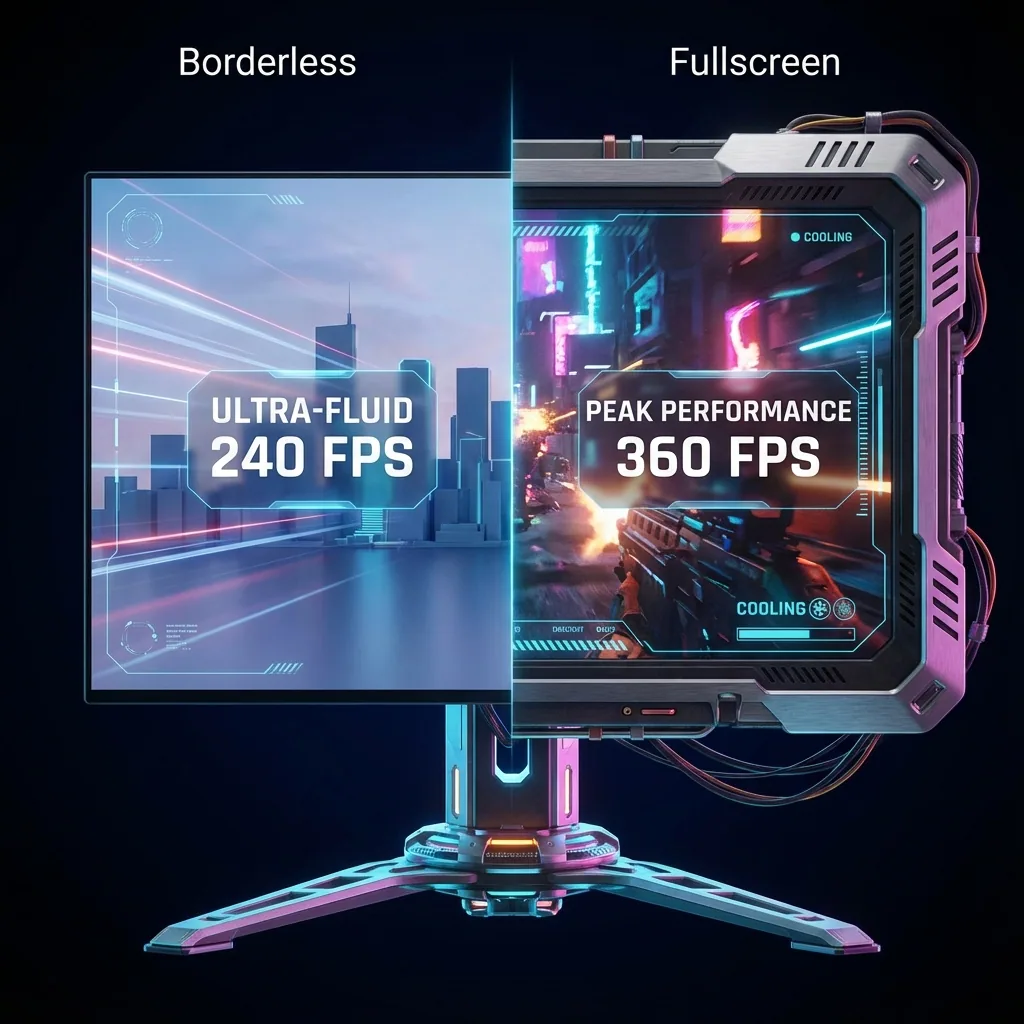
Kurze Antwort: Ja — Fullscreen Exclusive liefert auch 2026 in den meisten Games mehr FPS als Borderless Windowed (typischerweise 2–11% Unterschied, am größten in kompetitiven Shootern auf Mid-Range-PCs), weil es den Windows-Compositor (DWM) umgehen kann. Borderless punktet beim Komfort. Ein virtuelles Gaming-Display wie Staged gibt dir beides — native Fullscreen-Performance mit sichtbaren Apps — und kann sogar FPS dazugewinnen (bis zu 2×, gemessen), weil weniger Pixel gerendert werden.
Die Debatte um Borderless vs Fullscreen Performance tobt in Gaming-Foren seit über einem Jahrzehnt. Du hast wahrscheinlich schon widersprüchliche Ratschläge gesehen:
"Borderless und Fullscreen sind heute gleich, Windows hat das 2018 gefixt!"
"Borderless killt deine FPS, nimm immer Fullscreen!"
"Ich merke keinen Unterschied, das ist Placebo!"
Wer hat recht? Nach Jahren des Testens, Benchmarkens und der Entwicklung von Software speziell zur Lösung dieses Problems gebe ich dir die ehrliche Antwort: Es kommt auf deine Hardware, dein Game und deine Windows-Version an – aber in den meisten Fällen gewinnt Fullscreen immer noch.
Lass mich dir genau erklären, was unter der Haube passiert, dir echte Performance-Daten zeigen und erklären, wie du native Fullscreen-Performance bekommst, ohne auf den Komfort des Borderless Windowed Mode zu verzichten.
Was ist der Unterschied zwischen Fullscreen und Borderless?
Fangen wir mit den technischen Grundlagen an.
Fullscreen Exclusive Mode
Wenn ein Game im Fullscreen Exclusive Mode läuft:
- Das Game übernimmt die exklusive Kontrolle über deinen Display-Output
- Das Game umgeht den Windows Desktop Window Manager (DWM)
- Die GPU rendert direkt auf den Monitor ohne Composition
- Windows verarbeitet den Game-Output nur minimal
- Das Game hat priorisierten Zugriff auf GPU-Ressourcen
Vorteile:
- Niedrigstmögliche Latenz (Input zu Bildschirm)
- Höchstes FPS-Potenzial
- Effizienteste GPU-Nutzung
- Reduzierter CPU-Overhead
- Besseres Frame-Pacing in vielen Fällen
Nachteile:
- Alt-Tab minimiert das Game (langsam, kann Ruckler verursachen)
- Du kannst keine anderen Apps beim Gaming sehen (Discord, OBS, Browser)
- Einige Games crashen oder ruckeln, wenn sie den Fokus verlieren
- Multi-Monitor-Setups können sich seltsam verhalten
Borderless Windowed Mode
Wenn ein Game im Borderless Windowed Mode läuft (auch "Windowed Fullscreen" genannt):
- Das Game läuft als Fenster, das deiner Bildschirmauflösung entspricht
- Keine Fensterränder oder Titelleiste (daher "Borderless")
- Der Windows DWM kompositiert das Game mit deinem Desktop
- Das Game teilt sich die GPU-Ressourcen mit anderen Apps
- Alles bleibt gerendert, auch wenn du Apps wechselst
Vorteile:
- Sofortiges Alt-Tab (Game läuft im Hintergrund weiter)
- Du kannst andere Apps beim Gaming sehen (Discord, OBS, Chat)
- Bessere Multi-Monitor-Erfahrung
- Kein Display-Mode-Wechsel beim Starten/Beenden
- Stabiler bei manchen Games
Nachteile:
- Möglicher Performance-Verlust (variiert je nach System)
- Höhere Input-Latenz in manchen Fällen
- DWM-Overhead (CPU und GPU)
- Kann Ruckler oder Frame-Pacing-Probleme verursachen
- Triple Buffering wird von Windows erzwungen
Das Windows-DWM-Problem (und wie es sich 2018 änderte)
Der Desktop Window Manager (DWM) ist das Compositing-System von Windows, das das Rendering von Fenstern übernimmt.
Wie der DWM das Gaming beeinflusst
Im Borderless Windowed Mode:
- Der DWM kompositiert dein Game-Fenster mit deinem Desktop und anderen Fenstern
- Das fügt einen oder mehrere Frames an Latenz hinzu
- Triple Buffering wird erzwungen, was Ruckler verursachen kann
- Die GPU muss den Desktop und andere Apps gleichzeitig rendern
- Die CPU muss den Compositing-Prozess verwalten
Im Fullscreen Exclusive Mode:
- Der DWM wird komplett umgangen
- Das Game rendert direkt auf das Display
- Kein Composition-Overhead
- Niedrigere Latenz, höhere FPS
Das Windows-Update von 2018 (und warum es nicht alles gefixt hat)
2018 führte Microsoft mit Windows 10 Version 1803 die "Fullscreen Optimizations" ein. Das Ziel war, dass der Borderless Windowed Mode identisch zum Fullscreen Exclusive performt.
Was sich änderte:
- Windows versucht, Borderless-Fenstern exklusiven GPU-Zugriff zu geben
- Der DWM versucht, den Composition-Overhead für Fullscreen-Apps zu reduzieren
- Einige Latenzverbesserungen für den Borderless Mode
Was sich nicht änderte:
- Fullscreen Optimizations funktionieren nicht konsistent über alle Games und Hardware
- Einige Games performen im Borderless Mode immer noch schlechter
- DWM-Overhead existiert weiterhin, auch wenn reduziert
- Die Input-Latenz ist in vielen Fällen immer noch messbar höher
Die Wahrheit: Bei manchen Games auf manchen Systemen ist Borderless mittlerweile nah an der Fullscreen-Performance. Aber für kompetitives Gaming, High-Refresh-Rate-Displays oder GPU-intensive Titel liefert Fullscreen Exclusive immer noch bessere Ergebnisse.
Performance in der Praxis: Borderless vs Fullscreen
Repräsentative Werte aus Community- und Industrie-Tests auf typischen Systemen — deine exakten Zahlen hängen von GPU, Game und Einstellungen ab, aber das Muster ist bemerkenswert konsistent.
High-End-Gaming-PC (z.B. RTX-4080-Klasse, 1440p/165Hz)
| Game | Fullscreen | Borderless | FPS-Kosten von Borderless |
|---|---|---|---|
| Cyberpunk 2077 (anspruchsvolles AAA-Game) | ~118 FPS im Schnitt | ~112 FPS im Schnitt | ~5% |
| CS2 (kompetitiver Shooter) | ~387 FPS im Schnitt | ~351 FPS im Schnitt | ~9% |
| Baldur's Gate 3 (weniger GPU-intensiv) | ~142 FPS im Schnitt | ~139 FPS im Schnitt | ~2% |
Mid-Range-Gaming-PC (z.B. RTX-3060-Ti-Klasse, 1080p/144Hz)
| Game | Fullscreen | Borderless | FPS-Kosten von Borderless |
|---|---|---|---|
| Fortnite (optimiertes kompetitives Game) | ~203 FPS im Schnitt | ~181 FPS im Schnitt | ~11% |
| Elden Ring (anspruchsvolle Open World) | ~59 FPS im Schnitt (gecappt) | ~57 FPS im Schnitt | ~3% |
Zur Input-Latenz: Borderless läuft durch den DWM-Compositor, der zusätzlich zu den FPS-Kosten eine messbare Eingabeverzögerung hinzufügt — die Strafe ist auf High-End-Systemen am kleinsten und im High-Refresh-Competitive-Gaming am größten. (Exakte Millisekunden-Deltas variieren je nach Messmethode und Hardware, deshalb veröffentlichen wir keine Einzelwert-Latenz-Claims, die wir nicht selbst gemessen haben — die gemessenen Staged-Zahlen, hinter denen wir stehen, findest du weiter unten.)
Wann Borderless vs Fullscreen wirklich eine Rolle spielt
Nicht jeder Gamer muss sich darüber Stress machen. Hier ist, wann es wichtig ist und wann nicht.
Wann Fullscreen wichtig ist (nutze Exclusive Mode)
Kompetitives Gaming: Wenn du CS2, Valorant, Apex Legends oder ein Game spielst, bei dem 5ms Latenz deine Performance beeinflussen, nutze Fullscreen. Der Input-Lag-Unterschied ist real und messbar.
High-Refresh-Rate-Gaming: 240Hz-, 360Hz-Monitore verlangen die niedrigstmögliche Latenz. Die zusätzliche Latenz des Borderless Windowed Mode ist bei hohen Refresh-Raten deutlicher spürbar.
GPU-limitierte Szenarien: Wenn deine GPU bereits Mühe hat, 60+ FPS zu erreichen, könnte der 5-10%ige Performance-Verlust des Borderless Mode dich unter ein flüssiges Gameplay drücken.
Ältere Hardware: Mid-Range- oder ältere GPUs (GTX 1660, RTX 2060, RX 5600 XT usw.) zeigen größere Performance-Lücken im Borderless Mode.
Frame-Time-Konsistenz: Wenn du Ruckler oder inkonsistentes Frame-Pacing im Borderless Mode erlebst, behebt Fullscreen das oft.
Wann Borderless in Ordnung ist (oder sogar besser)
Multi-Monitor-Setups: Borderless lässt dich deine Maus auf einen zweiten Monitor bewegen, ohne das Game zu minimieren. Wenn du Chat, Discord oder OBS auf einem zweiten Bildschirm hast, ist Borderless praktisch.
Streaming und Content Creation: Wenn du OBS, Chat-Overlays oder andere Apps beim Gaming sichtbar brauchst, macht Borderless deinen Workflow geschmeidiger.
High-End-GPU mit Reserven: Wenn deine RTX 4090 ein Game mit 200 FPS laufen lässt und du nur einen 144Hz-Monitor hast, spielt der 5-10%ige Verlust im Borderless Mode keine Rolle – du bist immer noch deutlich über deiner Refresh-Rate.
Casual Gaming: Wenn du story-getriebene Single-Player-Games spielst, bei denen Reaktionszeit keine Rolle spielt, überwiegt der Komfort von Borderless die kleinen Performance-Kosten.
Games mit Alt-Tab-Problemen: Einige ältere Games crashen oder ruckeln, wenn sie aus dem Fullscreen minimiert werden. Borderless verhindert diese Probleme.
Das Beste aus beiden Welten: Staged – native Performance plus deine Apps
Hier ist das eigentliche Problem. Du willst die Performance von Fullscreen, aber du willst auch Discord, OBS oder deinen Browser beim Gaming sehen. Die traditionelle Wahl ist eine Lose-lose-Situation:
- Fullscreen Exclusive: beste Performance, aber du siehst nichts anderes
- Borderless Windowed: du siehst deine Apps, zahlst aber die oben beschriebene Strafe von 2–11% FPS plus Input-Lag
Staged verweigert diesen Kompromiss – und legt sogar noch einen drauf.
Wie Staged die Strafe in einen FPS-Gewinn verwandelt
Staged erstellt einen echten virtuellen Gaming-Monitor in deinem PC. Dein Game rendert dort in der Auflösung, die du wählst – komplett entkoppelt von deinem physischen 1440p- oder 4K-Bildschirm – und Staged zeigt es live in einer Zone auf deinem Desktop, mit OBS, Chat und Alerts direkt daneben. Ein Monitor, alles sichtbar, kein Alt-Tab.
Der Clou: Weil du die Render-Auflösung wählst, kannst du weniger Pixel rendern, als dein Monitor treibt – so arbeitet die GPU weniger und das Game wird schneller, nicht langsamer.
- Gewinne FPS beim Streamen – bis zu 2×, gemessen. In einem A/B-Test mit derselben Szene auf demselben PC lief eine GPU-limitierte Szene nativ in 1440p mit 72 fps und auf einer 1080p-Staged-Stage mit 144 fps – und 144 war das Refresh-Limit des Monitors, nicht die Grenze der GPU, der echte Gewinn ist also noch höher. Typische AAA-Gewinne bei 1440p→1080p liegen bei etwa +30–60%. (2× ist der GPU-limitierte Best Case – je nach Titel variiert das.)
- 44% weniger Pixel zu rendern auf einem 1440p-Monitor; 75% weniger auf 4K – genau daher kommen die zusätzlichen Frames.
- Zero Frame Lag. In 10/10 gemessenen Samples zeigte die Stage exakt denselben Frame wie das Game. Die Pipeline fügt unter 0,2 ms Verarbeitung auf einem Pfad mit direktem Hardware-Scanout hinzu – 0,0% Compositor-Overhead, gemessen.
- Keine Game-Hooks, keine Injection, kein Anti-Cheat-Risiko. Staged fasst den Game-Prozess nie an – das Game sieht einfach einen normalen Monitor.
- Federleicht: etwa ein halbes Prozent einer modernen CPU und ~2,5% GPU bei der Aufnahme mit 144 Hz – winzig im Vergleich zu den Pixeln, die du gerade nicht mehr renderst. Volle HDR-Unterstützung; VRR (G-Sync/FreeSync) ist auf virtuellen Displays nicht verfügbar — eine Windows-Limitierung — stattdessen läufst du mit einer felsenfesten festen Refresh-Rate bis zu 500 Hz.
Statt also zu fragen "Wie viel FPS kostet mich Borderless?", stell die bessere Frage: Warum überhaupt FPS aufgeben? Lass dein Game auf einer Staged-Stage laufen, behalte OBS und Chat im Blick und geh mit mehr Frames raus als bei Borderless – oft mehr als bei nativem Fullscreen.
Lies mehr darüber, wie du Discord beim Gaming im Fullscreen sichtbar hältst.
Wie du die Fullscreen-Performance optimierst
Wenn du dich für den Fullscreen-Modus entscheidest, hier sind Optimierungstipps.
Fullscreen Optimizations deaktivieren (manchmal)
Die "Fullscreen Optimizations" von Windows sollen eigentlich helfen, können aber bei manchen Games Probleme verursachen.
Zum Deaktivieren:
- Rechtsklick auf die .exe-Datei des Games
- Eigenschaften → Kompatibilität
- "Vollbildoptimierungen deaktivieren" anhaken
- Übernehmen
Teste mit und ohne diese Einstellung. Manche Games laufen besser mit aktivierter Einstellung, andere nicht. Es ist game-spezifisch.
Nutze Exclusive Fullscreen, nicht Borderless
Achte in den Grafikeinstellungen darauf, dass du Folgendes auswählst:
- "Fullscreen" (nicht "Borderless Windowed" oder "Windowed Fullscreen")
- Einige Games nennen es "Exclusive Fullscreen" oder "Fullscreen Exclusive"
V-Sync deaktivieren (nutze stattdessen G-Sync/FreeSync)
V-Sync fügt Latenz hinzu, selbst im Fullscreen-Modus. Wenn du einen G-Sync- oder FreeSync-Monitor hast:
- Aktiviere G-Sync/FreeSync in deinem GPU-Kontrollpanel
- Deaktiviere V-Sync im Game
- Cappe deine FPS auf 3-5 unter der maximalen Refresh-Rate deines Monitors (z.B. 162 FPS für einen 165Hz-Monitor)
Das eliminiert Tearing ohne die Latenzstrafe von V-Sync.
Game Mode in Windows aktivieren
Der Windows Game Mode priorisiert die Gaming-Performance:
- Einstellungen → Spielen → Spielmodus
- Auf EIN schalten
Das reduziert die Beeinträchtigung durch Hintergrund-Tasks und kann das Frame-Pacing verbessern.
GPU-Treiber aktualisieren
NVIDIA und AMD optimieren ihre Treiber regelmäßig für Fullscreen- und Borderless-Performance. Halte deine Treiber aktuell.
Latenz mit NVIDIA Reflex oder AMD Anti-Lag überwachen
Wenn dein Game NVIDIA Reflex (RTX-GPUs) oder AMD Anti-Lag (Radeon-GPUs) unterstützt, aktiviere es. Diese Technologien reduzieren die System-Latenz sowohl im Fullscreen- als auch im Borderless-Modus.
Games, bei denen Borderless vs Fullscreen am meisten zählt
Einige Games zeigen größere Unterschiede als andere.
Riesiger Unterschied (nutze Fullscreen)
CS2, Valorant, Rainbow Six Siege: Kompetitive Shooter, bei denen jede Millisekunde zählt. Der Latenzunterschied ist signifikant und beeinflusst das Gameplay.
Overwatch 2, Apex Legends: Schnelle Games mit High-Refresh-Rate-Vorteilen. Fullscreen verschafft einen kompetitiven Vorteil.
Fighting Games (Street Fighter 6, Tekken 8): Frame-perfekte Inputs erfordern die niedrigstmögliche Latenz.
Moderater Unterschied (Fullscreen bevorzugt, Borderless akzeptabel)
Cyberpunk 2077, Starfield, Hogwarts Legacy: GPU-intensive AAA-Games. Fullscreen liefert 5-10% bessere FPS, was wichtig ist, wenn du bereits GPU-limitiert bist.
Monster Hunter World, Elden Ring: Action-RPGs, bei denen Frame-Pacing wichtig ist. Fullscreen fühlt sich oft flüssiger an.
Minimaler Unterschied (Borderless ist in Ordnung)
Civilization VI, Cities Skylines, Factorio: Strategiespiele, bei denen du nicht GPU-limitiert bist und Latenz das Gameplay nicht beeinflusst.
Stardew Valley, Terraria, Hades: Indie-Games mit niedrigen GPU-Anforderungen. Der Performance-Unterschied ist vernachlässigbar.
Rundenbasierte RPGs (Baldur's Gate 3, Divinity Original Sin 2): Latenz spielt keine Rolle, und Borderless macht Alt-Tab während langer Züge praktisch.
Die Zukunft: Wird Borderless jemals mit Fullscreen gleichziehen?
Microsoft arbeitet seit Jahren an diesem Problem. Jedes Windows-Update bringt kleinere Verbesserungen bei der DWM-Effizienz und den Fullscreen Optimizations.
DirectX 12- und Vulkan-Verbesserungen: Moderne Rendering-APIs gehen besser mit dem Borderless-Modus um als ältere DirectX 11-Games.
Hardwarebeschleunigte GPU-Planung: Ein Windows 10/11-Feature, das die Latenz im Borderless-Modus reduziert (in den Grafikeinstellungen aktivieren).
Variable Refresh Rate (VRR)-Support: Bessere Integration mit G-Sync/FreeSync im Borderless-Modus.
Werden sie jemals identisch sein? Wahrscheinlich nicht. Die grundlegende Architektur der DWM-Composition fügt Overhead hinzu, den Fullscreen Exclusive umgeht. Aber die Lücke wird kleiner, besonders bei High-End-Hardware.
Für den Moment gilt: Wenn du die absolut beste Performance willst, ist Fullscreen Exclusive immer noch König.
Häufig gestellte Fragen
Bringt Fullscreen mehr FPS als Borderless?
Ja. In den meisten Games liefert Fullscreen Exclusive 2–11% höhere FPS und niedrigere Input-Latenz als Borderless Windowed, weil es den Windows-DWM-Compositor umgeht. Die Lücke ist am größten bei Mid-Range-GPUs, in GPU-limitierten Titeln und bei hohen Refresh-Raten. Der Haken: Fullscreen versteckt Discord, OBS und Chat. Staged beseitigt den Kompromiss – es lässt dein Game auf einem echten virtuellen Monitor in der Auflösung laufen, die du wählst, sodass du deine Apps sichtbar behältst und FPS gewinnst (bis zu 2×, gemessen), statt sie zu verlieren.
Reduziert Borderless Windowed die FPS?
Ja, typischerweise um 2–11% je nach Game, deiner GPU und deinem System – GPU-intensive Titel auf Mid-Range-Hardware zeigen den größten Verlust, und die Input-Latenz steigt ebenfalls. Wenn du nur zu Borderless greifst, um andere Apps sichtbar zu halten, gibt dir Staged diese Sichtbarkeit ohne die Strafe: Weil du die Render-Auflösung wählst, kannst du weniger Pixel rendern und tatsächlich Frames gewinnen.
Beeinflusst Borderless Windowed den Input-Lag?
Ja. Borderless leitet jeden Frame durch den DWM-Compositor, was gegenüber Fullscreen Exclusive Latenz hinzufügt – spürbar in kompetitiven Shootern auf 144-Hz+-Displays, vernachlässigbar bei 60 Hz. Staged geht einen anderen Weg: eine Pipeline mit direktem Hardware-Scanout und Zero Frame Lag – in 10/10 gemessenen Samples zeigte die Stage exakt denselben Frame wie das Game (unter 0,2 ms zusätzliche Verarbeitung).
Ist Fullscreen oder Borderless besser fürs Streaming?
Borderless ist praktisch (du siehst OBS, Chat, Alerts), kostet aber Performance. Das Beste aus beiden ist Staged: Dein Game läuft auf einem virtuellen Monitor in nativer Fullscreen-Qualität, mit OBS und Chat daneben auf einem Bildschirm – und du gewinnst FPS (bis zu 2×, gemessen), weil du die Render-Auflösung wählst. Kein Alt-Tab, keine Strafe, kein Anti-Cheat-Risiko.
Cyberpunk 2077: Borderless oder Fullscreen?
Cyberpunk 2077 ist GPU-lastig, also verschafft Fullscreen Exclusive einen messbaren FPS-Vorsprung gegenüber Borderless – lohnenswert, wenn du GPU-limitiert bist. Wenn du streamst oder einen Browser/Guide daneben willst, lass es auf einer Staged-Stage laufen: Rendere in 1080p auf deinem 1440p- oder 4K-Monitor für einen großen FPS-Sprung, mit vollem HDR und deinen Apps weiterhin sichtbar (Hinweis: VRR ist auf virtuellen Displays nicht verfügbar — eine Windows-Limitierung).
CS2: Fullscreen oder Fullscreen Windowed?
Für CS2 und andere kompetitive Shooter nimm Fullscreen Exclusive – niedrigste Input-Latenz und höchste FPS, was bei 144 Hz+ zählt. Wenn du Chat oder eine Coach-Cam auf dem Bildschirm brauchst, hält Staged sie mit Zero Frame Lag sichtbar (derselbe Frame wie das Game, gemessen) statt mit der Latenz-Strafe von Borderless.
Erhöht der Fullscreen-Modus die FPS im Jahr 2026?
Ja. Trotz der DWM-Verbesserungen von Windows liefert Fullscreen Exclusive 2026 in den meisten Games immer noch 2–11% höhere FPS und niedrigere Input-Latenz – am deutlichsten bei kompetitiven Shootern, auf High-Refresh-Monitoren und bei Mid-Range-GPUs. Oder überspring den Kompromiss ganz: Auf einer Staged-Stage renderst du in der Auflösung, die du wählst, und gewinnst FPS (bis zu 2×, gemessen), während jede App im Blick bleibt.
Sollte ich die Fullscreen Optimizations in Windows deaktivieren?
Es kommt auf das Game an. Manche Titel laufen besser mit aktivierten Fullscreen Optimizations, andere ohne – also teste beides. Kompetitive Spieler (CS2, Valorant) deaktivieren sie oft; moderne DX12-Games bevorzugen sie meist aktiviert. Es gibt keine universelle Antwort – benchmarke deine spezifischen Games.
Was ist der Input-Lag-Unterschied zwischen Borderless und Fullscreen?
Borderless Windowed fügt gegenüber Fullscreen Exclusive messbare Input-Latenz hinzu – klein bei 60 Hz, aber signifikant für kompetitives Spielen bei 144 Hz+, wo Fullscreens niedrigere, konstantere Latenz ein echter Vorteil ist. Staged umgeht die Frage: Seine Direct-Scanout-Pipeline zeigt in 10/10 gemessenen Samples exakt denselben Frame wie dein Game (Zero Frame Lag), du bekommst also den Komfort sichtbarer Apps ohne eine Borderless-typische Latenz-Steuer.
Fazit: Im Jahr 2026 liefert der Fullscreen Exclusive Mode in den meisten Szenarien immer noch bessere Performance als der Borderless Windowed Mode. Der Unterschied reicht von vernachlässigbar (2% bei Casual Games auf High-End-Hardware) bis signifikant (11% FPS-Verlust bei kompetitiven Games auf Mid-Range-Systemen – plus zusätzlicher Eingabeverzögerung durch den Compositor).
Wenn du das Beste aus beiden Welten willst – Fullscreen-Performance mit dem Komfort sichtbarer Apps – erwäge Zone-basiertes Gaming mit Tools wie Staged. Du solltest dich nicht zwischen Performance und Benutzerfreundlichkeit entscheiden müssen.
Für mehr Optimierung deines Gaming-Setups schau dir den 4K-OLED-Gaming-Setup-Guide und die Features-Seite an, um zu sehen, wie Zone-basiertes Gaming funktioniert.
— Steve Miller, Performance-Optimierungs-Enthusiast und Creator von Staged