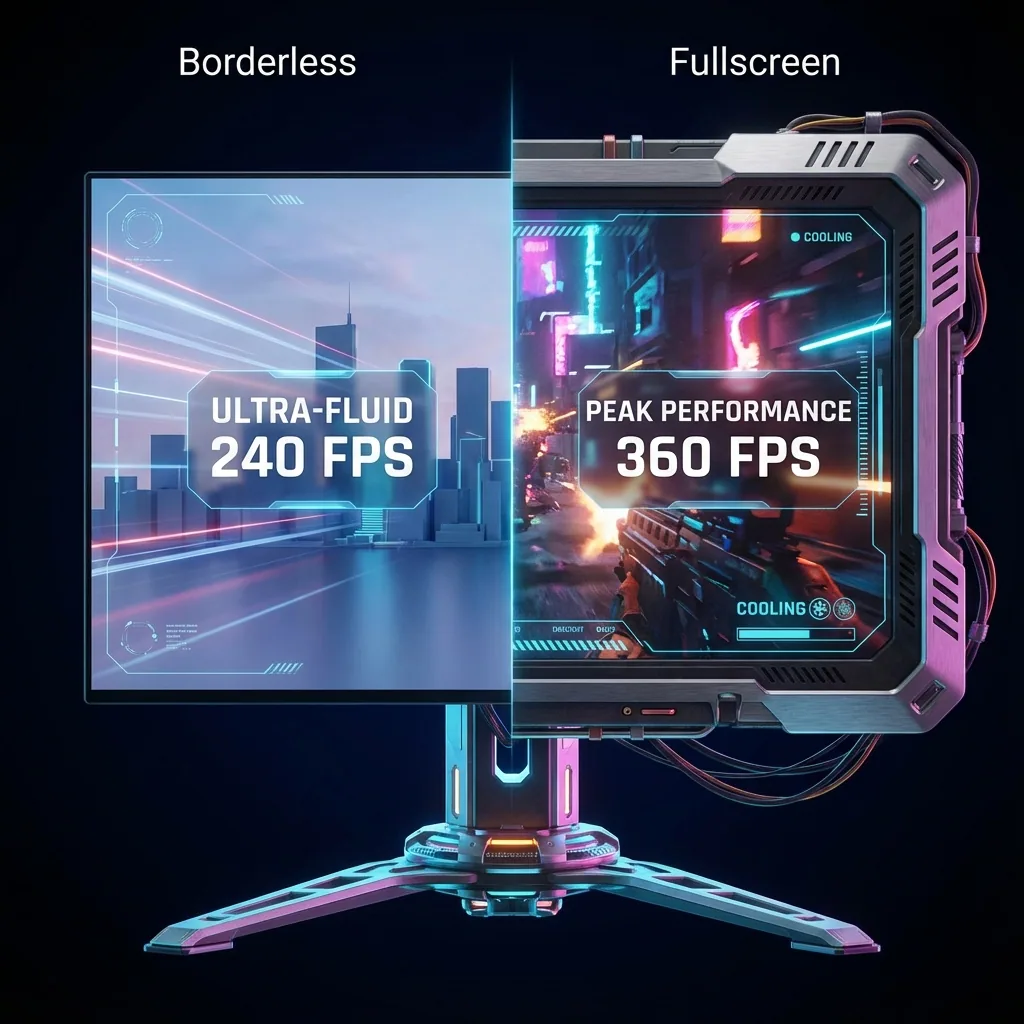
Réponse rapide : les utilitaires « toujours au premier plan » (PowerToys Always On Top, DevToys, outils Win+, un script AutoHotkey WinSet, AlwaysOnTop) échouent par-dessus un jeu en plein écran exclusif parce que le jeu possède tout l'affichage — un attribut « topmost » n'est qu'une indication donnée au gestionnaire de fenêtres du bureau, et un jeu en plein écran exclusif a justement sorti ce gestionnaire du circuit ; votre fenêtre épinglée se retrouve donc recouverte, ou bien elle force le jeu à basculer dans un mode plus lent. Le correctif fiable n'est pas du tout une astuce topmost : lancez le jeu sur son propre écran virtuel en plein écran natif, et placez l'autre fenêtre dans une zone à côté sur votre moniteur physique. La fenêtre est vraiment à l'écran et cliquable, le jeu garde son plein écran natif, et il n'y a aucune perte de FPS liée au sans bordure.
C'est l'une des plaintes PC les plus répétées qui soient : « j'ai épinglé la fenêtre toujours au premier plan, mais à la seconde où je lance le jeu en plein écran elle disparaît ». Vous voulez un minuteur, un guide, une fenêtre de chat ou un tableau de bord posé par-dessus un jeu en plein écran — et chaque astuce « toujours au premier plan » vous laisse tomber. Voici exactement pourquoi, et comment garder pour de bon une fenêtre par-dessus le jeu.
Pourquoi « toujours au premier plan » ne marche pas par-dessus un jeu en plein écran
« Toujours au premier plan » est une indication d'ordre de superposition (z-order). Quand vous épinglez une fenêtre avec PowerToys Always On Top, DevToys ou une commande AutoHotkey AlwaysOnTop, tout ce que vous avez fait, c'est demander au gestionnaire de fenêtres du bureau de garder cette fenêtre au-dessus de ses voisines dans l'ordre d'empilement. Ça fonctionne très bien par-dessus des fenêtres normales, et même par-dessus des jeux en sans bordure, parce qu'ils vivent tous dans le même bureau composité.
Un jeu en plein écran exclusif casse ce postulat. Il prend le contrôle direct de tout l'affichage et contourne le compositeur du bureau — l'ordre d'empilement dans lequel vit votre attribut topmost ne gouverne donc plus ce qui apparaît à l'écran. À partir de là, l'une de deux choses se produit :
- Votre fenêtre épinglée se retrouve recouverte. Le jeu peint tout l'affichage directement ; l'instruction « garde ceci au premier plan » du compositeur n'a plus rien contre quoi s'appliquer, donc la fenêtre n'est tout simplement pas visible.
- Le jeu se fait éjecter du plein écran exclusif. Pour afficher votre fenêtre topmost malgré tout, Windows doit ramener le jeu dans un mode composité (proche du sans bordure) — c'est-à-dire exactement le chemin plus lent que vous cherchiez à éviter, au prix de FPS perdus et de latence d'entrée ajoutée.
Donc « always on top ne marche pas dans le jeu » n'est pas un bug de votre utilitaire. C'est une incompatibilité structurelle : un attribut topmost est une requête adressée à un compositeur qu'un jeu en plein écran exclusif a délibérément contourné. Aucune astuce topmost ne peut épingler une fenêtre par-dessus un vrai plein écran exclusif sans en sortir le jeu.
Les correctifs, classés
Voici comment les approches courantes se comparent quand vous voulez vraiment une fenêtre par-dessus un jeu en plein écran.
| Approche | Reste visible par-dessus le VRAI plein écran ? | Le jeu garde ses FPS natifs ? | Fenêtre cliquable ? | Un seul écran ? |
|---|---|---|---|---|
| PowerToys / AHK « toujours au premier plan » | Non — recouverte, ou force le jeu hors du plein écran exclusif | Seulement s'il bascule le jeu en fenêtré (alors non) | Oui | Oui |
| Fenêtré sans bordure + topmost | Pas du « vrai » plein écran — le jeu est déjà fenêtré | Non — paye le coût du compositeur en FPS/latence | Oui | Oui |
| Second moniteur | Sans objet — la fenêtre est sur l'autre écran, pas par-dessus le jeu | Oui | Oui | Non — nécessite du matériel en plus |
| Staged (propre écran virtuel + zone) | Oui — la fenêtre est à côté du jeu, vraiment à l'écran | Oui — plein écran natif, sans pénalité du sans bordure | Oui | Oui |
1. PowerToys Always On Top / AHK (marche par-dessus les fenêtres, perd face au plein écran exclusif)
PowerToys Always On Top, DevToys et un script AutoHotkey d'une ligne épinglent tous le z-order d'une fenêtre. Par-dessus des applis normales et des jeux en sans bordure, ils sont excellents — instantanés et sans frais avec vos outils existants.
- Avantages : légers, fonctionnent par-dessus les jeux en sans bordure et les applis de bureau.
- Inconvénients : par-dessus un jeu en plein écran exclusif, la fenêtre épinglée est soit recouverte, soit visible uniquement en forçant le jeu hors du plein écran exclusif (le mode plus lent). C'est une indication de niveau compositeur, et le plein écran exclusif se situe en dehors du compositeur.
2. Fenêtré sans bordure + topmost (visible, mais vous payez la taxe FPS)
Passez le jeu en Fenêtré sans bordure, puis épinglez votre autre fenêtre au premier plan. Désormais tout vit dans le bureau composité, donc l'attribut topmost fonctionne et votre fenêtre reste visible.
- Avantages : la fenêtre épinglée reste vraiment par-dessus le jeu ; fonctionne dans la plupart des titres modernes.
- Inconvénients : vous avez abandonné le plein écran exclusif au profit du compositeur de bureau, ce qui ajoute un petit coût en FPS et en latence d'entrée. Et pour être précis, vous ne gardez plus une fenêtre par-dessus du vrai plein écran — vous avez passé le jeu en fenêtré pour que ça marche. Les joueurs compétitifs détestent souvent la taxe de latence.
3. Lancer le jeu sur son propre écran virtuel et ancrer la fenêtre à côté (plein écran natif, sans astuce)
Au lieu de vous battre contre le z-order, contournez-le. Lancez le jeu sur un écran virtuel séparé en plein écran natif, et placez l'autre fenêtre dans une zone juste à côté sur votre moniteur physique. Windows traite l'écran virtuel comme un vrai moniteur, donc le jeu garde son vrai plein écran natif et n'a jamais à quitter le mode exclusif — pendant que votre autre fenêtre est composée dans une zone juste à côté, entièrement à l'écran et cliquable. C'est ce que fait Staged : il lance le jeu sur un écran virtuel et le compose dans une zone de votre écran physique, avec vos autres applis dans des zones tout autour.
- Avantages : performances plein écran natif (aucune pénalité du sans bordure) ; l'autre fenêtre est vraiment visible et cliquable à côté du jeu — pas une astuce topmost qui peut être recouverte ; et ça fonctionne sur un seul moniteur, sans matériel supplémentaire, portable inclus.
- Note honnête : la fenêtre est à côté du jeu dans sa propre zone plutôt que littéralement flottante par-dessus un jeu plein écran — ce qui est tout l'intérêt, parce que « par-dessus un vrai plein écran exclusif » n'est pas quelque chose qu'un attribut topmost peut honnêtement offrir. Staged est aussi un outil dédié plutôt qu'un interrupteur intégré à Windows.
Épinglée « au premier plan » vs. vraiment visible à côté du jeu
Il vaut la peine d'être précis sur ce que vous voulez réellement, car les correctifs diffèrent :
- Si vous avez seulement besoin de la fenêtre par-dessus des jeux en sans bordure ou des applis de bureau, PowerToys Always On Top ou un script AHK est parfait — épinglez-la et c'est réglé.
- Si vous avez besoin que la fenêtre soit visible pendant que le jeu reste en vrai plein écran exclusif, aucun attribut topmost ne peut le faire sans faire basculer le jeu en fenêtré. Donnez plutôt au jeu son propre écran virtuel et ancrez la fenêtre dans une zone à côté — vraiment à l'écran, et le jeu ne quitte jamais son plein écran natif.
Savoir lequel des deux vous avez vous évite de courir après une astuce topmost que le plein écran exclusif allait de toute façon ignorer.
Foire aux questions
Pourquoi « toujours au premier plan » ne marche-t-il pas par-dessus mon jeu en plein écran ?
Parce que « toujours au premier plan » est une indication de z-order donnée au compositeur du bureau Windows, et qu'un jeu en plein écran exclusif contourne ce compositeur pour peindre tout l'affichage directement. Comme l'attribut topmost n'a plus rien contre quoi s'appliquer, votre fenêtre épinglée est soit recouverte, soit visible uniquement en forçant le jeu hors du plein écran exclusif, dans un mode fenêtré plus lent. C'est une incompatibilité structurelle, pas un bug de votre utilitaire.
PowerToys Always On Top fonctionne-t-il dans les jeux ?
Par-dessus les jeux en sans bordure et les applis de bureau, oui — PowerToys Always On Top épingle la fenêtre sans souci. Par-dessus un jeu en plein écran exclusif, non : le jeu possède l'affichage en dehors du compositeur, donc la fenêtre épinglée est recouverte ou fait basculer le jeu en fenêtré. Il en va de même pour DevToys et les scripts AutoHotkey AlwaysOnTop personnalisés.
Comment épingler une fenêtre par-dessus un jeu en plein écran ?
La réponse honnête, c'est que vous ne l'épinglez pas par-dessus un vrai plein écran exclusif — vous la placez à côté du jeu. Lancez le jeu sur son propre écran virtuel en plein écran natif et ancrez l'autre fenêtre dans une zone juste à côté, sur le même moniteur. Elle est vraiment à l'écran et cliquable, et le jeu n'a jamais à quitter son plein écran exclusif. C'est ce que fait Staged sur un seul moniteur.
Le fenêtré sans bordure va-t-il régler ça (et à quel prix) ?
Oui, au sens où une fois le jeu en Fenêtré sans bordure tout vit dans le bureau composité, donc un attribut topmost gardera votre fenêtre visible. Le prix, c'est que vous avez échangé le plein écran exclusif contre le compositeur de bureau, ce qui ajoute un petit coût en FPS et en latence d'entrée — et vous ne gardez plus une fenêtre par-dessus du vrai plein écran, puisque vous avez passé le jeu en fenêtré. Un écran virtuel évite ce compromis.
Est-ce que ça fonctionne sur un seul moniteur ?
Oui. Lancer le jeu sur un écran virtuel et ancrer la fenêtre dans une zone à côté se passe entièrement sur l'unique écran que vous avez déjà — pas de second moniteur, pas de matériel en plus, et ça fonctionne sur un portable. Le jeu reste en grand dans sa zone pendant que l'autre fenêtre reste active juste à côté.
Est-ce que ça va faire baisser mes FPS ?
Le fenêtré sans bordure fait légèrement baisser les FPS car il fait passer le jeu par le compositeur de bureau au lieu du plein écran exclusif. Forcer une fenêtre topmost par-dessus un jeu en plein écran peut déclencher le même chemin par le compositeur. Lancer le jeu sur son propre écran virtuel conserve les performances plein écran natif sans perte de FPS — et vous choisissez aussi la résolution de rendu.
Gardez la fenêtre visible sans l'astuce topmost
Staged lance votre jeu sur un écran virtuel en plein écran natif et ancre votre autre fenêtre dans une zone à côté — vraiment à l'écran et cliquable, sans attribut topmost qui pourrait être recouvert, sans perte de FPS liée au sans bordure, le tout sur un seul moniteur. Il arrive sur Steam ; ajoutez-le à votre liste de souhaits pour être parmi les premiers à jouer.
À lire aussi :