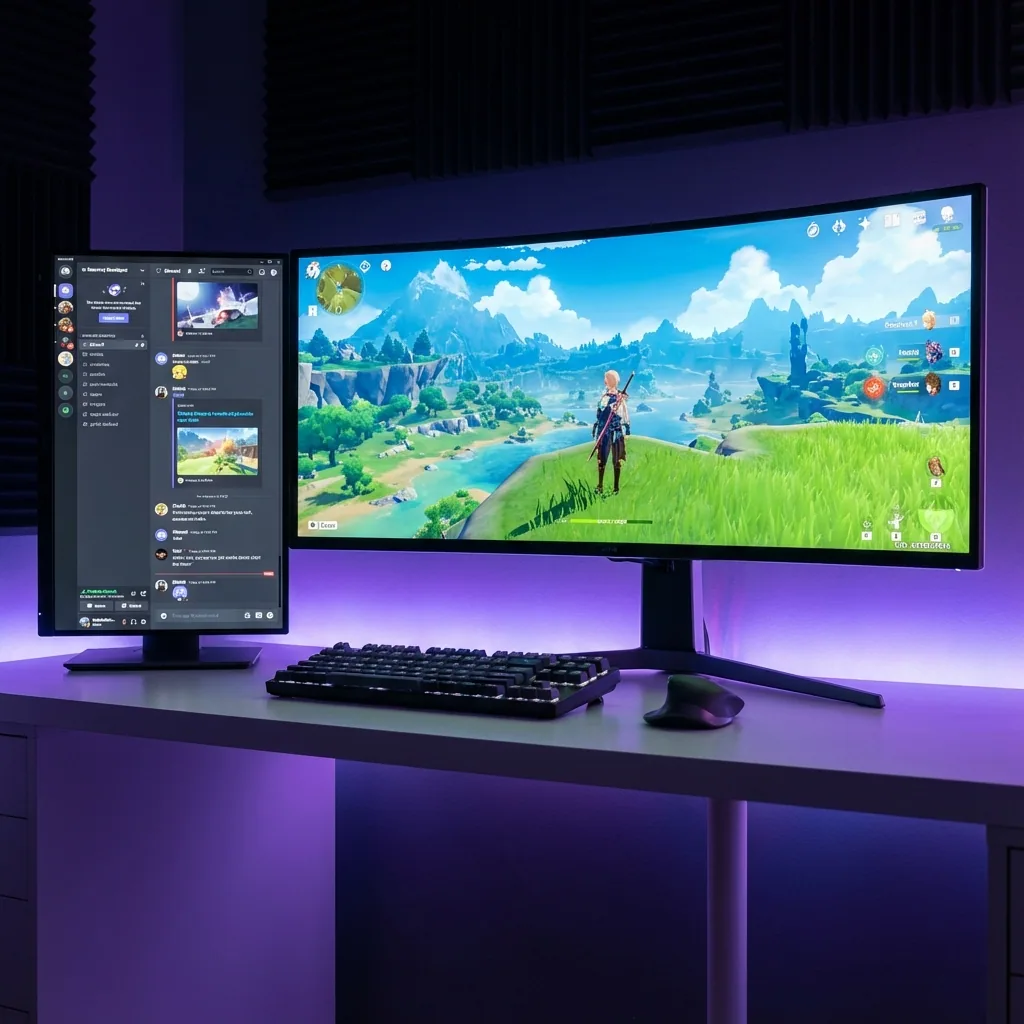
Resposta rápida: para acompanhar gráficos de ações ou cripto jogando em tela cheia num só monitor, rode o jogo no próprio monitor virtual dentro de uma zona, em tela cheia nativa de verdade, e encaixe um gráfico ao vivo do TradingView, a web app da sua corretora ou exchange (Binance, Coinbase), uma watchlist e alertas de preço em zonas ao redor. Os gráficos ficam vivos e clicáveis — dá pra ler o ticker, rolar um gráfico, até mandar uma ordem — sem o jogo minimizar e sem penalidade de FPS de janela sem bordas. É a versão de uma tela só de um segundo monitor, sem o hardware. O Staged é uma ferramenta de layout: ele coloca seus gráficos onde você consegue ver; ele não dá consultoria financeira e não opera por você.
Se você já pesquisou "ver gráficos de ações jogando", "manter o TradingView aberto jogando", "preços de cripto enquanto jogo", "trading e jogo em um monitor" ou "ver minha carteira jogando", já conhece a cilada: o jogo quer a tela inteira, e justo a única coisa que você precisa ter à vista — um gráfico ao vivo, sua watchlist, uma posição aberta — não tem onde ficar. Este guia explica por que isso acontece e como manter o mercado na tela ao lado do jogo, sem um segundo monitor.
Por que um jogo em tela cheia esconde seus gráficos
Quando um jogo roda em fullscreen exclusivo, ele assume o controle direto do monitor e do foco de teclado/mouse, falando direto com a GPU e pulando o compositor da área de trabalho do Windows. É isso que dá a você a melhor taxa de quadros e a menor latência de input — mas é também por isso que nada mais consegue dividir aquela tela. Então:
- Sua aba do TradingView, o painel da corretora ou a app da exchange são desenhados atrás do jogo e você não consegue vê-los.
- Clicar num gráfico pra dar zoom ou mandar uma ordem te joga pra fora do jogo — e muitos jogos em tela cheia minimizam, engasgam ou pausam no instante em que perdem o foco.
- Widgets de ticker "sempre no topo" ficam cobertos pelo fullscreen exclusivo, então o preço que você queria acompanhar some invisível embaixo do jogo.
Você acaba tendo que escolher entre ver o seu jogo e ver o mercado. As gambiarras de sempre pegam uma e sacrificam a outra.
Por que as soluções de sempre são meia-boca
| Abordagem | Funciona em fullscreen real? | Gráfico ao vivo clicável ao lado do jogo? | Uma tela só? | FPS nativo? |
|---|---|---|---|---|
| Segundo monitor | Sim | Sim — mas custa hardware e espaço na mesa, e seu olho sai do jogo | Não | Sim |
| Alt-tab pro navegador | Sim | Não — em série, e o jogo pode minimizar/engasgar/pausar | Sim | Sim |
| Janela sem bordas | Não — perde o fullscreen exclusivo | Mais ou menos, mas o foco ainda fica pulando | Sim | Reduzido — custo de compositor de FPS + latência de input |
| Celular | Sim (aparelho separado) | Sim, mas minúsculo, não é clicável no seu PC, e o olho sai do jogo | Sim (tela do jogo) | Sim |
| Staged (monitor virtual + zonas) | Sim — o jogo mantém o próprio display | Sim — TradingView, corretora, watchlist e alertas ao vivo em zonas | Sim | Nativo — sem penalidade de janela sem bordas, tela cheia nativa sem perda de FPS |
- Um segundo monitor funciona mesmo e é a resposta padrão dos traders, mas a maioria dos gamers de PC tem uma tela só, ele custa dinheiro e espaço na mesa, e puxa o seu olho pra longe do jogo — exatamente o que você estava tentando evitar.
- Alt-tab é o padrão e o pior: é em série (você não consegue acompanhar o gráfico e jogar), e jogos em fullscreen exclusivo muitas vezes minimizam, engasgam ou pausam no instante em que perdem o foco, então você perde justo o candle que estava observando.
- A janela sem bordas deixa você encaixar um navegador ao lado do jogo, mas devolve o display ao compositor da área de trabalho — um pequeno custo de FPS e de latência de input — e o foco ainda fica pulando entre o jogo e o gráfico.
- Um celular mantém o preço fora da tela do PC, mas é pequeno, você não consegue clicar nele com o mouse, e olhar pra baixo ainda tira o seu olho do jogo.
Nenhum deles te dá o que você realmente quer: o jogo em tamanho cheio e nativo, e um gráfico, watchlist e feed de alertas de verdade, vivos e clicáveis ao lado, na única tela que você já tem.
A solução: rode o jogo no próprio display, encaixe seus gráficos em zonas
O Staged dá ao seu jogo o próprio monitor virtual (via o framework de driver de display indireto do Windows), então o Windows o trata como um monitor de verdade e ele roda em tela cheia nativa de verdade — aí mostra esse display numa zona da sua tela real. Você encaixa um gráfico ao vivo do TradingView, a web app da sua corretora ou exchange, uma watchlist e um feed de alertas de preço em zonas bem ao lado. Como o jogo está no próprio display, clicar num gráfico pra dar zoom, rolar ou mandar uma ordem não faz o jogo minimizar — os dois coexistem num só monitor.
- Seus gráficos ficam vivos e clicáveis — leia o ticker, role o gráfico, ajuste um alerta, mande uma ordem, tudo sem sair da visão do jogo.
- Funciona com qualquer app ou site do Windows — uma aba do TradingView, uma web app da Binance ou Coinbase, o painel da sua corretora, uma página de watchlist ou um ticker de desktop.
- O jogo mantém a performance de tela cheia nativa (sem penalidade de janela sem bordas) e tela cheia nativa sem perda de FPS na própria zona.
- Está tudo na única tela que você já tem — ótimo pra um notebook ou uma mesa de uma tela só.
- Salve um layout "Mercados" (jogo grande, gráfico e watchlist encaixados ao lado) e alterne com uma tecla de atalho quando a sessão começa ou um nível fica intenso.
Uma nota sobre o escopo: o Staged é uma ferramenta de layout de display, não uma ferramenta de trading. Ele coloca seus gráficos, sua carteira e seus alertas onde você consegue ver — ele não dá consultoria financeira, não faz operações e não te faz ganhar dinheiro. Todas as decisões são suas. E uma ressalva padrão por jogo: se um jogo específico for programado pra pausar quando perde o foco, ative a opção de "continuar em segundo plano" dele pra ele seguir rodando enquanto você interage com um gráfico em outra zona.
Configure em cinco passos
- Instale o Staged e crie uma zona Game Stage onde o jogo vai rodar.
- Adicione zonas ao redor pro que você quer acompanhar: uma pro seu gráfico do TradingView, uma pra web app da sua corretora ou exchange (Binance, Coinbase), uma pra uma watchlist e uma pra alertas de preço, se quiser.
- Aponte cada zona pra sua fonte — a aba do TradingView, o painel da exchange, a página da watchlist, o feed de alertas.
- Lance o jogo no Game Stage — ele roda em tela cheia nativa dentro da zona enquanto seus gráficos e sua watchlist atualizam ao vivo nas zonas ao redor.
- Salve como um perfil pra que o layout inteiro volte com uma tecla de atalho — um layout de sessão de mercado que você alterna com um toque.
Pra ver o quadro completo de encaixar apps ao vivo ao lado de um jogo em tela cheia, veja o guia completo de manter qualquer app visível jogando, o hub de coexistência sobre rodar seu jogo e seus apps lado a lado, e como manter um assistente de IA ou guia aberto ao lado de um jogo em tela cheia.
Perguntas frequentes
Posso manter o TradingView aberto ao lado de um jogo em tela cheia?
Sim. Rode o jogo no próprio monitor virtual dentro de uma zona e encaixe uma aba do TradingView (ou o app de desktop) numa zona ao lado. O gráfico fica vivo e clicável enquanto o jogo roda em tela cheia nativa, e clicar no gráfico pra dar zoom, rolar ou desenhar não faz o jogo minimizar — num só monitor.
Preciso de um segundo monitor pros meus gráficos?
Não. O Staged cria um segundo display virtual na sua tela atual, então você ganha o fluxo de duas telas — jogo de um lado, gráfico e watchlist do outro — num só monitor físico, inclusive em notebook. Sem hardware extra, e seu olho fica num só painel.
Vou perder FPS?
Não. O jogo roda em tela cheia nativa de verdade no próprio monitor virtual, evitando o custo do compositor da área de trabalho que a janela sem bordas adiciona pra manter outras janelas visíveis — sem penalidade de janela sem bordas e tela cheia nativa sem perda de FPS. Você também escolhe a resolução de renderização do jogo na zona dele.
Posso clicar no gráfico ou mandar uma ordem sem o jogo minimizar?
Sim. Como o jogo vive no próprio monitor virtual, clicar num gráfico, rolar uma watchlist ou mandar uma ordem na web app da sua corretora numa zona vizinha não toma a tela do jogo nem o minimiza. Se um jogo específico pausa quando perde o foco, ative o ajuste de "continuar em segundo plano" dele pra ele seguir rodando enquanto você interage com um gráfico.
Funciona com qualquer site de corretora ou exchange?
Sim. Qualquer app ou site do Windows pode ser encaixado numa zona ao lado do jogo — TradingView, uma web app da Binance ou Coinbase, o painel da sua corretora, uma página de watchlist ou um ticker de desktop. Ele funciona no nível do display, então não está preso a uma plataforma específica.
Funciona com um monitor só?
Sim — é justamente essa a ideia. O Staged cria um segundo display virtual na única tela que você já tem, então você ganha o fluxo de gráficos-ao-lado-do-jogo sem comprar um segundo monitor, e funciona em notebook.
Pronto pra manter o mercado na tela enquanto joga?
O Staged roda o seu jogo em tela cheia nativa numa zona com o seu gráfico do TradingView, a corretora, a watchlist e os alertas ao vivo ao redor — num só monitor, sem penalidade de janela sem bordas, tela cheia nativa sem perda de FPS. Está chegando à Steam; adicione à sua lista de desejos e pare de dar alt-tab pra sair do jogo pra checar o preço.
Leitura relacionada: