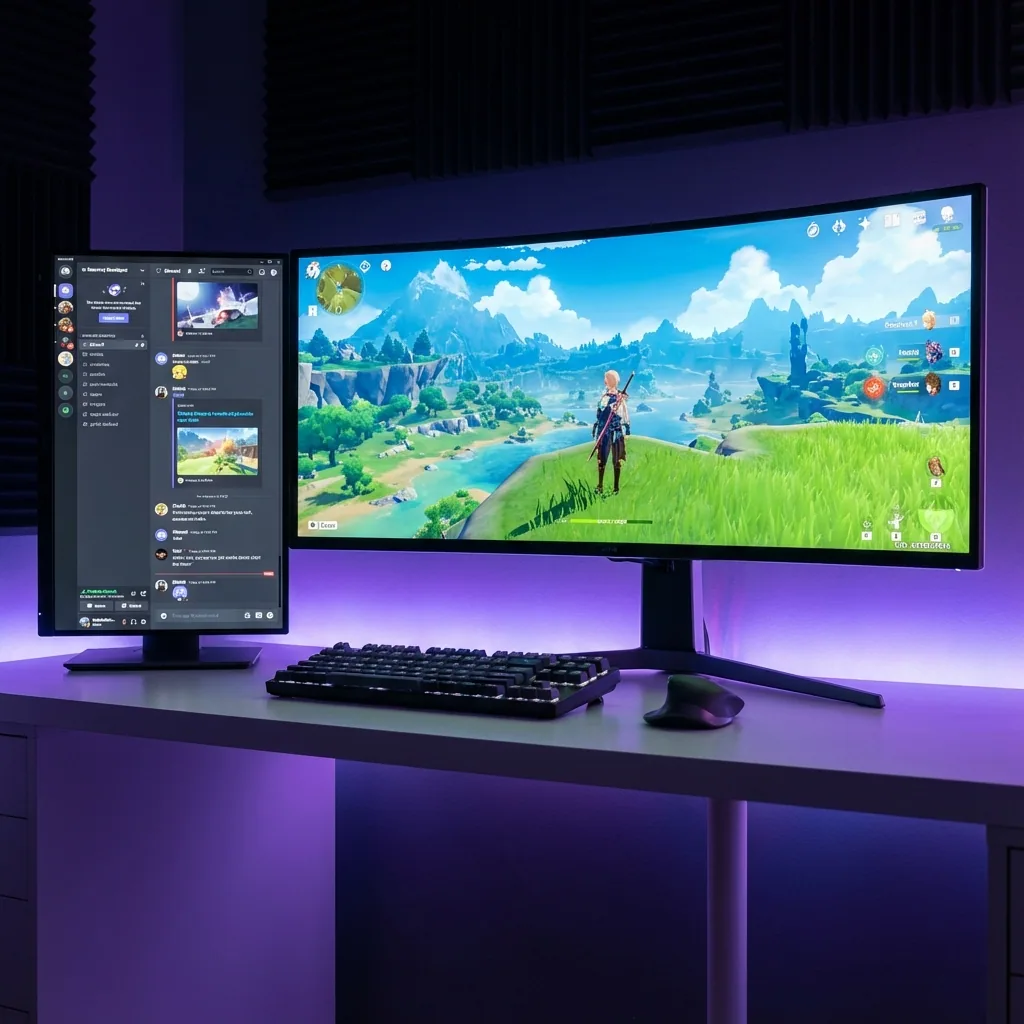
Kurze Antwort: Damit du einen KI-Assistenten oder einen geschriebenen Guide beim Zocken im Vollbild auf einem Monitor offen halten kannst, lässt du das Spiel auf einem eigenen virtuellen Display laufen und dockst ChatGPT, Claude, Copilot oder eine Wiki-/Build-Order-Seite in eine Zone daneben. Der Helfer bleibt live und klickbar, das Spiel behält natives Vollbild, und ein Klick auf den Assistenten zum Tippen einer Frage minimiert das Spiel nie. Es ist die Ein-Bildschirm-Version eines zweiten Monitors – ohne die Hardware und ohne Alt-Tab, nur um deine Build-Order nachzulesen. Nutze es für Singleplayer-Guides, zum Lernen und für Begleiter-Apps – nicht für Echtzeit-Hilfe, die gegen die Regeln eines Spiels oder Wettbewerbs verstößt.
Wenn du Strategie, 4X, Aufbau, RPGs oder Crafting-/Survival-Spiele spielst, kennst du die Schleife: im Wiki die Tech-Reihenfolge nachschauen, einen Blick auf einen Build-Guide werfen oder einen KI-Begleiter fragen, wie du deine Basis anlegen sollst – und dann zurückwechseln und hoffen, dass du es dir gemerkt hast. In dem Moment, in dem du zum Browser oder zu einem ChatGPT-Fenster Alt-Tab machst, minimiert sich ein Spiel im exklusiven Vollbild oft, ruckelt oder pausiert, und du verlierst deinen Faden. Hier ist das Setup, das den Guide genau dort auf einem Bildschirm hält.
Warum dein KI-Assistent oder Guide hinter dem Vollbild-Spiel verschwindet
Ein Vollbild-Spiel übernimmt die exklusive Kontrolle über das Display und den Tastatur-/Maus-Fokus. Windows gibt den Fokus immer nur einem Fenster gleichzeitig, also gilt:
- Dein Browser, ChatGPT oder eine Wiki-Seite wird hinter dem Spiel gezeichnet, und du kannst sie nicht sehen.
- Ein Klick auf den Assistenten, um eine Frage zu tippen, wirft dich aus dem Spiel – und viele Vollbild-Spiele minimieren sich oder ruckeln, wenn sie den Fokus verlieren.
- "Always on top"-Anheft-Tools werden vom exklusiven Vollbild übermalt, also verschwindet der Guide trotzdem unsichtbar unter dem Spiel.
Am Ende musst du dich zwischen dein Spiel sehen und deinen Guide sehen entscheiden. Die üblichen Workarounds picken sich jeweils eins heraus und opfern das andere.
Warum die üblichen Lösungen zu kurz greifen
| Ansatz | Läuft im echten Vollbild? | KI/Guide live & klickbar neben dem Spiel? | Ein Bildschirm? | Native FPS? |
|---|---|---|---|---|
| Zweiter Monitor | Ja | Ja – aber du schaust weg vom Spiel; kostet Hardware | Nein | Ja |
| Alt-Tab zum Browser | Ja | Nein – seriell, und das Spiel minimiert/pausiert eventuell | Ja | Ja |
| Randloser Fenstermodus + Snap | Nein – kein exklusives Vollbild | Fast, aber der Fokus springt weiter hin und her | Ja | Reduziert |
| Staged (virtuelles Display + Zone) | Ja – Spiel behält sein eigenes Display | Ja – jede KI-App oder jedes Wiki, live neben dem Spiel | Ja | Nativ – keine Randlos-Strafe |
- Ein zweiter Monitor funktioniert wirklich, aber die große Mehrheit der PC-Gamer hat nur einen Bildschirm, er kostet Geld und Platz auf dem Schreibtisch, und er zwingt deinen Blick weg vom Geschehen – genau das, was du eigentlich vermeiden wolltest.
- Alt-Tab ist die Standard-Lösung und die schlechteste: Sie ist seriell (du kannst nicht den Guide lesen und spielen), und Spiele im exklusiven Vollbild minimieren sich, ruckeln oder pausieren oft in dem Moment, in dem sie den Fokus verlieren – du verlierst deinen Faden in der Build-Order.
- Der randlose Fenstermodus lässt dich einen Browser neben das Spiel snappen, aber er verzichtet auf echtes Vollbild zugunsten eines Fenster-/Compositor-Pfads – ein kleiner FPS- und Input-Lag-Preis – und der Fokus springt trotzdem zwischen Spiel und Assistent hin und her.
Keines davon gibt dir das, was du wirklich willst: das Spiel in voller Größe und nativ, und ein echtes, klickbares Assistenten- oder Wiki-Panel live daneben auf einem Bildschirm, ohne Fokus-Kampf.
Die Lösung: Spiel auf eigenem Display laufen lassen, KI oder Guide in eine Zone andocken
Staged gibt deinem Spiel sein eigenes virtuelles Display (über das Indirect-Display-Driver-Framework von Windows), sodass es im echten nativen Vollbild läuft, und zeigt dieses Display in einer Zone auf deinem echten Bildschirm. Du dockst ChatGPT, Claude, Copilot, ein Wiki oder eine Build-Order-Seite in eine Zone direkt daneben. Weil das Spiel auf seinem eigenen Display läuft, minimiert ein Klick auf den Assistenten zum Tippen einer Frage das Spiel nicht – die beiden koexistieren auf einem Monitor.
- Dein Assistent oder Wiki bleibt live und klickbar – lies die Build-Order, stell eine Rückfrage, scroll durch den Tech-Baum, alles ohne die Spielansicht zu verlassen.
- Es funktioniert mit jeder Windows-App oder Website – einem ChatGPT-/Claude-/Copilot-Browser-Tab, einem Desktop-KI-Client, einem Spiel-Wiki oder einem schlichten Text-Guide.
- Das Spiel behält native Vollbild-Performance (keine Randlos-Strafe) und null Frame-Verzögerung in seiner eigenen Zone.
- Alles läuft auf dem einen Monitor, den du schon hast – ideal für einen Laptop oder einen Schreibtisch mit nur einem Bildschirm.
- Speicher ein "Guide"-Layout (Spiel groß, Assistent daneben getuckt) und wechsel per Hotkey, wenn du auf einen kniffligen Boss, eine neue Tech-Stufe oder ein Basis-Layout-Rätsel triffst.
Verantwortungsvolle Nutzung: Das ist für Guides, Wikis, Build-Orders, zum Lernen und für Singleplayer-/Begleiter-Nutzung – ein Coach neben dem Spiel, kein Cheat darüber. Nutze es nicht für Echtzeit-Hilfe, die gegen die Nutzungsbedingungen eines Spiels, ein Turnier-Regelwerk oder eine Anti-Cheat-Richtlinie verstößt. Wenn du kompetitiv oder online spielst, respektiere die Regeln jedes Spiels und Wettbewerbs; beschränke KI-Hilfe auf Singleplayer, Übung und Lernen, wo sie erlaubt ist.
In fünf Schritten einrichten
- Installiere Staged und erstelle eine Game-Stage-Zone für das Spiel.
- Füge eine Helfer-Zone daneben hinzu und weise ihr deine KI-App oder deinen Guide zu – einen ChatGPT-/Claude-/Copilot-Tab, eine Wiki-Seite oder ein Build-Order-Dokument.
- Starte das Spiel auf seiner Game Stage – es läuft nativ im Vollbild in seiner Zone.
- Dein Assistent oder Guide bleibt live in der Nachbar-Zone; lies und frag, ohne Alt-Tab.
- Speicher es als Profil, damit das Layout per Hotkey zurückkommt – ein Lernen-beim-Spielen-Setup für jeden Run.
Häufig gestellte Fragen
Kann ich ChatGPT neben einem Vollbild-Spiel offen halten?
Ja. Lass das Spiel auf seinem eigenen virtuellen Display laufen und dock einen ChatGPT-Tab (oder Desktop-Client) in eine Zone daneben. ChatGPT bleibt live und klickbar, während das Spiel im nativen Vollbild läuft, und ein Klick zum Tippen einer Frage minimiert das Spiel nicht – auf einem einzigen Monitor.
Brauche ich einen zweiten Monitor für einen Guide oder ein Wiki?
Nein. Staged erstellt ein virtuelles zweites Display auf deinem vorhandenen Bildschirm, sodass du den Zwei-Bildschirm-Workflow bekommst – Spiel auf der einen Seite, Wiki oder Build-Guide auf der anderen – auf einem physischen Monitor, auch auf einem Laptop.
Senkt es meine FPS?
Nein. Das Spiel läuft im echten nativen Vollbild auf seinem eigenen virtuellen Display und umgeht so den Desktop-Compositor-Overhead, den der randlose Fenstermodus mitbringt, um andere Fenster sichtbar zu halten. Du wählst die Render-Auflösung, und das Spiel behält null Frame-Verzögerung in seiner Zone – natives Vollbild ohne FPS-Verlust.
Ist das erlaubt, oder ist das Cheaten?
Für Singleplayer-Guides, Wikis, Build-Orders und KI-Begleiter ist es völlig in Ordnung – es ist dasselbe, wie einen Guide auf einem zweiten Monitor offen zu haben. Aber respektiere die Nutzungsbedingungen jedes Spiels und die Regeln jedes Wettbewerbs: Nutze keine Echtzeit-KI-Hilfe, um Anti-Cheat- oder Turnierregeln im kompetitiven oder Online-Spiel zu umgehen. Staged ist ein Display-Layout-Tool; beschränke KI-Hilfe auf Singleplayer, Übung und Lernen, wo sie erlaubt ist, und es bleibt sauber und vertretbar.
Kann ich jede KI-App oder Website nutzen?
Ja. Jede Windows-App oder Website kann in eine Zone neben dem Spiel angedockt werden – ein ChatGPT-, Claude- oder Copilot-Browser-Tab, ein Desktop-KI-Client, ein Spiel-Wiki, ein Build-Rechner oder ein schlichter Text-Guide. Es ist nicht an eine einzige bestimmte App gebunden, wie es ein eingebautes Overlay ist.
Funktioniert das mit nur einem Monitor?
Ja – genau darum geht es. Staged erstellt ein virtuelles zweites Display auf dem einen Bildschirm, den du schon hast, sodass du den Guide-neben-Spiel-Workflow bekommst, ohne einen zweiten Monitor zu kaufen, und es funktioniert auch auf einem Laptop.
Bereit, mit offenem Guide zu spielen?
Staged kommt auf Steam. Wenn du es satt hast, aus deinem Spiel rauszuwechseln, um ein Wiki zu lesen oder eine KI zu fragen – setz es auf die Wunschliste und sei als Erste:r dabei.
Weiterlesen: