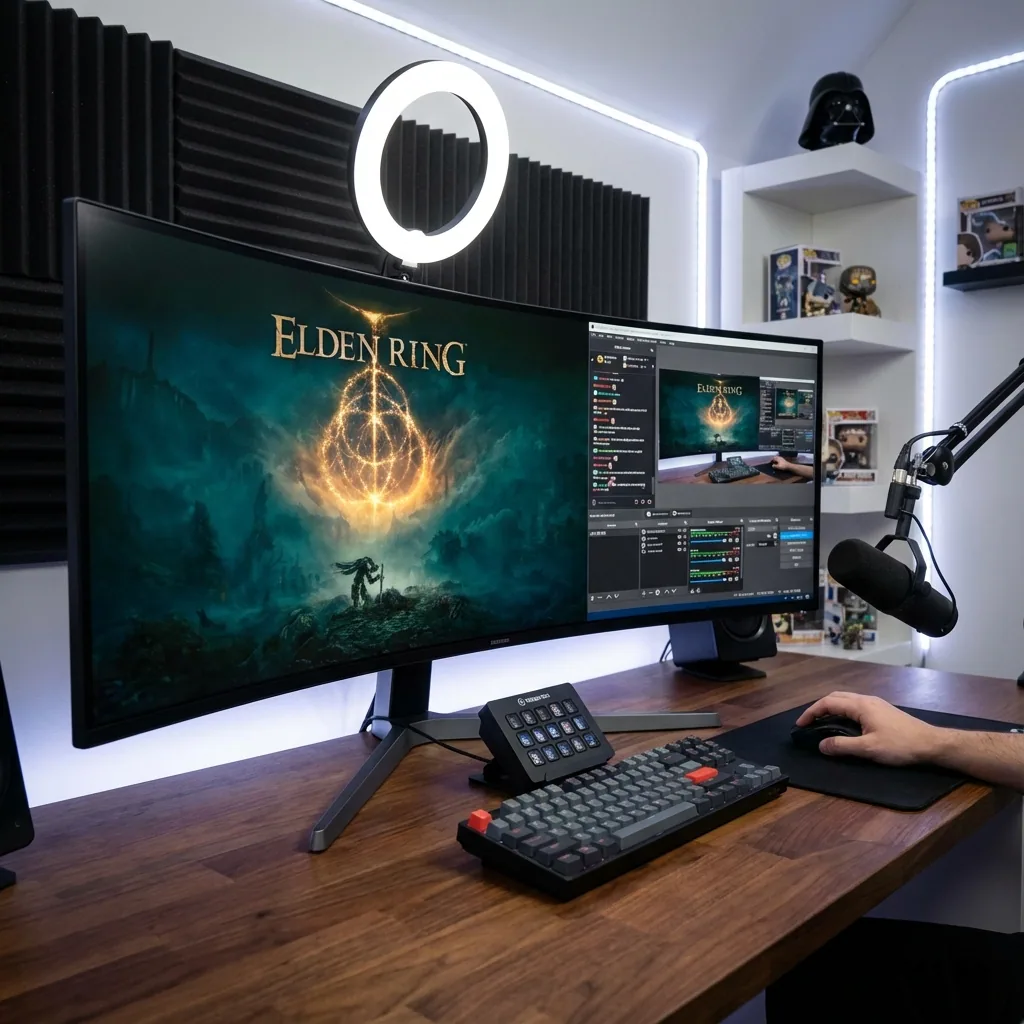
Réponse rapide : pour garder Discord, Teams, Slack ou vos e-mails visibles pendant que vous jouez en plein écran sur un seul moniteur, lancez le jeu sur un écran virtuel dédié et ancrez votre appli de travail dans une zone juste à côté. Le chat reste vivant et cliquable, le jeu conserve son plein écran natif, et cliquer sur la fenêtre de message ne minimise jamais le jeu. C'est la version un seul écran d'un second moniteur — sans le matériel, et sans alt-tab.
Si vous jouez pendant les temps morts — une longue compilation, un rendu, un après-midi calme — l'agaçant n'est pas le jeu. C'est de rater le @mention, le « un appel rapide ? » ou l'e-mail que vous attendiez, parce que Teams est enterré derrière votre jeu en plein écran et vous en éjecte à l'instant où vous cliquez dessus. Un overlay Discord ne montre que Discord — Staged, lui, affiche n'importe quelle appli dans une zone : Teams, un navigateur, un guide. Voici le setup qui règle le problème.
Pourquoi Teams et Slack disparaissent derrière un jeu en plein écran
Un jeu en plein écran prend le contrôle exclusif de l'affichage et du focus clavier/souris. Windows ne donne le focus qu'à une fenêtre à la fois, donc :
- Teams / Slack / Outlook sont dessinés derrière le jeu et vous ne pouvez pas les voir.
- Les notifications sont soit supprimées, soit — pire — forcent le jeu à se minimiser quand elles volent le focus.
- Cliquer sur le chat pour répondre vous éjecte du jeu — et beaucoup de jeux en plein écran se minimisent ou saccadent quand ça arrive.
Vous finissez par choisir entre voir votre jeu et voir votre travail. Les contournements courants choisissent l'un et sacrifient l'autre.
Pourquoi les solutions habituelles ne suffisent pas
| Approche | Voir travail + jeu en même temps ? | FPS natifs ? | Un seul écran ? |
|---|---|---|---|
| Alt-tab vers Teams | Non — en série, et le jeu peut se minimiser ou se mettre en pause | Oui | Oui |
| Second moniteur pour Teams | Oui, mais vous détournez le regard du jeu ; ça coûte du matériel | Oui | Non |
| Fenêtré sans bordure + ancrage | À peu près, mais abandonne le plein écran exclusif (surcoût du compositeur) | Réduits | Oui |
| Uniquement les notifications Teams | Vous voyez un toast, pas la conversation ; peut voler le focus | Oui | Oui |
| Staged (écran virtuel + zone) | Oui — Teams vivant à côté d'un jeu en plein écran natif | Natifs | Oui |
- L'alt-tab est l'option par défaut et la pire : c'est séquentiel (vous ne pouvez pas surveiller le chat et jouer), et les jeux en plein écran exclusif se minimisent, saccadent ou se mettent souvent en pause quand ils perdent le focus.
- Un second moniteur fonctionne, mais anéantit l'objectif « un seul écran », coûte de l'argent et détourne vos yeux du jeu.
- Le fenêtré sans bordure vous laisse placer Teams à côté du jeu, mais il abandonne le vrai plein écran au profit d'un chemin fenêtré/compositeur — un petit impôt sur les FPS et la latence d'entrée — et le focus rebondit toujours entre les fenêtres.
- Les toasts de notification vous montrent qu'un message est arrivé, pas le fil de discussion, et ils peuvent arracher le focus au jeu.
La solution : lancez le jeu sur son propre écran, ancrez Teams dans une zone
Staged donne à votre jeu son propre écran virtuel, il tourne donc en vrai plein écran natif, et affiche cet écran dans une zone sur votre écran réel. Vous ancrez Teams, Slack ou Outlook dans une zone juste à côté. Parce que le jeu vit sur son propre écran, cliquer sur le chat pour lire ou répondre ne minimise pas le jeu — les deux coexistent sur un seul moniteur.
- Teams/Slack reste vivant et cliquable — lisez le fil, répondez, rejoignez un appel, tout ça sans quitter la vue du jeu.
- Le jeu conserve ses performances plein écran natif (aucune pénalité du sans bordure).
- Tout est sur le seul moniteur que vous avez déjà — parfait pour un portable ou un bureau à un seul écran.
- Enregistrez une disposition « Travail » (jeu petit, Teams grand) et une disposition « Jeu » (jeu grand, Teams glissé dans un coin) et basculez entre elles avec un raccourci, au gré de la journée entre travail concentré et temps morts.
Et pour le moment où surgit un appel-surprise ou une visite imprévue, Staged vous laisse dégager le jeu de la vue d'une seule touche. Limite honnête : ça retire le jeu de votre écran et des partages d'écran standard (capture de fenêtre ou d'écran Teams/Zoom/Meet/Discord/OBS) — c'est une commodité de confidentialité et de changement de contexte, pas un moyen de cacher une activité à la surveillance informatique ou au Gestionnaire des tâches, ni un outil pour tromper qui que ce soit.
Configurez-le en cinq étapes
- Installez Staged et créez une zone Game Stage pour le jeu.
- Ajoutez une zone de travail à côté et assignez-lui Teams, Slack ou Outlook.
- Lancez le jeu sur sa Game Stage — il tourne en plein écran natif dans sa zone.
- Votre appli de travail reste vivante dans la zone voisine ; lisez et répondez sans alt-tab.
- Enregistrez le tout comme profil ; ajoutez une disposition « Travail » et une disposition « Jeu » entre lesquelles basculer d'un raccourci.
Foire aux questions
Puis-je voir Teams à côté d'un jeu en plein écran ?
Oui. Lancez le jeu sur un écran virtuel et ancrez Teams dans une zone à côté. Teams reste visible et cliquable pendant que le jeu tourne en plein écran natif, et cliquer sur Teams ne minimise pas le jeu — sur un seul moniteur.
Comment empêcher mon jeu de se minimiser ?
Donnez au jeu son propre écran virtuel. Teams et le jeu vivent alors sur des écrans différents composités sur un seul écran, donc interagir avec Teams ne tire plus le focus d'une manière qui minimise le jeu.
Puis-je faire pareil avec Slack, Outlook ou un navigateur ?
Oui. N'importe quelle appli Windows — Slack, Outlook, un navigateur, un tableur — peut être ancrée dans une zone à côté du jeu. Ce n'est pas limité à une appli précise, contrairement à un overlay Discord.
Ça marche avec un seul moniteur ?
Oui. Staged crée un second écran virtuel sur votre écran existant, donc vous obtenez le workflow deux écrans sur un seul moniteur physique, portable compris.
Est-ce que je perds des FPS ?
Non. Le jeu tourne en vrai plein écran natif sur son propre écran virtuel, évitant le surcoût du compositeur qu'ajoute le mode fenêtré sans bordure pour garder les applis de travail visibles. C'est du plein écran natif sans perte de FPS.
Est-ce que mon jeu se met en pause quand je clique sur Teams ?
Cliquer sur une appli à côté du jeu ne le minimise pas et ne lui vole pas l'écran — il reste en plein écran sur son propre écran virtuel. La mise en pause en arrière-plan, elle, dépend du jeu : si le vôtre se met en pause quand il perd le focus, activez son option « continuer en arrière-plan » dans ses paramètres.
Est-ce contraire au règlement au travail ?
Ça, c'est entre vous et votre employeur. Staged est un outil de disposition d'affichage ; il ne cache rien aux logiciels de surveillance et ne déguise pas votre activité. Servez-vous-en pour rester joignable pendant que vous jouez sur votre temps libre.
Ne ratez plus jamais un message
Staged arrive sur Steam. Si vous en avez fini de faire alt-tab hors de votre jeu pour vérifier Teams — ajoutez-le à votre liste de souhaits et soyez parmi les premiers à jouer.
À lire aussi :