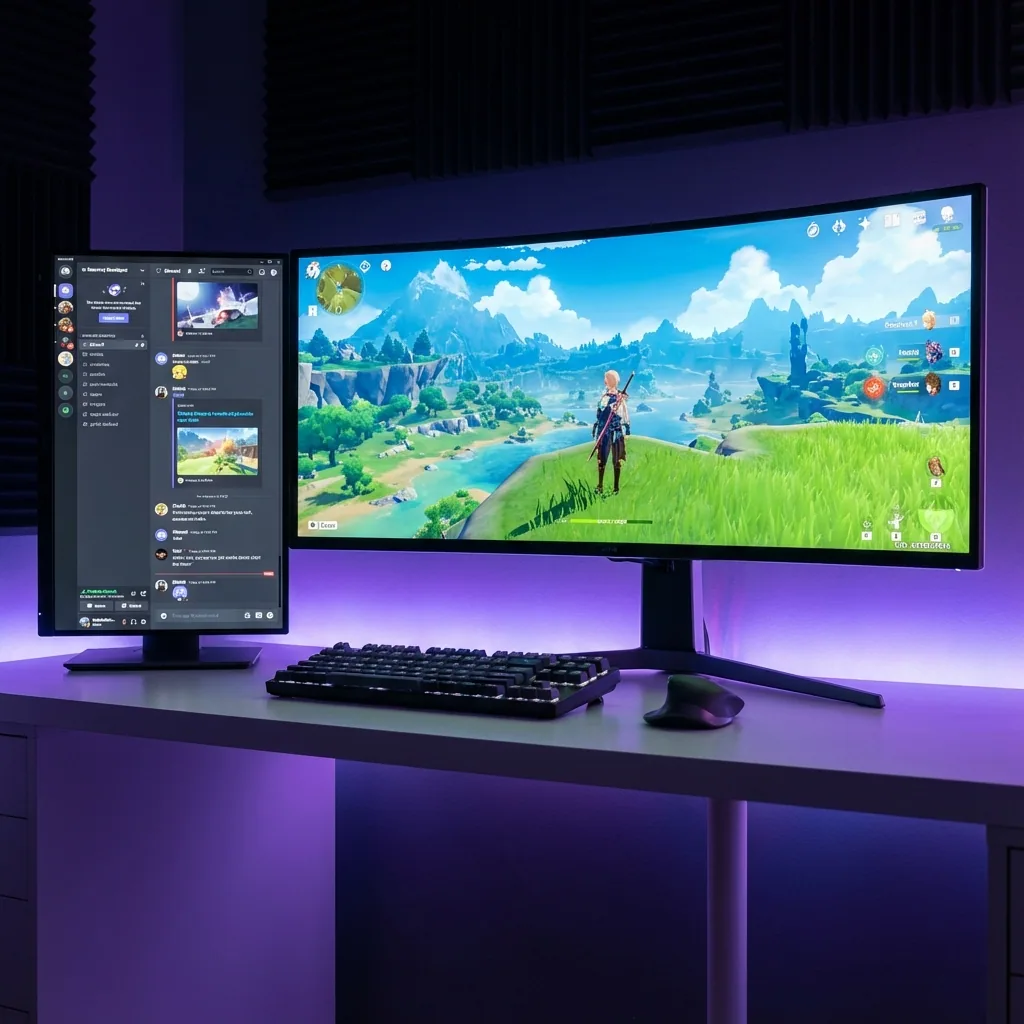
You're deep in a ranked match, clutching a 1v3, when you hear Discord notification sounds. Is it your teammate calling a strategy? Is someone asking for backup? You have no idea because Discord is hidden behind your fullscreen game.
Your options are:
- Alt-tab out (and probably die while the game is minimized)
- Ignore it (and miss important calls)
- Use Discord's in-game overlay (which is clunky and blocks your view)
- Buy a second monitor (expensive, requires desk space, forces you to look away from the game)
None of these are great solutions. What you actually want is Discord visible while gaming in fullscreen—without performance loss, without alt-tabbing, and without buying extra hardware.
I've been gaming with persistent Discord visibility for over three years, across different monitor setups and dozens of games. This guide will show you every method that actually works, why most solutions fail, and how to set up the optimal Discord + fullscreen gaming experience.
Why Discord Gets Hidden When Gaming
First, let's understand the problem.
How Fullscreen Mode Works
When you launch a game in fullscreen mode, it takes exclusive control of your display. The game talks directly to your GPU, bypassing Windows' Desktop Window Manager (DWM). This gives you the best possible performance—lower latency, higher frame rates, more efficient rendering.
But the trade-off is that fullscreen mode hides everything else on your screen. Discord, browser tabs, Spotify, OBS—all invisible until you alt-tab out.
Why Alt-Tabbing Sucks
When you alt-tab from a fullscreen game:
- The game minimizes and loses GPU focus
- Windows has to switch display contexts
- Some games freeze or stutter when regaining focus
- You miss 2-5 seconds of gameplay during the transition
- In competitive games, this can get you killed
Alt-tabbing to check Discord every 30 seconds is not a viable solution.
Why Discord Overlay Isn't Enough
Discord has a built-in overlay that appears on top of games. Press Shift+` and you can see who's talking or read messages.
The problems:
- It blocks your view of the game when active
- It's slow to navigate with keyboard shortcuts
- It crashes some games or triggers anti-cheat warnings
- You can't see message history scrolling in real-time
- It doesn't show voice channels clearly when in different rooms
Discord overlay is better than nothing, but it's not the same as having Discord persistently visible in your peripheral vision.
Traditional Solutions (And Their Problems)
Let's look at the common approaches people try, and why they fall short.
Solution 1: Borderless Windowed Mode
Running games in borderless windowed mode lets you see other apps while gaming.
The Problem: Borderless windowed mode can cause performance issues. You lose exclusive fullscreen optimizations, which can result in:
- Lower average FPS (typically 2–11%, measured)
- Higher input latency
- Worse frame pacing and stuttering
- Less efficient GPU usage
Some modern games handle borderless mode well. Others, especially older titles or competitive shooters, take a significant performance hit. Read more about borderless vs fullscreen performance.
Solution 2: Second Monitor
Putting Discord on a second monitor is the classic solution.
The Problem:
- Costs $150-500 for a decent second monitor
- Requires desk space and cable management
- Forces you to look away from your main game (breaks immersion, slows reaction time)
- Doesn't work on laptops or tight desk setups
- Still wastes your main monitor's screen space by not using the full display
A second monitor is fine for streamers who need chat, alerts, and OBS controls. But if all you want is Discord visible, spending $300+ on a second monitor is overkill.
Solution 3: Discord on Phone/Tablet
Some people use Discord's mobile app on a phone or tablet while gaming on PC.
The Problem:
- Terrible user experience (typing on phone while using mouse/keyboard)
- Divided attention between screens
- Extra hardware sitting on your desk
- Can't use Rich Presence or PC-specific Discord features
This is a band-aid, not a real solution.
Solution 4: Window Management Software (DisplayFusion, PowerToys)
Tools like DisplayFusion or Windows PowerToys FancyZones let you arrange windows precisely.
The Problem: These tools are great for productivity, but they don't work with fullscreen games. Fullscreen mode bypasses window management entirely. The game takes over your whole screen regardless of window zones or rules you've set up.
The Better Solution: Zone-Based Gaming
Here's the approach that actually works: dedicated zones on a single monitor where games run in native fullscreen mode while Discord stays visible in a separate zone.
How Zone-Based Gaming Works
Instead of your game taking the entire screen:
- Define a "Game Stage" zone where your game runs (e.g., 2560x1440 in the center of your screen)
- Create side zones for Discord, Spotify, OBS, browser, etc.
- Launch your game in the Game Stage with native fullscreen performance
- Discord stays persistently visible in its dedicated zone—no alt-tabbing, no overlay
This works on ultrawide monitors, 4K displays, standard 16:9 monitors, even 1080p screens if you're willing to give up some game resolution for Discord visibility.
Why This Works Better
Native fullscreen performance: Your game runs in true fullscreen mode within its zone — no borderless penalty, zero frame lag (the stage shows the exact same frame as your game, measured).
Persistent Discord visibility: See voice channels, text chat, and who's talking in real-time without any key presses or menu navigation.
No second monitor needed: You're using screen real estate you already own. An ultrawide or 4K monitor has plenty of pixels to share.
Scales to any monitor: Works on 1080p, 1440p, 4K, ultrawide, super ultrawide—any resolution where you can spare some pixels for Discord.
What About Single Monitor Users?
Even on a standard 1080p or 1440p monitor, you can set this up. Your game runs at a slightly lower resolution (e.g., 1600x900 or 2240x1260) while Discord sits in a vertical strip on the side.
Is it a trade-off? Yes. But for many people, having Discord visible is worth dropping from 1920x1080 to 1600x900 in the actual game rendering. Especially in competitive team games where communication matters.
For single monitor streaming setups, this approach is even more valuable—you can fit OBS, chat, Discord, and your game all on one screen.
Step-by-Step: Discord Visible While Gaming
Let me walk through the exact setup process.
Method 1: Using Staged (Easiest)
Staged is specifically built for this use case. Full disclosure: I created Staged because I was tired of alt-tabbing to check Discord.
Step 1: Install Staged Download from staged.gg/download and install.
Step 2: Define Your Game Stage Zone
- Launch Staged
- Create a new zone for your game (e.g., 2560x1440 centered on your 3440x1440 ultrawide)
- This zone will run games in native fullscreen mode
Step 3: Create a Discord Zone
- Add a zone for Discord (e.g., 440 pixels on the left or right side)
- Pin Discord to this zone
Step 4: Launch Your Game
- Start your game from Staged
- The game launches in your Game Stage with fullscreen performance
- Discord remains visible in its dedicated zone
Step 5: Optional—Add More Zones
- Spotify for music controls
- Browser for guides or YouTube
- OBS if you're streaming
That's it. Your game runs in fullscreen mode with native performance, Discord is always visible, and you never need to alt-tab.
Method 2: Manual Setup (Advanced)
If you want to set this up manually without software:
For Ultrawide Monitors:
- Set your game to run at a 16:9 resolution smaller than your monitor (e.g., 2560x1440 on a 3440x1440 ultrawide)
- Use a window management tool to position the game in the center
- Open Discord and position it in the empty space on the side
- Use a tool like AutoHotkey or custom scripts to force windows to stay in position
The Problem with Manual Setup:
- Games often reset window positions on launch
- Fullscreen mode overrides window management
- You have to reconfigure for every game
- No persistence across reboots
It's technically possible but incredibly tedious. Zone-based software handles all this automatically.
Optimizing Discord for Gaming Visibility
Once you have Discord visible while gaming, optimize it for better usability.
Discord Settings for Gaming
Enable Compact Mode: User Settings → App Settings → Appearance → Compact Mode. This reduces padding and fits more messages on screen.
Adjust Chat Font Size: Make it readable from your normal gaming distance. 14-16px usually works well.
Hide Member List: Right-click the server name → Hide Member List. Saves horizontal space.
Disable Nitro Ads: If you don't have Nitro, the ads waste space. Use Better Discord or just minimize those sections.
Pin Important Channels: Keep your most-used voice/text channels at the top for easy visibility.
Zone Size Recommendations
For 34" Ultrawide (3440x1440):
- Game Stage: 2560x1440 (center)
- Discord: 440px (left or right)
- Optional second zone: 440px (opposite side)
For 27" 4K (3840x2160):
- Game Stage: 2560x1440 or 3200x1800 (center)
- Discord: 640px (left or right)
For 27" 1440p:
- Game Stage: 2240x1260 (center)
- Discord: 400px (side)
For 24" 1080p:
- Game Stage: 1600x900 (center)
- Discord: 320px (side)
You can adjust based on your preferences. Some people want Discord bigger, others want maximum game resolution.
Visual Clarity Tips
If Discord text is too small in a narrow zone:
- Use Discord's zoom feature (Ctrl+Plus/Minus)
- Enable compact mode to fit more content
- Use a readable font (Discord's default font is fine, but Better Discord lets you customize)
If game resolution feels too low:
- Increase game sharpening in GPU control panel
- Use in-game resolution scaling (render at higher internal resolution, display at zone resolution)
- Consider a larger monitor or ultrawide where you can afford more pixels for Discord
Best Monitor Setups for Discord + Gaming
This approach works on any monitor, but some setups are ideal.
Ultrawide Monitors (21:9 or 32:9)
Perfect for this. Ultrawides have excess horizontal space that most games don't even use properly. Dedicating 400-600 pixels to Discord still leaves you with a massive game area.
Example: 34" 3440x1440 ultrawide
- Game at 2560x1440 (16:9 center)
- Discord at 440px (side)
- Optional Spotify/OBS at 440px (opposite side)
This is my personal setup and it's perfect. Read the full ultrawide gaming guide.
4K Monitors (3840x2160)
Great for zone-based gaming. You can run your game at 2560x1440 or 1920x1080 (for better FPS), and still have tons of pixels left over for Discord and other apps.
Standard 1440p or 1080p Monitors
Works, but requires compromise. You'll drop game resolution to make room for Discord. For competitive team games where comms matter, this is worth it. For single-player immersive games, you might prefer fullscreen and alt-tab as needed.
Games That Work Great With Visible Discord
Some genres benefit more from persistent Discord visibility.
Competitive Team Games
Valorant, CS2, Overwatch 2, Apex Legends, Rainbow Six Siege
These games depend on team communication. Seeing who's talking, reading callouts in text chat, staying coordinated—all improved when Discord is constantly visible.
Survival/Co-op Games
Rust, ARK, Valheim, Deep Rock Galactic, Lethal Company
Games where you're coordinating with friends for hours. Having Discord visible makes the social experience way better.
MMORPGs and Live Service Games
WoW, FFXIV, Destiny 2, Lost Ark
These games have downtime (travel, queues, grinding). Discord visibility lets you chat with friends during boring moments without alt-tabbing.
Streaming or Content Creation
If you're streaming, you want OBS, chat, Discord, and your game all visible. Zone-based gaming makes single monitor streaming actually viable.
Frequently Asked Questions
Does keeping Discord visible hurt gaming performance?
No, not if you're using zone-based gaming properly. Your game runs in native fullscreen mode within its zone, giving you the same performance as traditional fullscreen. Discord running in a separate zone uses minimal resources (20-50 MB RAM, negligible CPU). The key is that your game maintains exclusive fullscreen rendering in its dedicated zone.
Can I do this without an ultrawide monitor?
Yes, it works on any monitor. On smaller monitors (1080p, 1440p), you'll need to reduce your game's resolution to make room for Discord. For example, on a 1920x1080 monitor, you might run your game at 1600x900 to fit Discord in a 320px zone. It's a trade-off, but for team-based games, many players prefer visible Discord over slightly higher game resolution.
Will this work with all games?
It works with any game that lets you set a custom resolution. Most modern games support arbitrary resolutions. Some older games or console ports have limited resolution options—you'll need to pick the closest available resolution that fits your Game Stage zone. Competitive anti-cheat games work fine with this setup since you're not modifying game files or using overlays.
Is this better than a second monitor for Discord?
It depends on your priorities. A second monitor lets you run your game at full native resolution and keep Discord completely separate. But you have to turn your head away from the game to see Discord, which breaks immersion and slows reaction time. Zone-based gaming keeps everything in your field of view on one screen. For most people, the convenience of single-screen visibility outweighs the slight reduction in game resolution. Plus, you save $200-400 on a second monitor.
Can I still use Discord overlay with zone-based Discord?
Yes, but you probably won't need it. The whole point of having Discord persistently visible is that you don't need the overlay anymore. You can see who's talking, read messages, and monitor voice channels without pressing any hotkeys. That said, Discord overlay will still work if you want the in-game UI for muting or deafening quickly.
Bottom line: Keeping Discord visible while gaming in fullscreen doesn't require a second monitor, performance-killing borderless windowed mode, or clunky overlays. Zone-based gaming gives you native fullscreen performance in your game while Discord stays persistently visible.
If you're tired of alt-tabbing every 30 seconds or missing important calls mid-game, try the zone-based approach. Download Staged and set up your perfect Discord + gaming layout in 5 minutes. Your teammates will thank you for actually seeing their messages.
— Steve Miller, creator of Staged and Discord-while-gaming advocate