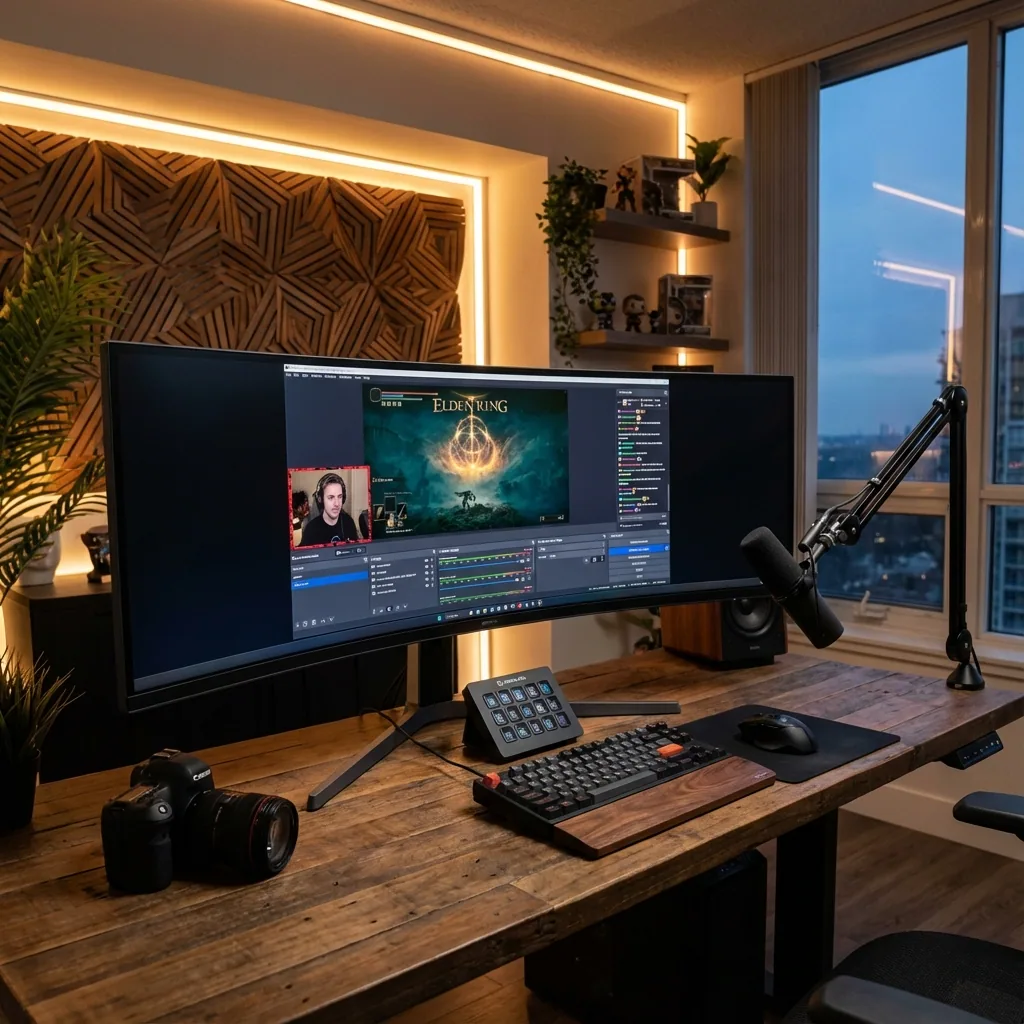
Quick answer: On one monitor, set OBS's Base (Canvas) to the area the game actually occupies, not the whole desktop, and the Output to 1920×1080 at 60 fps. Capture the game with Game Capture → Capture specific window (fall back to Window Capture, method "Modern (WGC)", for games that block the hook, such as CS2 and Destiny 2). Encode with NVENC H.264, CBR, 6,000 kbps, keyframe 2 s, preset P6, tuning High Quality, 2 B-frames for Twitch, or follow the YouTube and Kick tables below. Keep chat as a Custom Browser Dock or a pop-out window in a zone beside the game, cap the game's FPS so the encoder has headroom, and leave Windows Game Mode on. Everything else on this page is the detail behind those lines. For the layout question (where chat, OBS and the game go on one screen) read how to stream with one monitor; this page is the settings reference.
Verified against the Twitch, YouTube, Kick, NVIDIA and OBS documentation on 28 October 2026 (OBS Studio 33.0). Numbers that only come from community threads are marked as such.
1. Canvas and output per monitor
The one rule that matters on a single monitor: the canvas is the game area, not the monitor. If chat and OBS sit beside the game on the same screen, a full-desktop canvas puts them on stream. Capture the game window or the game's own display, and size the canvas to it.
| Your monitor | Game area (what you capture) | Base (Canvas) | Output (Scaled) | Notes |
|---|---|---|---|---|
| 1920×1080 | Game at 1600×900 in a zone, chat beside it | 1600×900 | 1600×900 or 1280×720 | Tight. Many one-monitor 1080p streamers accept a 900p game to keep chat visible. |
| 2560×1440 | Game at 1920×1080 centered | 1920×1080 | 1920×1080 | The easiest single-monitor setup: canvas = output, no scaling. |
| 3440×1440 (21:9) | Game at 2560×1440 centered, 440 px zones each side | 2560×1440 | 1920×1080 | Downscale filter Lanczos. Chat and OBS live in the two 440 px columns. |
| 3440×1440, full ultrawide on stream | Whole game at 3440×1440 | 3440×1440 | 2560×1080 (21:9) | Viewers on 16:9 players see bars. OBS and Twitch both say 16:9 is what players support best; only do this if your audience asked for it. |
| 5120×1440 (32:9) | Game at 2560×1440 centered, 1,280 px zones each side | 2560×1440 | 1920×1080 | The most comfortable one-monitor streaming layout there is. |
| 3840×2160 (4K) | Game at 2560×1440 or 1920×1080 | match the game | 1920×1080 | 4K output is YouTube-only (Twitch does not offer 4K). |
Never stretch. OBS's own aspect-ratio guide says to produce 16:9 content and fill leftover space with other content, or crop, but never squeeze a 21:9 or 32:9 picture into 16:9. If you capture a 3440×1440 game for a 16:9 stream, crop 440 px off each side (Alt-drag the source edges) or run the game at 2560×1440 in the first place.
Downscale filter: Lanczos (36 samples). NVIDIA's broadcasting guide recommends it; with a hardware encoder the extra GPU cost is negligible.
FPS: 60 for action games, 30 for slow games if your upload is tight. Match the stream FPS to a divisor of your game's frame rate cap.
2. Which capture source
| Source | Use it when | Known limits |
|---|---|---|
| Game Capture → Capture specific window | Default for most games | Some anti-cheat games block the hook (CS2, Destiny 2): use Window Capture. Some games need OBS run as administrator. |
| Game Capture → Capture any fullscreen application | Two-PC or two-monitor setups | On one monitor it is a trap: when you switch away from an exclusive-fullscreen game it stops rendering and the preview goes blank (OBS knowledge base). |
| Window Capture → Modern (WGC) | Games that block Game Capture; borderless games | Since OBS 33 the methods are named "Modern (WGC)" and "Legacy (BitBlt)". WGC needs Windows 10 1903 or later. |
| Display Capture + crop | Last resort | Captures everything on that display, including chat; crop to the game area with Alt-drag or Edit Transform (Ctrl+E). |
If the game runs on its own virtual monitor (what Staged does), add a Display Capture of that virtual display. It contains only the game, so there is nothing to crop and chat can never leak on stream. The canvas becomes the virtual display's resolution.
3. Encoder and bitrate by platform (2026)
Twitch
- Standard: H.264, CBR 6,000 kbps for 1080p60 (4,500 for 1080p30 or 720p60), keyframe interval 2 s, audio AAC up to 160 kbps. These are Twitch's published recommendations; Twitch does not publish a hard ingest cap, and the "8,000 works" figure you will read on forums is not documented.
- Enhanced Broadcasting (any streamer, OBS 30.2 or newer, Windows): OBS sends several renditions itself. Twitch sizes the total between 1.5 and 10.5 Mbps, top track up to 1080p60, and recommends canvas and output both at 1920×1080 or 1280×720. Use it if you are not guaranteed transcodes (non-partners get them "based on resource availability").
- 2K (1440p) streaming: Affiliates and Partners only, OBS 32.0 or newer, canvas and output at least 2560×1440, HEVC via Enhanced Broadcasting, upload of 20 Mbps (9 Mbps if Twitch adds server-side transcodes), NVIDIA RTX 20-series or newer, AMD RX 6000 or newer, Intel Arc A580 or newer. Twitch's own words: "We do not offer 4k or AV1 streaming at this time."
- Codecs: H.264 always; HEVC only through Enhanced Broadcasting / 2K; no AV1.
YouTube Live
YouTube publishes minimum and recommended bitrates (H.264 / AV1+HEVC):
| Resolution | H.264 min / recommended | AV1 or HEVC min / recommended |
|---|---|---|
| 1080p60 | 6 / 17 Mbps | 4 / 12 Mbps |
| 1440p60 | 8 / 34 Mbps | 6 / 24 Mbps |
| 2160p60 | 14 / 50 Mbps | 10 / 35 Mbps |
Audio 128 kbps stereo AAC, keyframe 2 s (max 4), CBR, 2 B-frames. NVIDIA recommends NVENC AV1 on RTX 40-series and newer for YouTube, HEVC otherwise, H.264 for Twitch. HDR streams must be HEVC.
Kick
Maximum 8,000 kbps, CBR, 1920×1080, 60 fps, H.264 only (Kick states it does not support H.265), stereo 48 kHz audio. Kick's own OBS table: x264 veryfast / main / zerolatency, or NVENC and AMD at P6 Slower, Tuning Ultra Low Latency, single pass, profile main, keyframe 2 s.
Encoder settings that are actually documented
NVIDIA NVENC (NVIDIA broadcasting guide, January 2025): Rate control CBR, keyframe 2 s, Preset P6 Slower, Tuning High Quality, Multipass Two Passes (Quarter Resolution), Profile High, Look-ahead on (turn it off if the GPU is near 100 %), Psycho Visual Tuning on, Max B-frames 4 (2 if look-ahead is off). Drop one preset step if you run several encodes at once (recording + Enhanced Broadcasting). In OBS 31 and newer, "Adaptive Quantization" is the new name for Psycho Visual Tuning, and OBS warns that the "Ultra High Quality" tuning is not meant for gaming content. Twitch's simpler spec is Preset Quality with 2 B-frames; either is fine.
x264 (CPU): Twitch allows veryfast to medium; presets slower than medium have diminishing returns (OBS blog). On a single gaming PC use veryfast, Profile High, and only go to faster/medium if you have 8 or more cores to spare while the game runs.
AMD AMF and Intel QSV: neither AMD nor Intel nor OBS publishes a streaming preset table. OBS 32 updated the AMD defaults; start with Quality preset, CBR, 2 B-frames, keyframe 2 s, and test a recording.
4. Audio
- Sample rate 48 kHz in OBS (Settings → Audio); Twitch caps audio at 160 kbps, YouTube wants 128 kbps stereo, Kick stereo 48 kHz.
- Application Audio Capture (OBS 28 and newer, Windows 10 2004 or newer): add it per app to split game audio from Discord, so you can mute Discord on stream without muting it for yourself. For games whose window title changes, match by executable.
- Game Capture and Window Capture also have a "Capture Audio (BETA)" checkbox that grabs that one app's audio.
- Put a noise-suppression filter (RNNoise or NVIDIA Broadcast) on the mic: on a one-monitor desk the PC usually sits closer to it.
5. Chat, docks and scenes on one monitor
- Custom Browser Dock: View → Docks → Custom Browser Docks, paste your Twitch pop-out chat URL (Twitch → chat settings → Pop Out Chat). The dock can be popped out of the OBS window and placed in a zone beside the game. Note: popped-out docks are reported to lose focus or disappear behind games in community threads; keep OBS visible in its own zone rather than behind the game.
- Streamlabs Desktop Game Overlay (Settings → Game Overlay, hotkey-driven) shows chat and events over the game, "works best in borderless window mode" by Streamlabs' own description, and stays invisible to viewers only if you use Game Capture.
- Twitch itself has no in-game chat overlay; Twitch Studio was discontinued in May 2024. StreamElements' chat overlay is a viewer-facing widget, not something you read.
- Scenes to prepare: Gameplay (game + cam + alerts), Starting Soon, BRB, Just Chatting (cam only). Bind scene switches to hotkeys or a Stream Deck so you never have to click into OBS mid-game.
- Limit preview FPS (Settings → Video → or right-click the preview) to 30 or lower when the OBS window is visible in a side zone; you watch the game, not the preview.
6. Performance settings
- Cap the game's FPS (in-game limiter or V-Sync) so the GPU is not pinned at 100 %. OBS's encoding-performance guide and NVIDIA both list this first: above roughly 95 % GPU load Windows starts to deprioritise OBS and you get "encoding overloaded".
- Windows Game Mode: on. OBS's own troubleshooting page says to leave it on (Windows 10 1809 and newer). Game Bar / Game DVR: off, because background recording takes an NVENC session.
- Hardware-accelerated GPU scheduling (HAGS): NVIDIA recommends on; OBS developers have said HAGS "just breaks things outside of OBS' control" when encoding stalls, while DLSS Frame Generation on RTX 40 needs it. Try on first; switch off if you see encoder stalls.
- Run OBS as administrator so it gets GPU priority over the game (OBS knowledge base; also fixes some Game Capture hooks).
- NVENC cost: NVIDIA does not publish a flat "costs X %" number; its figure is that NVENC gives up to 48 % higher game FPS than x264 fast and 27 % higher than x264 veryfast in battle-royale tests. Twitch's guidance is that GPU encoding "should not significantly affect gaming performance". Our own measurements are about Staged, not OBS: with the game rendering on its own virtual monitor at a lower resolution than the panel, we measured up to 2× FPS in a GPU-bound A/B, full 144 Hz capture frame-for-frame and under 0.2 ms of processing overhead; see the lab page.
7. Copy-paste: 3440×1440 monitor, 1080p60 Twitch stream
Video
  Base (Canvas):   2560x1440   (the centered Game Stage; the 440 px side zones hold chat and OBS)
  Output (Scaled): 1920x1080
  Downscale:       Lanczos (36 samples)
  FPS:             60

Output → Streaming
  Encoder:         NVIDIA NVENC H.264
  Rate control:    CBR
  Bitrate:         6000 kbps
  Keyframe:        2 s
  Preset:          P6 Slower
  Tuning:          High Quality
  Multipass:       Two Passes (Quarter Resolution)
  Profile:         High
  Look-ahead:      On (off if GPU > 95 %)
  Psycho Visual:   On  (OBS 31+: Adaptive Quantization)
  Max B-frames:    4   (2 with look-ahead off)

Audio
  Sample rate:     48 kHz
  Track 1:         160 kbps AAC (Twitch max)

Sources (Gameplay scene)
  Game Capture → Capture specific window → the game
  (CS2 / Destiny 2: Window Capture, Modern (WGC))
  Application Audio Capture → Discord (own track, muted on stream if you like)
For Kick, change the bitrate to 8,000 kbps and the tuning to Ultra Low Latency; for YouTube 1080p60, raise to 12–17 Mbps and prefer NVENC AV1 or HEVC if your GPU has it.
Frequently asked questions
What OBS canvas resolution should I use with one monitor?
The resolution of the game area, not the monitor. On a 3440×1440 ultrawide with the game centered at 2560×1440, the canvas is 2560×1440 and the output 1920×1080; on a 2560×1440 monitor with the game at 1920×1080, canvas and output are both 1920×1080. A full-desktop canvas would put your chat and OBS window on stream.
What bitrate should I stream at in 2026?
Twitch: 6,000 kbps CBR for 1080p60 (its published recommendation; no higher cap is documented), or Enhanced Broadcasting with 1.5–10.5 Mbps total; 1440p HEVC for Affiliates and Partners needs 20 Mbps upload. YouTube: 17 Mbps recommended for 1080p60 H.264, 12 Mbps with AV1 or HEVC. Kick: maximum 8,000 kbps, H.264 only.
Which NVENC preset is best for streaming?
NVIDIA's own guide: P6 Slower, Tuning High Quality, two-pass quarter resolution, look-ahead and Psycho Visual Tuning on, 4 B-frames. Twitch's simpler recommendation is Preset Quality with 2 B-frames. If you run a recording and a stream at once, step down one preset.
Why does my OBS preview go black when I alt-tab on one monitor?
Because "Capture any fullscreen application" follows the fullscreen game, and an exclusive-fullscreen game stops rendering when it loses focus. Use "Capture specific window" instead, or run the game on its own virtual monitor so it never loses its display when you click something else.
Can I stream 1440p to Twitch?
Only as an Affiliate or Partner, with OBS 32 or newer, Enhanced Broadcasting, HEVC, a canvas and output of at least 2560×1440 and 20 Mbps upload (9 Mbps if Twitch adds transcodes). Twitch offers no 4K and no AV1.
How do I keep Discord audio off my stream?
Add an Application Audio Capture source for Discord on its own audio track and leave that track out of the stream mix. It needs OBS 28 or newer on Windows 10 2004 or newer.
Does streaming on one monitor cost game FPS?
Encoding costs the same whether you have one monitor or two; what differs is how you keep chat visible. Borderless windowed mode adds compositor overhead; a virtual monitor keeps the game in a native-fullscreen-class path. Staged measured under 0.2 ms processing overhead, direct hardware scanout and up to 2× FPS in a GPU-bound A/B when the game renders at a lower resolution than the panel.
Sources
- Twitch: Broadcasting guidelines, Enhanced Broadcasting, Stream quality and 2K, Transcoding options, Pop Out Chat.
- YouTube: Live encoder settings and bitrates.
- Kick: How to stream on Kick, OBS not connecting / limits.
- OBS Studio: 33.0 release, Game Capture, Game Capture troubleshooting, Window Capture, Aspect ratio guide, Advanced NVENC options, Application Audio Capture, Encoding performance, Windows gaming features, Streaming with x264.
- NVIDIA: Broadcasting guide, NVENC and OBS performance.
- Streamlabs: Game Overlay for single monitors.
- Staged: measured performance lab.