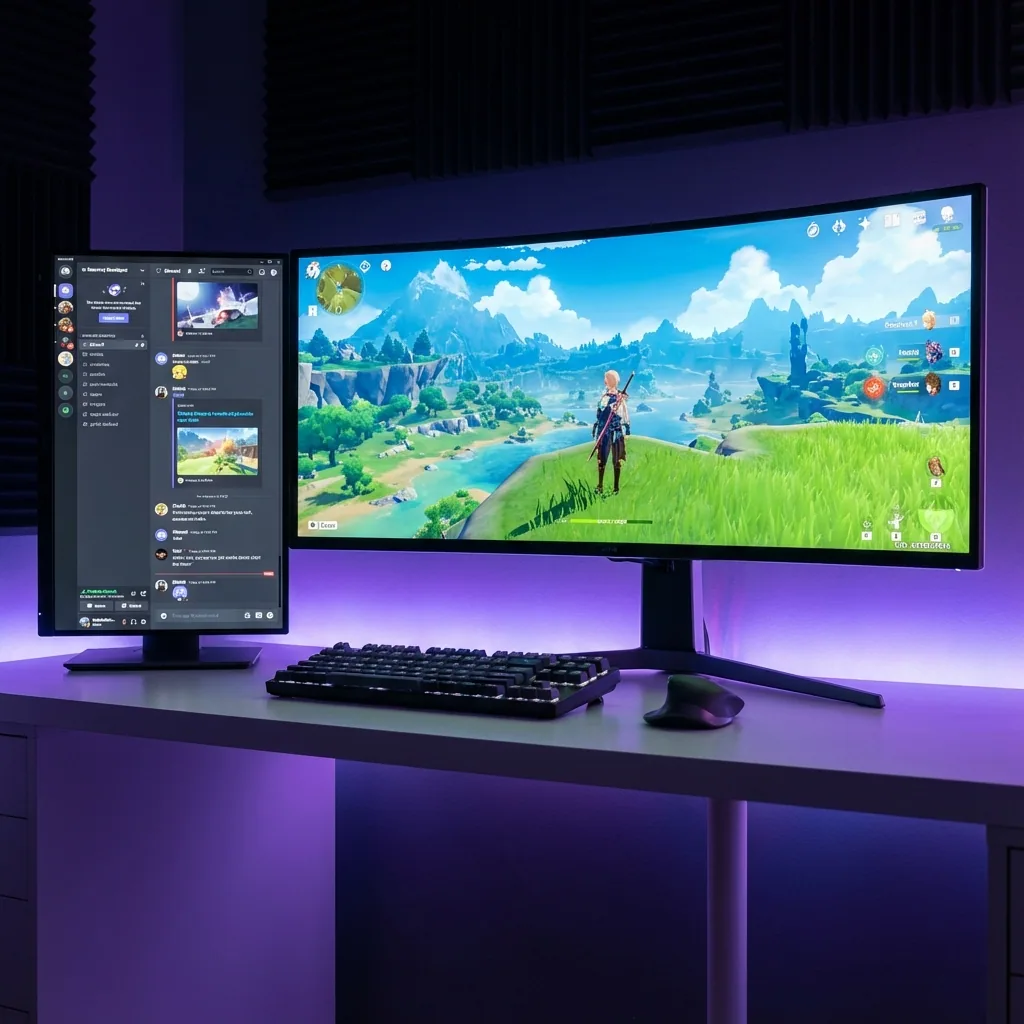
Quick answer: On one monitor you have five options, and which one works depends on the game's display mode. Browser picture-in-picture (Chrome: media-control button or right-click the video twice → Picture in picture; Edge: hover button; Firefox: Ctrl+Shift+]) floats a small always-on-top video over the desktop and over borderless games, but vanishes under a game in true exclusive fullscreen. Edge for Game Bar (Win+G → Edge widget, pin, set transparency) and the Steam overlay's pinned browser (Shift+Tab) do the same from inside an overlay. YouTube's own Miniplayer (key i) only works inside the YouTube tab. If you want the video beside the game instead of on top of it, at any size, while the game keeps a native-fullscreen-class path, run the game on a virtual monitor with Staged and put YouTube in a zone next to it. Stutter while playing is almost always the browser's GPU video decode fighting the game: cap the game's FPS, keep the video at 1080p or lower, and disable hardware acceleration in the browser if it persists.
This is the practical guide for the question "how do I see YouTube while I play on a single screen" on Windows 11. The sister article explains why picture-in-picture is too small for a guide or a stream; this one walks through every method, what breaks it, and the fixes.
First: why the video disappears when the game goes fullscreen
A window can only float over a game if Windows is still compositing the screen. In borderless windowed mode and under Windows' "fullscreen optimizations", the game is a window like any other, so a topmost video window shows on top. In true exclusive fullscreen the game owns the display (Microsoft's DirectX team: "complete ownership of the display"), the Desktop Window Manager steps aside, and nothing can be drawn over it. Overlays like the Game Bar work because Windows hands the display back to the compositor when they open; a browser PiP window gets no such favour.
So the rule for every method below: borderless or "fullscreen optimizations" games: works. Exclusive fullscreen: hidden. If your game only offers exclusive fullscreen, jump to method 5.
Method 1: YouTube's Miniplayer (inside YouTube only)
Press i on any video, or use the Miniplayer button / right-click menu. The video shrinks to a corner of the YouTube tab, draggable to any corner and resizable, closed with Esc. Not available for Shorts or made-for-kids videos.
Limit: it stays inside the YouTube tab. Switch to the game and it is gone. The Miniplayer is for browsing YouTube while a video plays, not for gaming. (YouTube's 2025 player-redesign test removed the button for some users; the i key and the right-click menu still work.)
Method 2: Browser picture-in-picture (the standard answer)
| Browser | How to open | Shortcut | Notes |
|---|---|---|---|
| Chrome | Toolbar media control → "Enter picture-in-picture", or right-click the video twice (the first right-click shows YouTube's menu) → "Picture in picture" | Alt+P only with Google's Picture-in-Picture extension | Chrome 134+ can pop the video out automatically when you switch tabs ("Automatic picture-in-picture", site setting); YouTube supports it since April 2025. |
| Microsoft Edge | Hover the video → "Picture in Picture" button, or toolbar "Control music and videos" → "Enter picture in picture" | — | Edge 137+ adds hover controls (play/pause, ±10 s, seek, mute). Toggle the in-frame button at edge://settings/content/PictureInPicture. |
| Firefox | Hover the video → "Pop out this video" toggle | Ctrl+Shift+] | Shortcut customisable since Firefox 149. |
The PiP window is always on top, movable and resizable. It is not click-through: clicking it takes focus from the game, and a game set to pause or minimize on focus loss will do exactly that. Put it over a part of the screen the game does not use (a corner, the minimap's opposite side) and remember it only shows over borderless games.
Extensions: Google's "Picture-in-Picture Extension" is a one-click wrapper around the same native PiP (Alt+P). "Floating for YouTube" was the go-to always-on-top player for years but has not been updated since 2018. "Enhancer for YouTube" has a pop-up player with no always-on-top. None of them get past exclusive fullscreen.
Method 3: Edge for Game Bar and the Steam overlay browser
Edge for Game Bar (formerly Game Assist, out of beta January 2025): press Win+G, open the Edge widget, navigate to YouTube, then pin the widget above the game, set its transparency, and choose whether clicks pass through to the game. The fullscreen button sizes the widget to the video. Needs Windows 11 22H2 or newer and Edge 137 or newer. Because the Game Bar is composited by Windows, it shows over borderless and "fullscreen optimizations" games; a game that truly owns the display still hides it.
Steam overlay: Shift+Tab → web browser → YouTube → pin the window over the game with adjustable opacity (Steam client since June 2023). Steam-launched games only; the pinned window is view-only until you reopen the overlay.
Both are good for watching. Neither is good for a guide you want to scroll, a chat you want to type in, or a video you want at a real size.
Method 4: Pin any window with PowerToys Always On Top
Win+Ctrl+T pins the active window (a small browser window with YouTube, for example) above other windows. PowerToys has an option not to activate during Game Mode, and Microsoft's docs warn it cannot guarantee staying above other topmost windows. Same fullscreen rule as everything else: borderless yes, exclusive fullscreen no. The advantage over PiP: it is a full browser window, so you can scroll comments or switch videos without leaving the pin.
Method 5: Put the video beside the game on a virtual monitor
Every method above floats a window over the game and dies in exclusive fullscreen. Staged does the opposite: the game gets its own virtual monitor and runs fullscreen there, at the resolution you choose; Staged shows that monitor as a movable window (the Game Stage) on your real screen, and YouTube, a wiki, Discord or chat sit in zones beside it, at any size you like.
- The game never loses its display, so clicking the video does not minimize or pause it, and there is no alt-tab.
- Measured on our rig: direct hardware scanout with zero compositor overhead, the stage shows the same frame as the game (10/10 samples), under 0.2 ms processing overhead. Because the game renders fewer pixels than your panel (1080p on a 1440p or 4K screen), the GPU has more headroom for the video decode, and in a GPU-bound A/B we measured up to 2× FPS. Details on the lab page.
- No hooks, no injection: Staged never touches the game process.
Setup: install Staged, create a Game Stage zone, add a zone for the browser, assign YouTube to it, launch the game from Staged. Save the layout as a profile and it comes back with one hotkey.
YouTube stutters or drops quality while the game runs: fixes
The video and the game share one GPU. The browser decodes YouTube with the GPU's video engine (a few percent of load) and composites the window; a game pinned at 100 % GPU starves it.
- Cap the game's FPS (in-game limiter, V-Sync or the driver). This is the fix that works most often.
- Keep the video at 1080p or 720p and turn off 60 fps if the game is heavy; the YouTube quality drop is YouTube's adaptive streaming reacting to the stalls, not your internet.
- Browser hardware acceleration: try turning it off (Chrome: Settings → System) if the video stutters only while the game runs; on some systems the software decoder is smoother next to a game. Try it both ways.
- Match refresh rates: a 60 fps video on a 144 Hz desktop with a 144 fps game paces better when the game is capped at 120 or 72.
- Discord overlay is a common culprit for stutter in the video window; disable it to test.
- Audio drops: set Windows to the same output device for the browser and the game, and disable "exclusive mode" on the device if one app keeps grabbing it.
Which method should you use?
| You want | Use |
|---|---|
| A small video over a borderless game, no install | Browser PiP (Chrome/Edge/Firefox) |
| A transparent, click-through video over a Windows 11 game | Edge for Game Bar |
| A video over a Steam game you only watch | Steam overlay, pinned |
| A full browser window pinned over a borderless game | PowerToys Always On Top |
| The video beside the game at any size, game in exclusive fullscreen on its own monitor, no FPS penalty from borderless | Staged |
Frequently asked questions
How do I watch YouTube while playing a game on one monitor?
Run the game in borderless windowed mode and open YouTube in a browser picture-in-picture window (Chrome: media-control button; Edge: hover button; Firefox: Ctrl+Shift+]), or pin a browser with Edge for Game Bar (Win+G) or the Steam overlay. If the game only runs in exclusive fullscreen, give it a virtual monitor with Staged and put YouTube in a zone beside it.
Why does the YouTube picture-in-picture window disappear when I start my game?
Because the game is in exclusive fullscreen and owns the display; Windows stops compositing, so no topmost window can be drawn. Switch the game to borderless windowed or fullscreen windowed, or run it on a virtual monitor.
Does the YouTube Miniplayer work outside the browser tab?
No. The Miniplayer (key i) only docks inside the YouTube tab. For a window over other apps use the browser's picture-in-picture feature.
Can I click through the video to the game?
Browser PiP windows are not click-through. Edge for Game Bar has a click-through option for its pinned widget on Windows 11. With Staged the video sits beside the game, so there is nothing to click through.
Why does YouTube stutter while I play?
The game is taking the whole GPU, including the video decode engine the browser needs. Cap the game's FPS, lower the video to 1080p or 720p, try toggling browser hardware acceleration, and disable the Discord overlay to test.
Is there a Game Bar widget for YouTube?
Not an official one. The supported route is Edge for Game Bar (Win+G → Edge widget) with YouTube open in it; it can be pinned, made transparent and set to pass clicks through. Third-party YouTube widgets exist in the Game Bar widget store but are not maintained by Microsoft or YouTube.
Does watching YouTube while gaming cost FPS?
A little: the browser uses the GPU's video decoder and compositing. Borderless mode (needed for PiP) costs more than the video itself in most games. With the game on a virtual monitor at a lower render resolution than the panel, Staged measured up to 2× FPS in a GPU-bound A/B, which more than covers the video's share.
Sources
- YouTube Help: Miniplayer, keyboard shortcuts, Playables.
- Google Chrome Help: Picture-in-picture; Chrome Developers: Automatic picture-in-picture.
- Microsoft: Edge for Game Bar, Edge PiP controls, June 2025, PowerToys Always On Top, Demystifying fullscreen optimizations, DXGI flip model.
- Mozilla: Picture-in-Picture in Firefox.
- Valve: Steam overlay update, June 2023.
- Staged: measured performance lab.