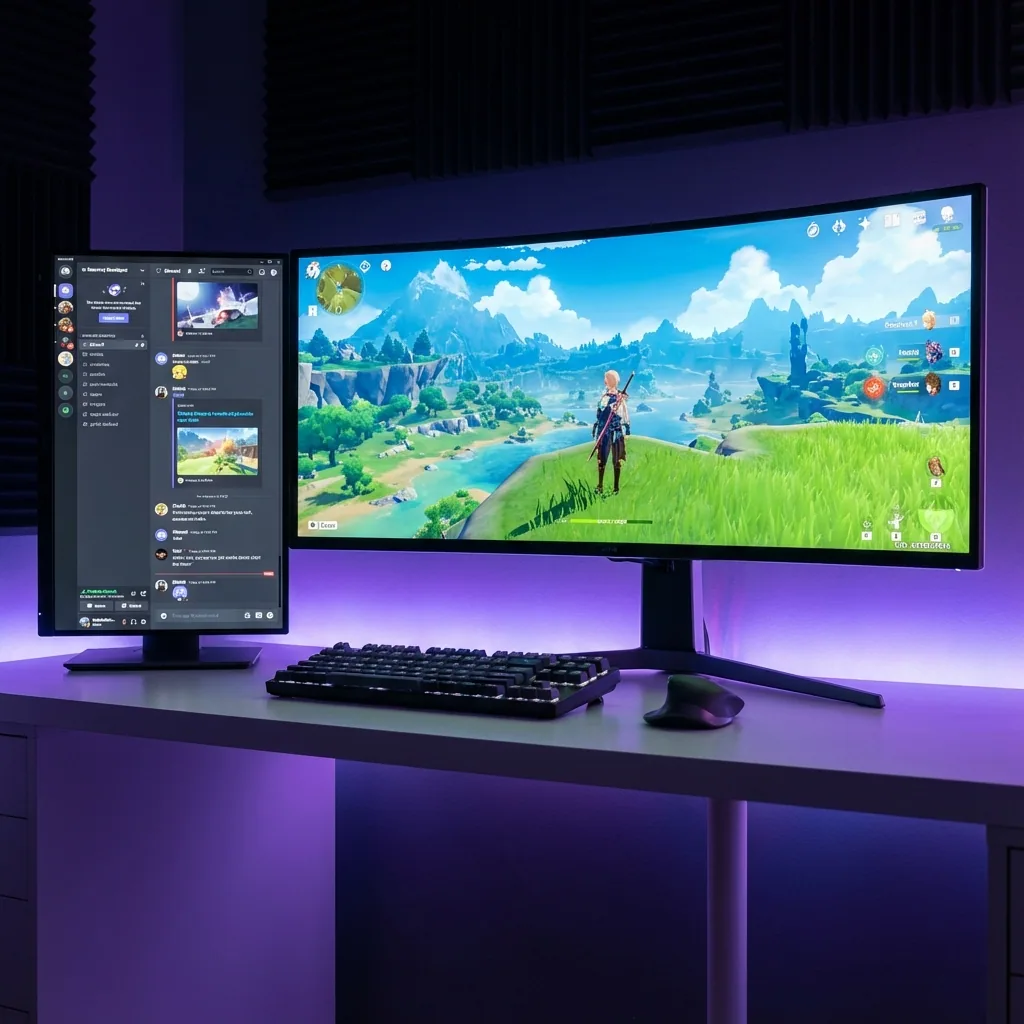
Quick answer: Since the rollout that began on 15 April 2024, Discord's new Game Overlay only shows over games running in borderless windowed (windowed fullscreen) or windowed mode. It does not work in true exclusive fullscreen, and Discord's own support page says so. You have three ways out. (1) Switch the game's display mode to borderless; that is what guides mean by "leave fullscreen", and it costs a little FPS and input latency. (2) Turn on Enable legacy overlay under User Settings → Game Overlay; that is the old hook-based overlay, flagged for removal, and the usual source of crashes and anti-cheat friction. (3) If you do not want to leave fullscreen at all, run the game on a virtual monitor with Staged and put the Discord window itself in a zone beside the game. Then you do not need an overlay in the first place.
If you searched for "discord overlay not showing fullscreen" or "discord overlay not working", you are almost certainly in one of these situations: nothing from Discord appears while you play; you get the "Use Discord from the overlay while playing" toast and then nothing; or you are tired of dropping the game out of fullscreen every time you want the overlay. This article walks through the settings in the order that finds the problem fastest, explains which cases are by design, and shows how to keep fullscreen and still see Discord. The broader guide to every way of keeping Discord visible is in the sister article.
The cause first: since April 2024 the Discord overlay is a separate window
Discord rebuilt the Game Overlay for stability and compatibility, rolling it out from 15 April 2024 (documented on the Discord support page "[Known Issue] Game Overlay"). Four things changed:
- The overlay is now enabled by default for every game.
- It works in windowed and borderless (windowed fullscreen) mode, but not in true fullscreen.
- It is hidden whenever the game window does not have focus.
- Sharing only the game window in a call does not capture the overlay; sharing the whole screen does.
The old overlay loaded a module called discord_hook into the game process and drew Discord's UI inside the game's own rendering. That is why it could show in exclusive fullscreen, and also why it only supported a limited list of games, caused crashes and lag, and needed care around anti-cheat. The new overlay never touches the game: it is simply a topmost window. Stable, but it can only appear when Windows is allowed to draw another window over the game, which means borderless or windowed mode.
Depending on your Discord build, the old path still exists as a switch: User Settings → Game Overlay → Enable legacy overlay. Discord's page notes that "this option may be removed in the future".
Why nothing can be drawn over exclusive fullscreen
On Windows, the Desktop Window Manager (DWM) is what shows other windows on top of a game. A borderless game looks fullscreen but is an ordinary window to Windows, so a topmost Discord window is drawn above it. In exclusive fullscreen the game owns the display and the DWM steps aside. In that state there is no mechanism to put another window on top, whether it is Discord, a browser picture-in-picture box or anything else. The old overlay got around that only by living inside the game's render path.
Windows 11 has a switch at Settings → System → Display → Graphics → Default settings called Optimizations for windowed games. It moves DirectX 10 and 11 games running in windowed or borderless mode from the legacy blt presentation model to the flip model, which shortens frame latency (Microsoft's description). If you play borderless, turn it on first.
The "Use Discord from the overlay while playing" toast and the small frame
Right after a game starts, you may see a small rectangle flash in a corner and get a Discord notification telling you to use Discord from the overlay while playing. That is Discord detecting the game and confirming the overlay is enabled for that game. The rectangle is the overlay's widget area; if you are not in a call it stays empty and fades.
- You want the overlay but nothing appears: make sure the game has focus and runs borderless, then go through the checklist below.
- The frame and toast are annoying: User Settings → Registered Games, click the monitor icon next to that game to turn its overlay off. To switch the overlay off everywhere, use the top toggle under User Settings → Game Overlay.
Settings checklist: when the overlay does not show, in this order
- The Game Overlay toggle. User Settings (cog, bottom left) → Game Overlay → the top switch Enable In-Game Overlay (older builds call it "Enable Overlay").
- The per-game toggle. User Settings → Registered Games: the monitor icon next to the game you are playing must be on. If the game is not listed, start it and use Add it! to register it manually.
- The game's display mode. In the game's graphics settings pick "Borderless", "Windowed Fullscreen", "Fullscreen Windowed" or whatever your game calls it. This is also the first step in Discord's own troubleshooting FAQ.
- Focus. The new overlay hides when the game window is not active. It will not show right after you clicked a browser or another app. Click the game, then check.
- The hotkey. Opening the overlay and its edit mode defaults to Shift + backtick (
Shift+`). On some keyboard layouts the backtick is awkward or not picked up by the game; rebind it under User Settings → Game Overlay → Toggle Overlay Lock. In edit mode you can drag every widget, and the pin icon decides whether a window shows in game (notifications, voice, video, activity, streams). If you dragged a widget off-screen, this is also where you reset it. - Match privilege levels. If the game runs as administrator (common with anti-cheat titles), fully quit Discord, start it with "Run as administrator", then start the game. A mismatch in privilege level is a common reason the overlay never appears over the game.
- Hardware acceleration. User Settings → Advanced (some builds: Appearance) → Hardware Acceleration off, restart Discord. Some setups misbehave with it off instead, so try both.
- Conflicts with other overlays. MSI Afterburner / RivaTuner, the NVIDIA app (formerly GeForce Experience) overlay, the Steam overlay and the Xbox Game Bar all try to draw over the game. Disable them one at a time to isolate the culprit.
- Only messages are missing. Notifications are not shown for muted servers or DMs, and not at all while Streamer Mode is on. Also check that Messages is enabled under User Settings → Game Overlay.
- Last resort: the legacy overlay. User Settings → Game Overlay → Enable legacy overlay. It does show in exclusive fullscreen, but it hooks into the game; if it causes lag or crashes, Discord itself recommends disabling the overlay for that game. Crash logs live at
%appdata%\discord\0.0.(highest number)\modules\discord_hook\hook. - Update or reinstall. Ctrl+R reloads Discord and applies pending updates. If that does not help, delete %AppData%\Discord and %LocalAppData%\Discord and reinstall from the official installer.
A note on anti-cheat games (VALORANT and friends)
Riot Vanguard, VALORANT's security software, includes a kernel-mode driver, and Riot states plainly that it can block things from loading on your machine. On games like this, an overlay that injects into the game process is the worst-fit approach. The new Discord overlay is a separate window that never touches the game, so the realistic recipe is run the game in a borderless-equivalent mode and match the privilege level of Discord and the game. If it still does not show, consider the next two options rather than forcing the legacy path.
"Leaving fullscreen" means switching to borderless, and here is the honest cost
What most guides call "leave fullscreen" is changing the game's display mode from exclusive fullscreen to borderless windowed. It is one setting: in-game Settings → Graphics (Video) → Display Mode (Screen Mode, Window Mode) → "Borderless", "Windowed Fullscreen" or similar. Some older games toggle between fullscreen and windowed with Alt+Enter. On Windows 11, turn on "Optimizations for windowed games" as described above. The mechanics of borderless mode are explained in our explainer.
The honest cost: borderless goes through the desktop compositor, so there is a small FPS and input-lag cost versus exclusive fullscreen. Our Cyberpunk 2077 measurement showed roughly a 10–15 % windowed penalty on our rig. In games with GPU headroom you will not notice; in competitive shooters some people do. The details are in borderless vs fullscreen. One more thing borderless does not change: a game that pauses when it loses focus will still pause. Only the game's own setting ("run in background" or similar) controls that.
See Discord without leaving fullscreen: the virtual-monitor option
The real reason you want the overlay is to see Discord without taking your eyes off the game, not to have a translucent UI painted over it. If you want that without leaving fullscreen, Staged gives the game its own virtual monitor, where it runs as a true fullscreen application, and shows that monitor as a window on your real screen (the Game Stage). The Discord window sits in a zone beside it, at whatever size you like. Discord is an ordinary, always-visible window, so you need no overlay and no hooks.
- The game keeps its own display, so clicking Discord does not minimize it and there is no Alt+Tab.
- No game hooks, no injection, no anti-cheat risk: Staged never touches the game process.
- Measured on our rig: direct hardware scanout on Windows 11 with zero compositor overhead, the stage shows the same frame as the game (sub-frame latency), under 0.2 ms processing overhead. In a GPU-bound A/B with the game rendering below panel resolution we measured up to 2× FPS. Details on the lab page.
- Limits, honestly: a virtual monitor fixes minimizing and focus stealing. An engine that pauses on lost focus still pauses until you change the game's own setting. Staged is a paid app sold on Steam.
Setup is four steps: install Staged, create a Game Stage zone, add a zone for Discord and assign it, launch the game from Staged. Save the layout as a profile and it comes back with one hotkey.
If you actually want to leave fullscreen in Discord itself
Sometimes "discord exit fullscreen" is about Discord's own window, not the game. When you are watching a friend's Go Live stream or screen share in fullscreen, press Esc or click the fullscreen button on the video again. The main Discord window is a normal maximized window; the title-bar buttons restore it.
Frequently asked questions
Why does the Discord overlay not show in my fullscreen game?
Because the Game Overlay introduced from April 2024 runs as a separate window on top of the game, so it only works in windowed and borderless (windowed fullscreen) mode. In exclusive fullscreen the game owns the display and nothing can be drawn over it. Discord documents this on its "[Known Issue] Game Overlay" page.
Can I use the Discord overlay without leaving fullscreen?
On Discord's side, the only route is User Settings → Game Overlay → Enable legacy overlay, which hooks into the game, is less stable and is flagged for removal. If you want to keep fullscreen and still see Discord, run the game on a virtual monitor with Staged and keep the Discord window in a zone beside it. No overlay is needed then.
What is the "Use Discord from the overlay while playing" notification?
It is Discord telling you it detected the game and that the overlay is enabled for it. The small rectangle that flashes after launch is the overlay's widget area. If you do not want it, turn off the monitor icon for that game under User Settings → Registered Games, or switch off the Game Overlay entirely.
Do I need to run Discord as administrator?
Only when the game itself runs as administrator, which is common with anti-cheat titles. Then start Discord as administrator too so both run at the same privilege level. If both run normally, it is not needed.
Shift + backtick does nothing. How do I open the overlay?
Rebind the key under User Settings → Game Overlay → Toggle Overlay Lock; some layouts and some games do not pass the backtick through. Also remember that the new overlay only shows while the game window is active, so click the game first.
Should hardware acceleration be on or off?
There is no universal answer. Toggle it under User Settings → Advanced (some builds: Appearance) → Hardware Acceleration, restart Discord, and keep whichever setting makes the overlay appear. A GPU driver update fixes some cases.
How much FPS do I lose in borderless mode?
It depends on the game and your GPU headroom, but there is a small FPS and input-lag cost versus exclusive fullscreen. Our Cyberpunk 2077 measurement showed roughly a 10–15 % windowed penalty on our rig. Windows 11's "Optimizations for windowed games" narrows the gap for DirectX 10 and 11 titles.
Keep fullscreen, put Discord next door
Exclusive fullscreen for the game, an ordinary window for Discord. Staged runs the game on a virtual monitor and places Discord beside it on a single monitor, so you can stop fighting overlay settings. Download Staged and check out the Steam page.
Sources
- Discord Support: Game Overlay 101, [Known Issue] Game Overlay (behaviour of the overlay rolled out from 15 April 2024, legacy overlay option).
- Microsoft Support: Optimizations for windowed games in Windows 11. Microsoft DirectX blog: Demystifying full-screen optimizations.
- Riot Games Support: What is Vanguard?.
- Staged: measured performance lab.